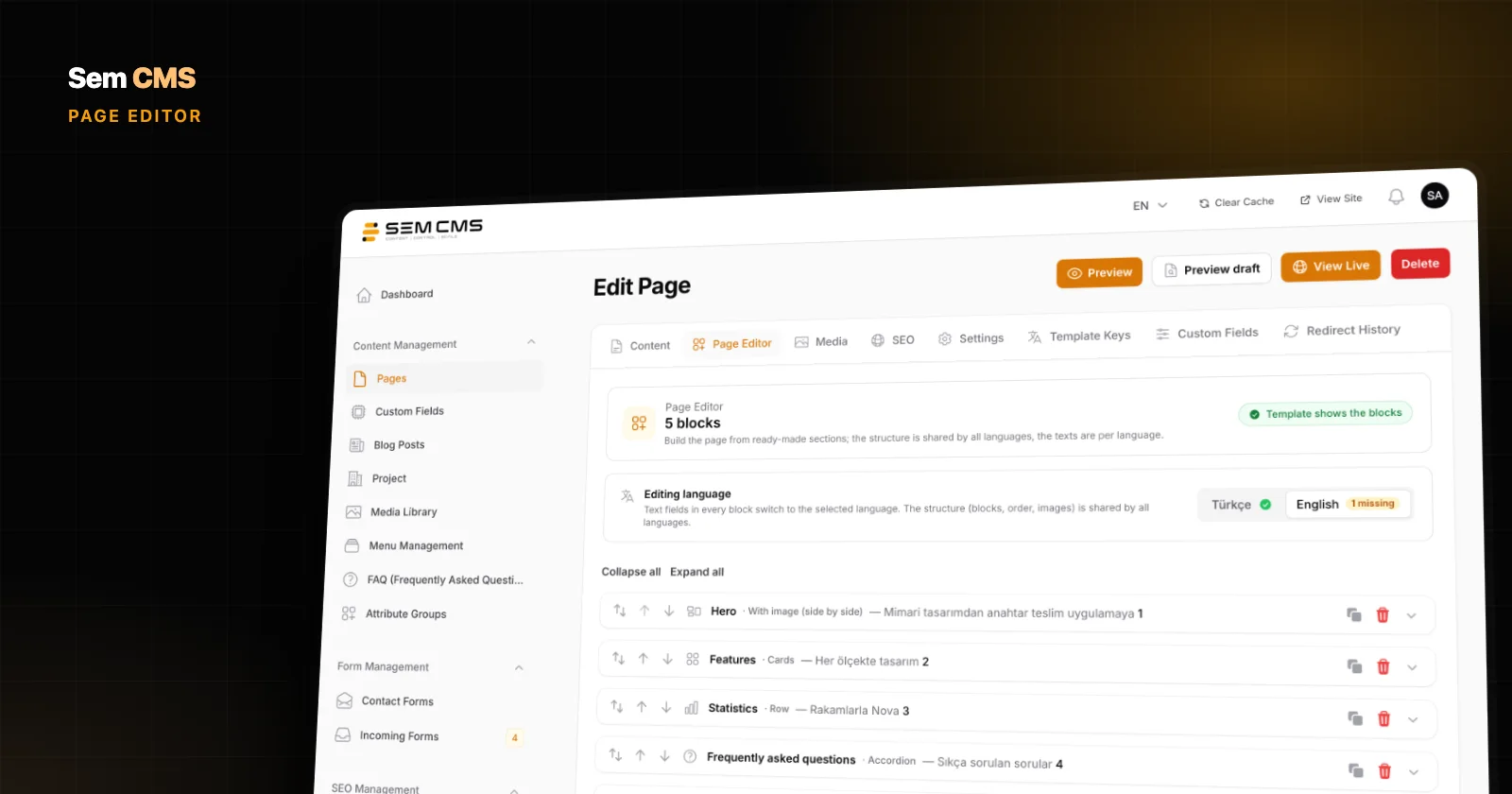
An architecture studio wants to show its projects. A hotel wants to show its rooms. A software company wants a page for every case study. Yet most content management systems only really understand two things: pages and blog posts. Everything else gets squeezed into blog categories, or a developer is hired to build a new module. The first route leaves you with a cluttered panel and meaningless URLs. The second costs time and budget every time something needs to change.
Sem CMS takes a different approach. You create your own custom content types for projects, services, team members or events right in the panel, without writing code. In this post we walk through what you can configure when you create a content type, and everything the system takes care of behind the scenes.
What is a custom content type, and why does it matter?
A content type is the blueprint for one kind of content on your site: the URL it lives under, whether it uses categories and tags, how it's listed, and how it appears in your sitemap and structured data. Blog is a content type. "Projects" should be one too.
When every kind of content has its own type, you get three things:
- A tidy panel: Editors don't hunt for projects among blog posts. Each type has its own menu.
- Meaningful URLs: Your projects live under
/projects/, not under/blog/. - The right SEO signals: Each type is presented to search engines with its own sitemap and structured data settings.
The basics: name, key and icon
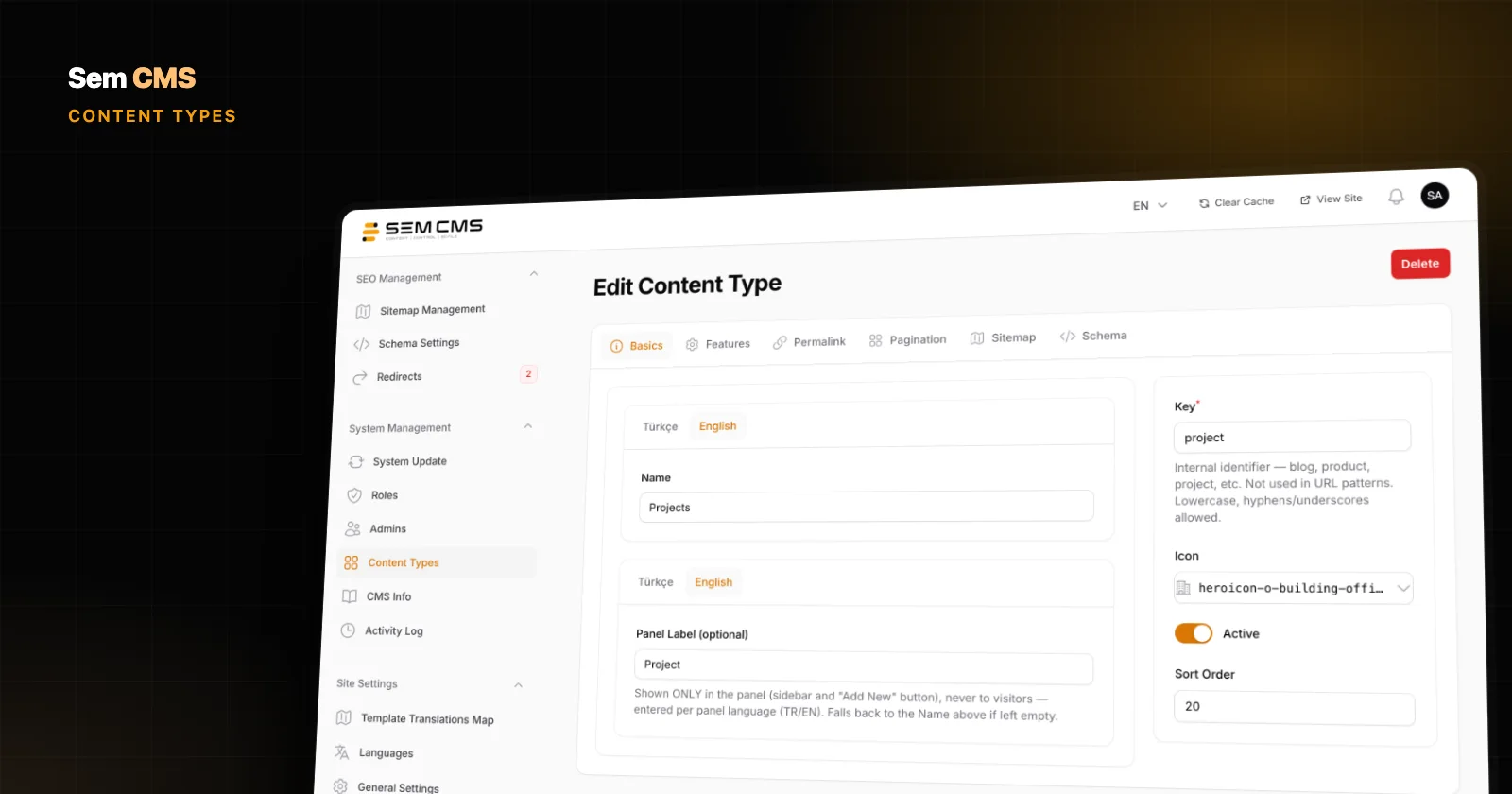
When you create a new type from the Content Types screen, the first tab covers the basics. The name is entered separately for each language, and it's what visitors see as the title of the listing page. Here you also set the label shown in the panel, the key the system uses, the menu icon, whether the type is active, and its sort order.
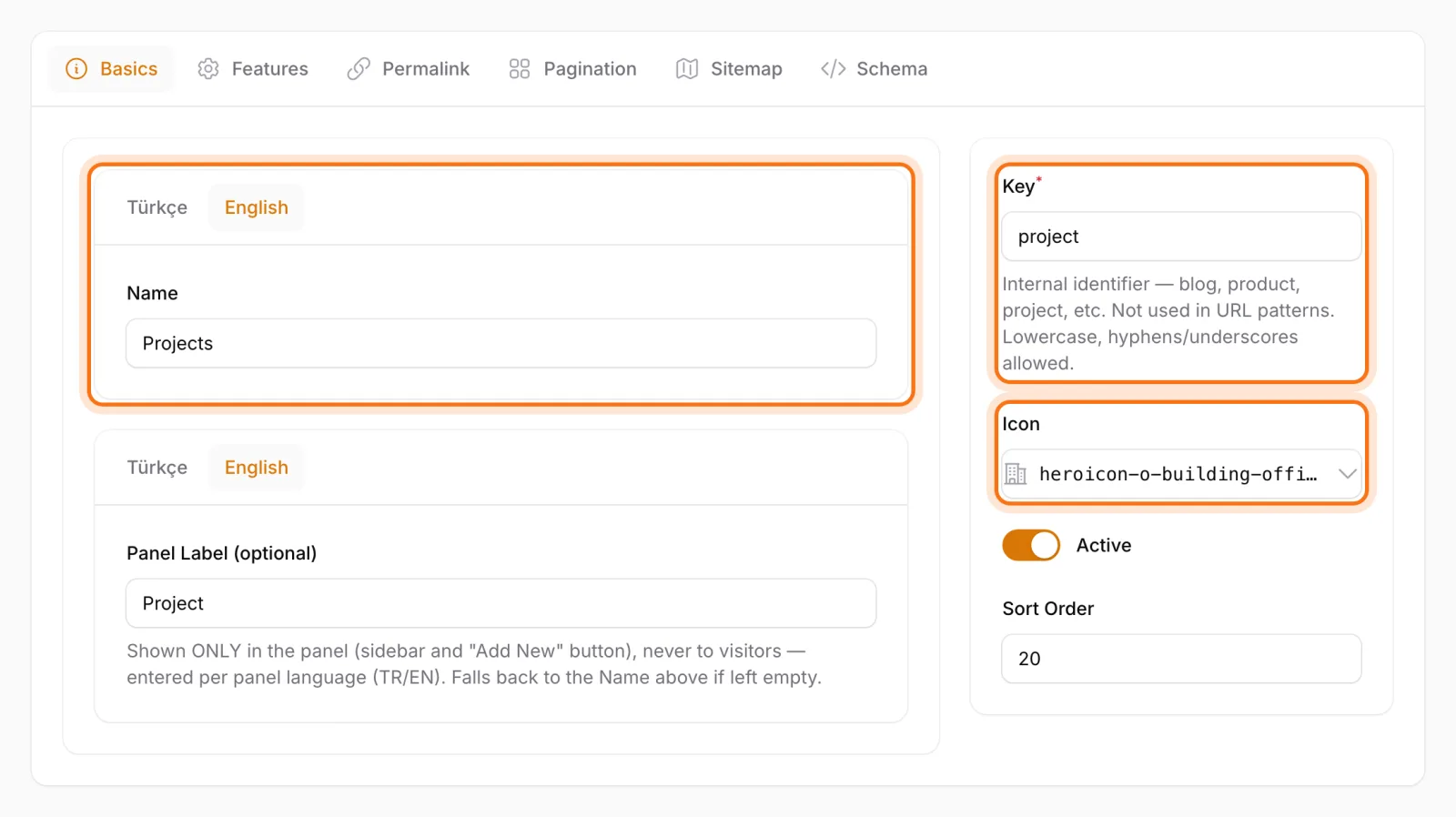
Four switches on the same screen define what the type can do: category support, tag support, listing page support and author page support. If your projects need categories but not tags, turn on categories and leave tags off. The panel doesn't fill up with fields nobody uses. With listing page support on, you pick the page where records are listed and the listing goes live at that page's address. Author page support adds pages that gather each author's items of this type.
A URL pattern for every language
On the Permalink tab you define the URL structure of the type for each language separately. English projects can live at /projects/{{ slug }} while Turkish ones live at /tr/projeler/{{ slug }}. The same flexibility applies to author, category, nested category and tag URLs.
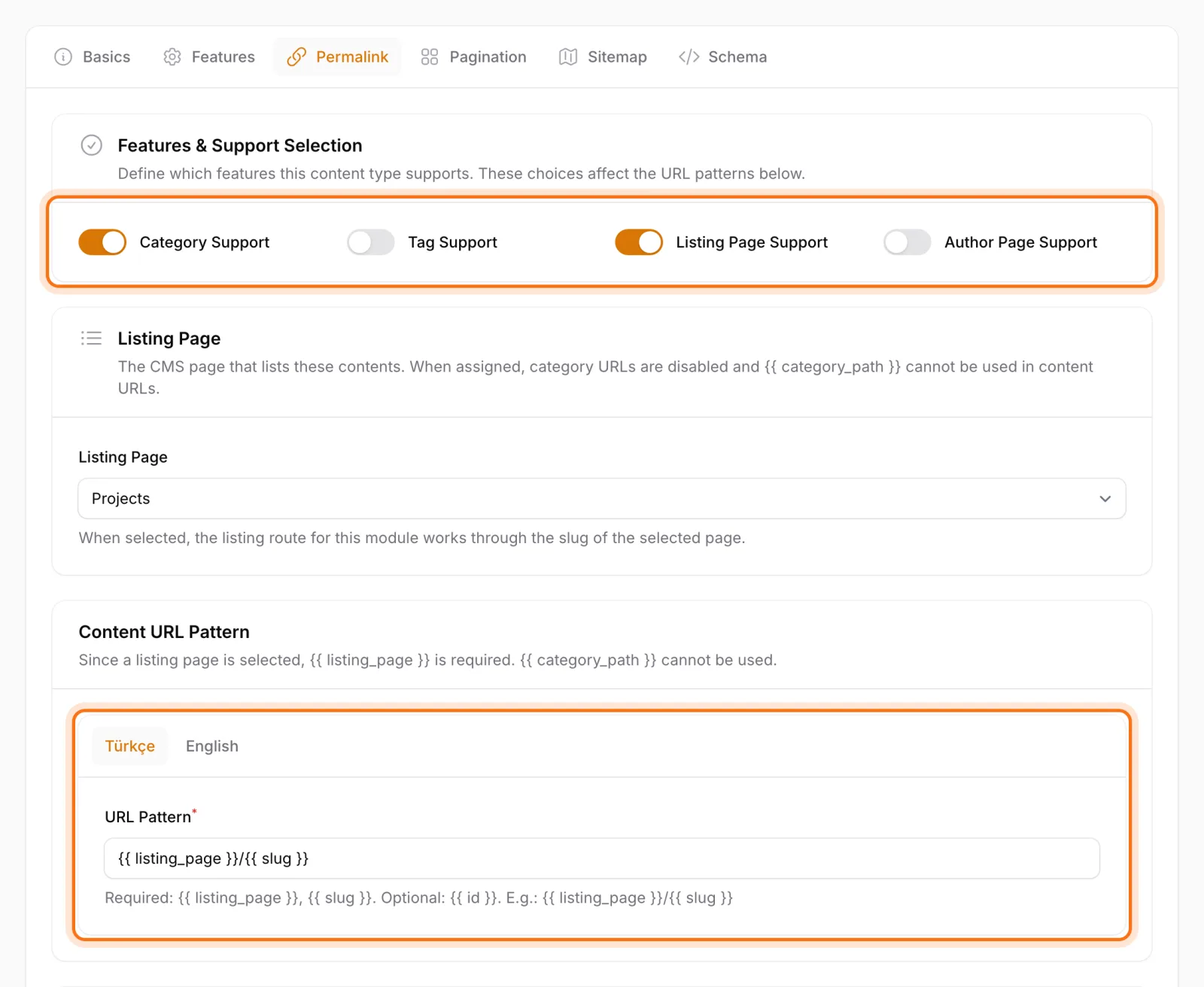
Every pattern must contain {{ slug }}. That one rule stops broken configurations, such as every project collapsing onto a single URL, before they're ever saved. We cover the SEO side of URL changes in our post on URL management and 301 redirects.
This is also where you pick the type's default templates, separately for the content detail page, content inside a category, the category page, the tag page and the author page. The options come from your active theme, so projects can use one design and blog posts another.
Pagination: classic, infinite scroll or off
How listing pages behave is decided per content type. The Pagination tab offers three options: classic numbered pages, infinite scroll, or everything on one page. You also set how many items appear per page.
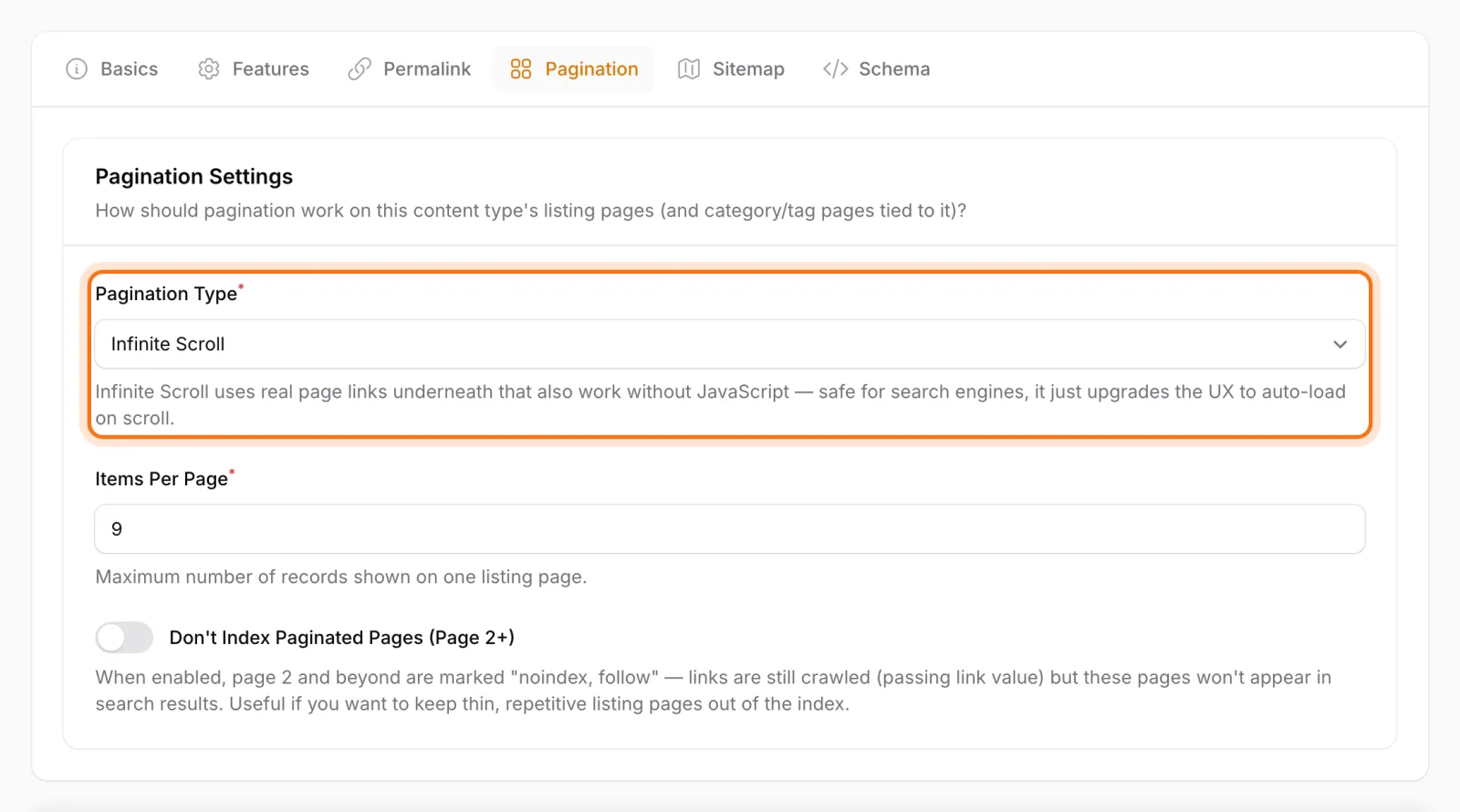
Infinite scroll uses real page links underneath, and those links work without JavaScript. Visitors keep scrolling to see more projects, while search engines reach every page through an ordinary link. The same tab has a switch to keep page 2 and beyond out of the index if you prefer.
Sitemap and structured data, per type
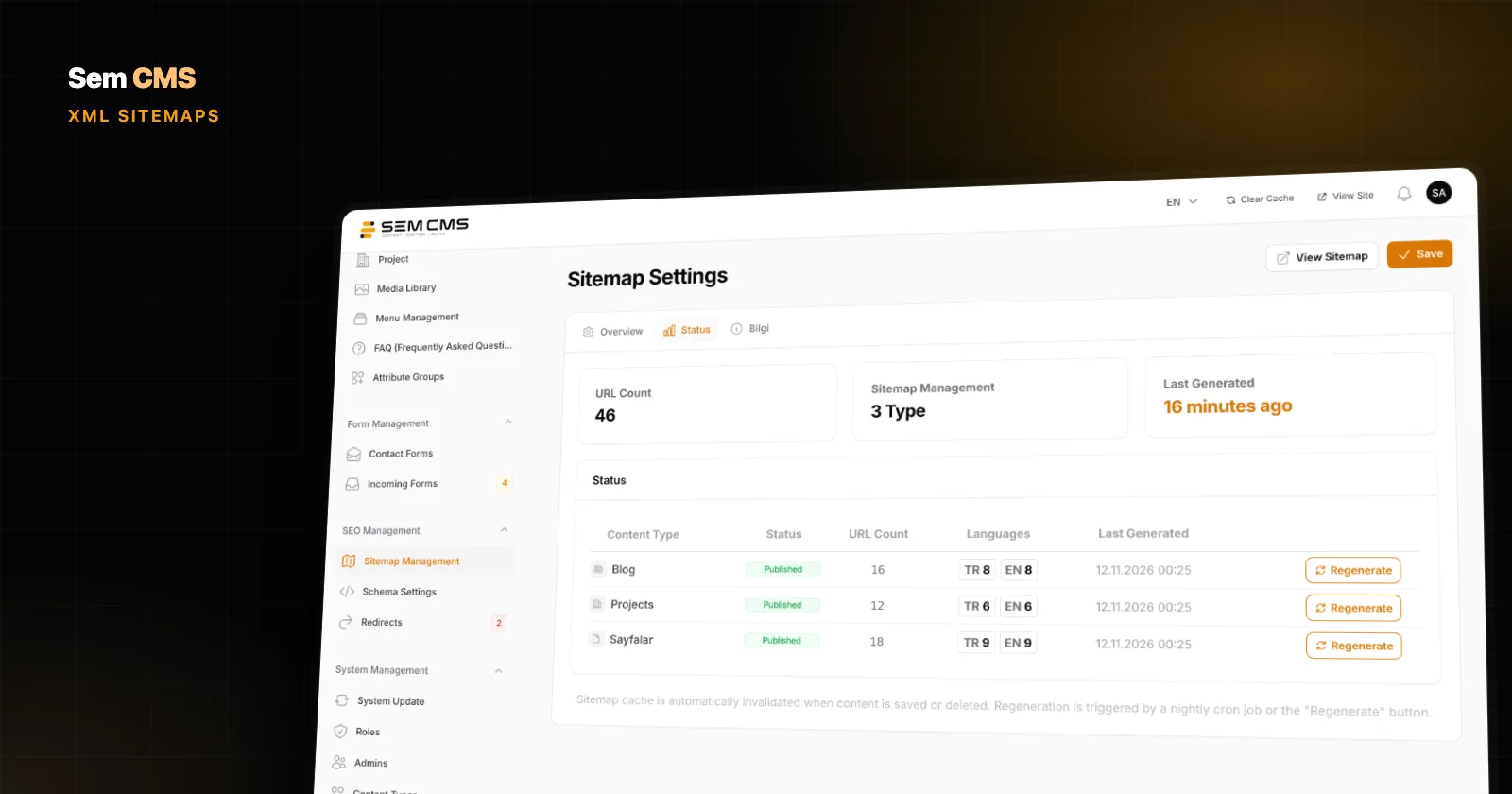
On the Sitemap tab you decide whether the type is included in the sitemap, along with its priority, change frequency, and whether images and last-modified dates are added. Categories, tags and authors each get their own settings. Our post on automatic XML sitemaps has the full picture.
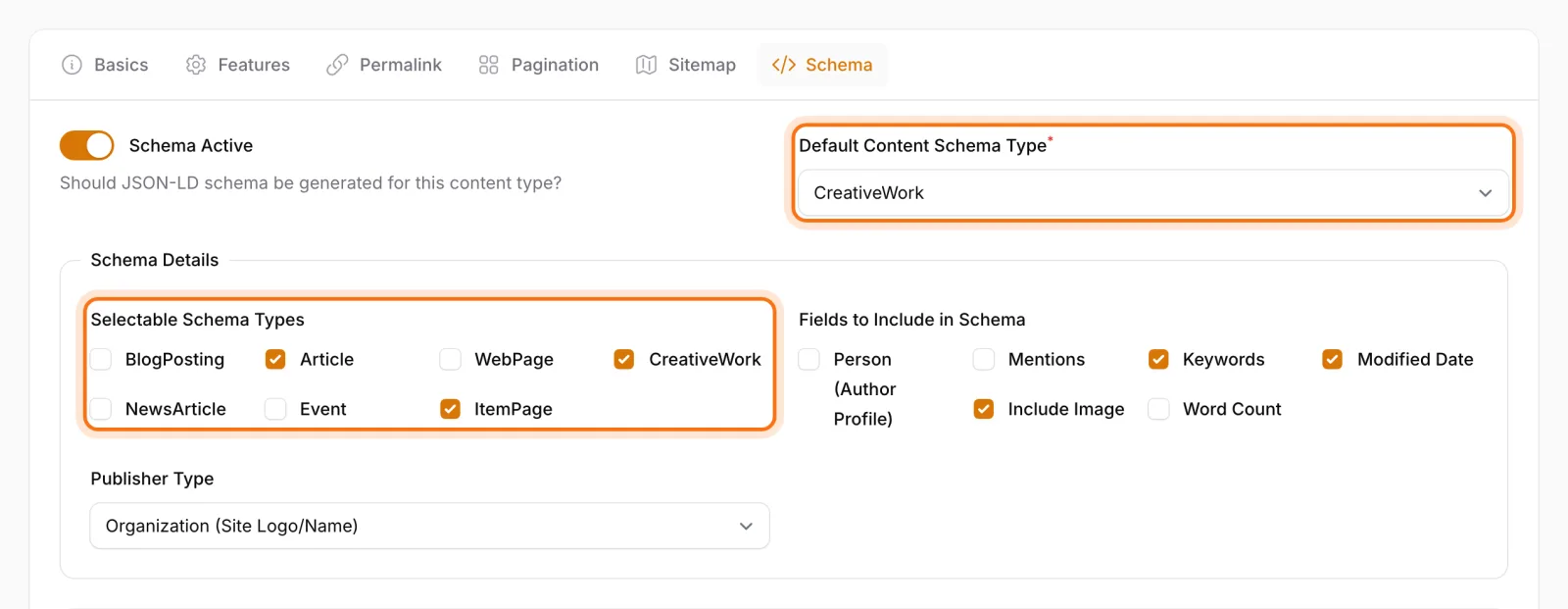
On the Schema tab you choose the type's default structured data type from seven options: BlogPosting, NewsArticle, Article, Event, WebPage, ItemPage and CreativeWork. Picking CreativeWork for a project portfolio or ItemPage for service or product details tells Google exactly what your content is. We explain why that matters in our post on structured data and JSON-LD.
What happens the moment you hit save
Saving a content type does more than store a few settings. Sem CMS handles the following on its own:
- Permissions are created. Separate permissions for 12 actions, including view, create, edit, delete and restore, plus an overall manage permission, are set up automatically. They stay in sync when the type changes and are removed when it's deleted.
- URLs go live. The new type's routes are registered automatically for every active language. No addresses to define by hand, no files to edit.
- The panel menu updates. The type appears in the panel, with Categories, Tags and Authors submenus depending on which features you turned on.
Automatic permissions are a big deal for agencies. Letting a client's marketing team edit projects while keeping them out of the blog takes a few ticks on the role edit screen.
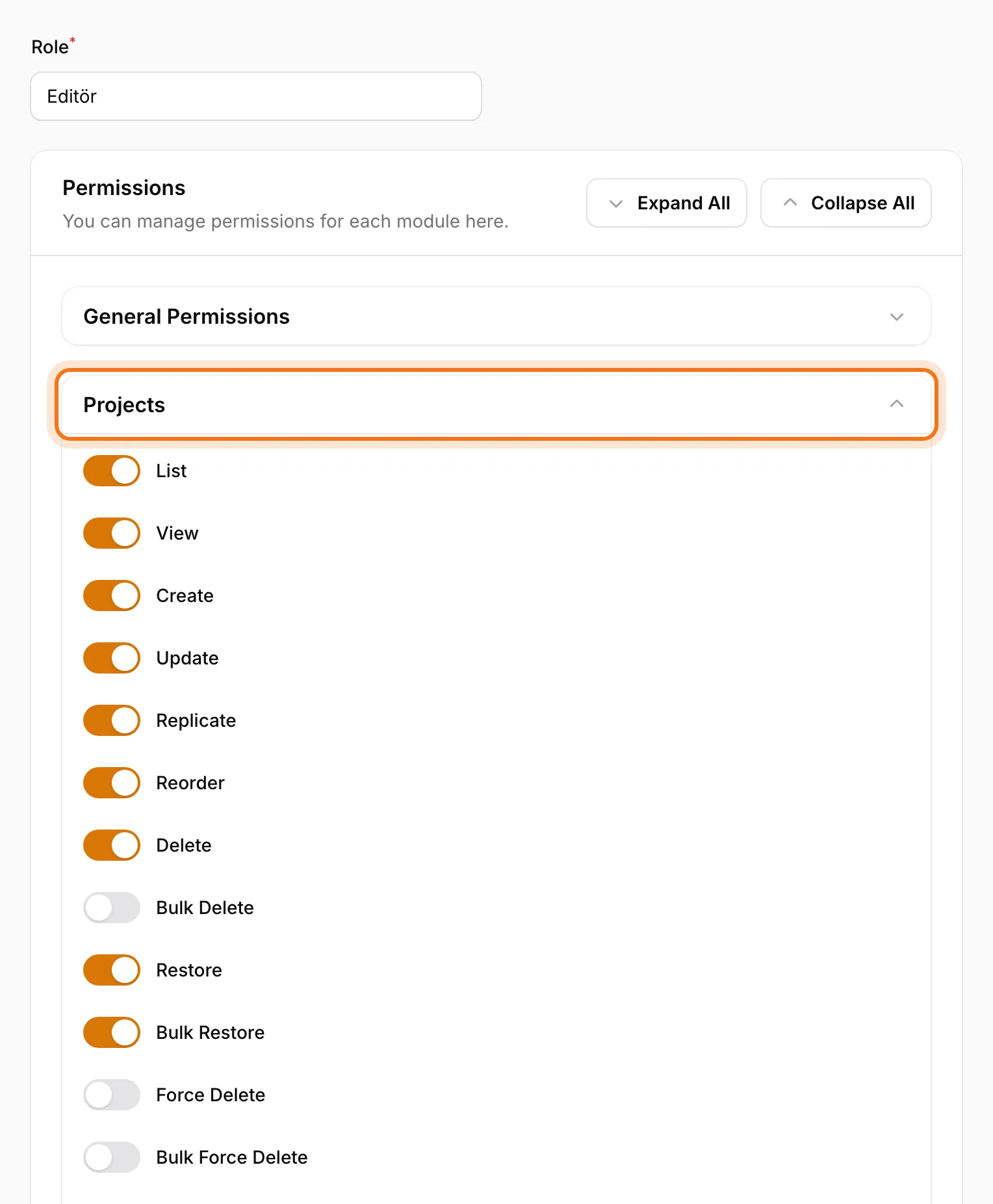
The system's core content types can't be deleted, so nobody can remove the blog module by accident and leave you with a hard-to-undo mess.
Add your own fields
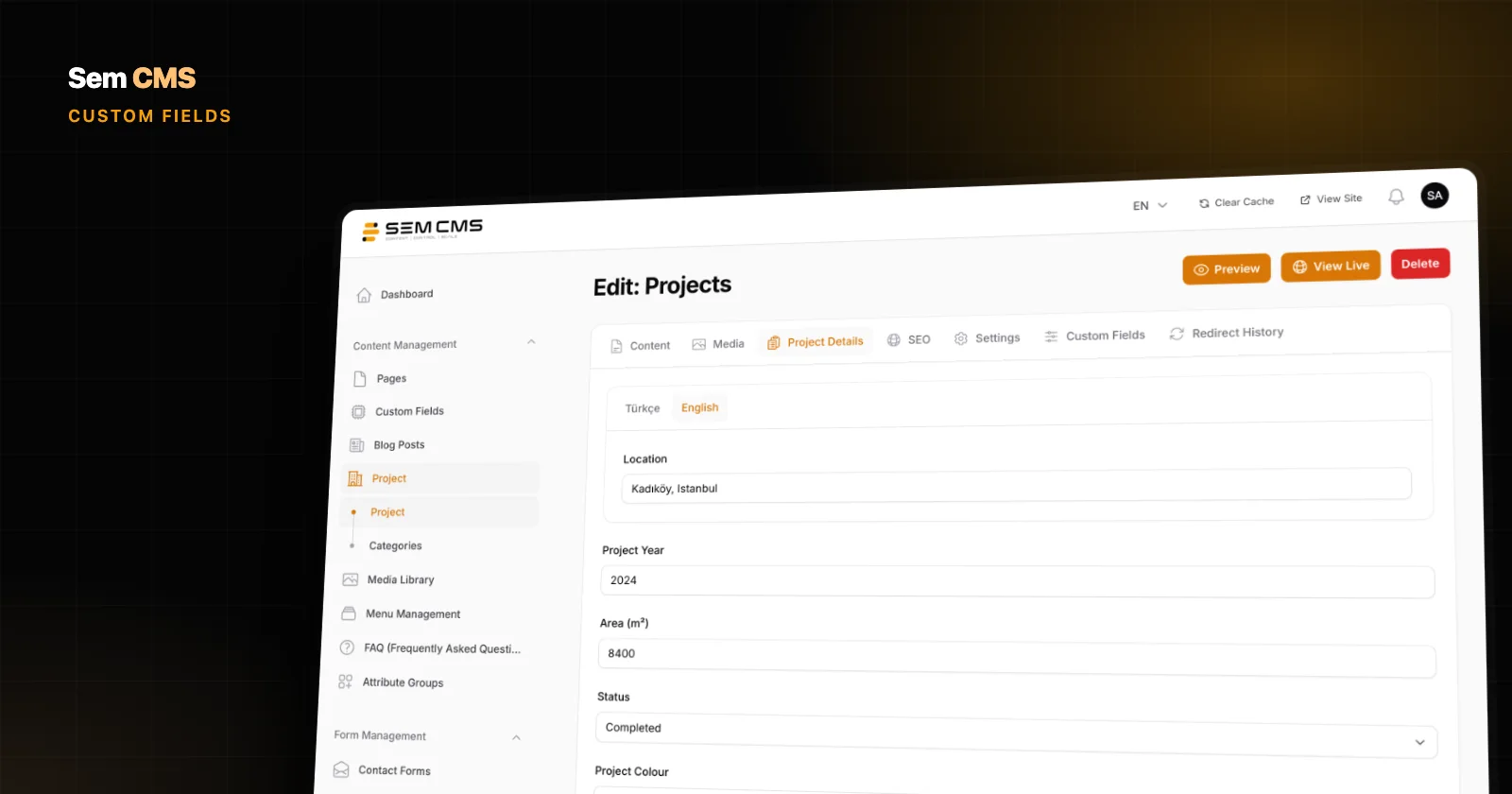
A project has a title and a description, but it usually needs more: the year, the location, the floor area, the client. In Sem CMS you define these as custom field groups and assign them to your content type, and they show up on the edit screen in their own tabs. We cover this in detail in our post on custom fields.
Example: a Projects module for an architecture studio
Picture an architecture studio that wants a portfolio section on its site. In Sem CMS that isn't a development project; it's a handful of steps in the panel:
- Create the content type: Name it "Projects" in English and "Projeler" in Turkish, pick a building icon, and turn on category support and listing page support.
- Define the URLs: Use
projects/{{ slug }}for English andprojeler/{{ slug }}for Turkish, and give categories clean addresses like "residential" and "commercial". - Choose the look: Set your theme's project template as the default content template, and pick infinite scroll with 12 items per page for the listing.
- Set up SEO: Include projects in the sitemap along with their images, and choose
CreativeWorkas the default schema type. - Grant access: On the roles screen, give the project team permissions for Projects only.
The moment you save, the Projects menu appears in the panel and editors can start adding records. The same approach works for services, team members, branches or events.
Bottom line: shape your content around your business, not your CMS
A content management system should fit the way your business works, not the other way round. In Sem CMS, a new content type comes together in the panel, complete with multilingual URLs, templates, pagination, sitemap, structured data and permissions. Agencies deliver the same system to every client with a different content structure, and businesses no longer wait on a developer when they need a new kind of content.
Every new content type also works with all of your site's languages; see how in our post on multilingual website management. Browse the Features page, or request a demo and we'll map out your content structure together.