If you want to build web pages without code, you usually get two options: a free-form drag-and-drop editor that slowly pulls your site away from your brand, or a queue for your designer every time you need a new layout. The Page Editor in Sem CMS offers a third way: you build pages by arranging ready-made, on-brand sections. The design comes from your theme, and you write the copy separately for each language.
This article covers the problem the Page Editor solves, the blocks it includes, how it handles multilingual landing pages, and what it does for your SEO.
The problem: a new page shouldn't be a design project
On corporate websites, the most common bottleneck for content teams looks like this: you need a page for a new service, a trade show or a campaign, but the existing templates only support "heading plus text". The moment you want a few feature cards, a row of numbers, a FAQ and a contact form, the job goes to a developer.
Free-form page builders remove that bottleneck but create a new one. When every editor picks their own colour shade, font size and spacing, the site gradually starts to look patched together. On multilingual sites the problem multiplies: the English, German or Arabic versions of the same page are built by hand, one by one, and drift apart.
The Page Editor sits between those extremes: a page editor without drag-and-drop chaos. Instead of a blank canvas, you work with purpose-built blocks whose design has already been thought through. Your content team moves faster, and your brand stays consistent.
14 ready-made blocks, each with several layouts
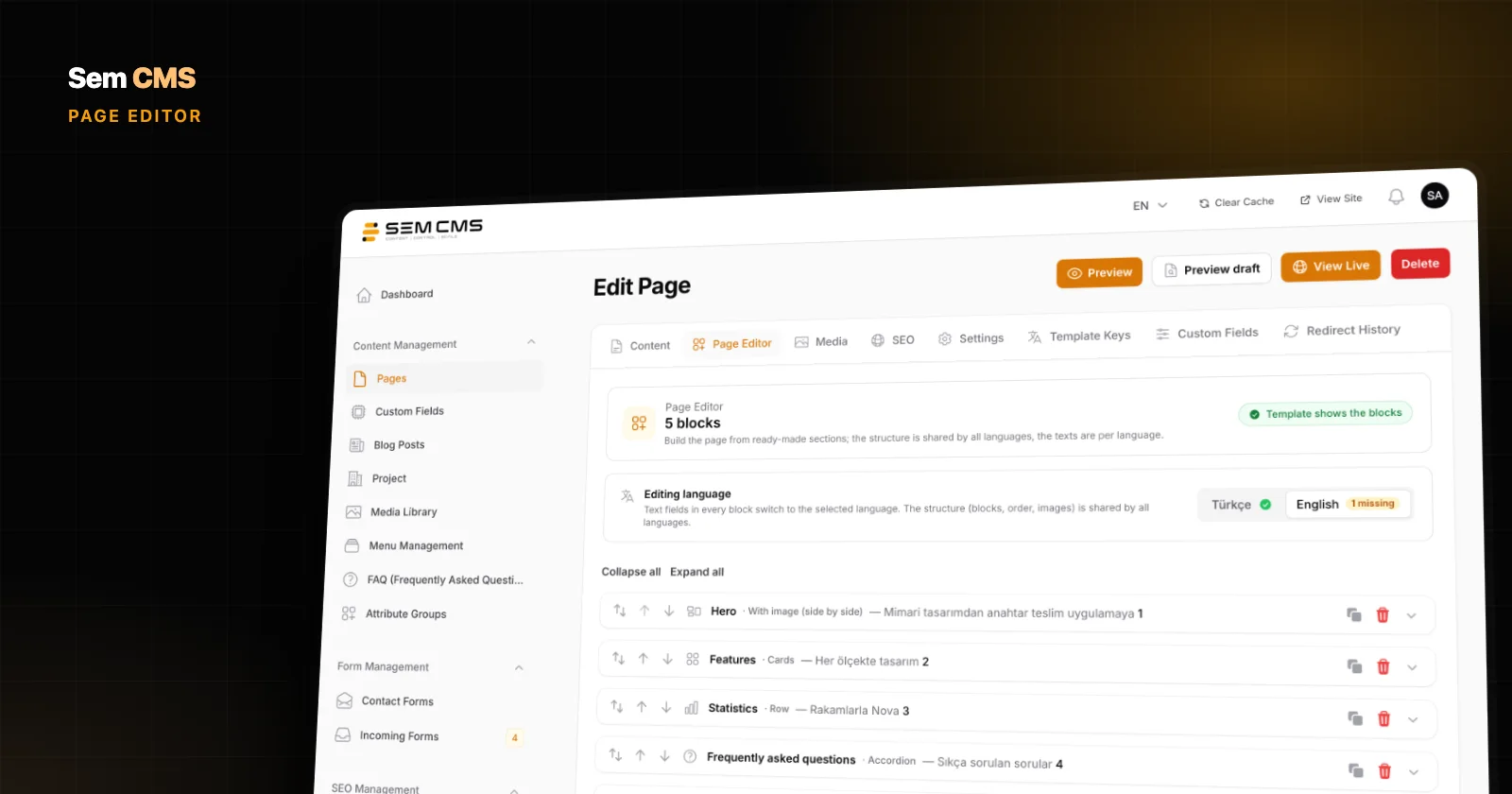
On the page edit screen, the "Page Editor" tab lets you build the page from blocks. Each block offers two or three layouts:
- Hero: centred, split with an image, or full background image. If it is the first block on the page, its heading becomes the page's main heading.
- Rich text and Text + image: reading-width or wide text; image on the left or right.
- Features: cards, icon list or plain list for your services and benefits.
- Statistics, Testimonials and Logos: key numbers, client quotes and the brands you work with.
- Pricing: package cards, with an option to highlight the one you recommend.
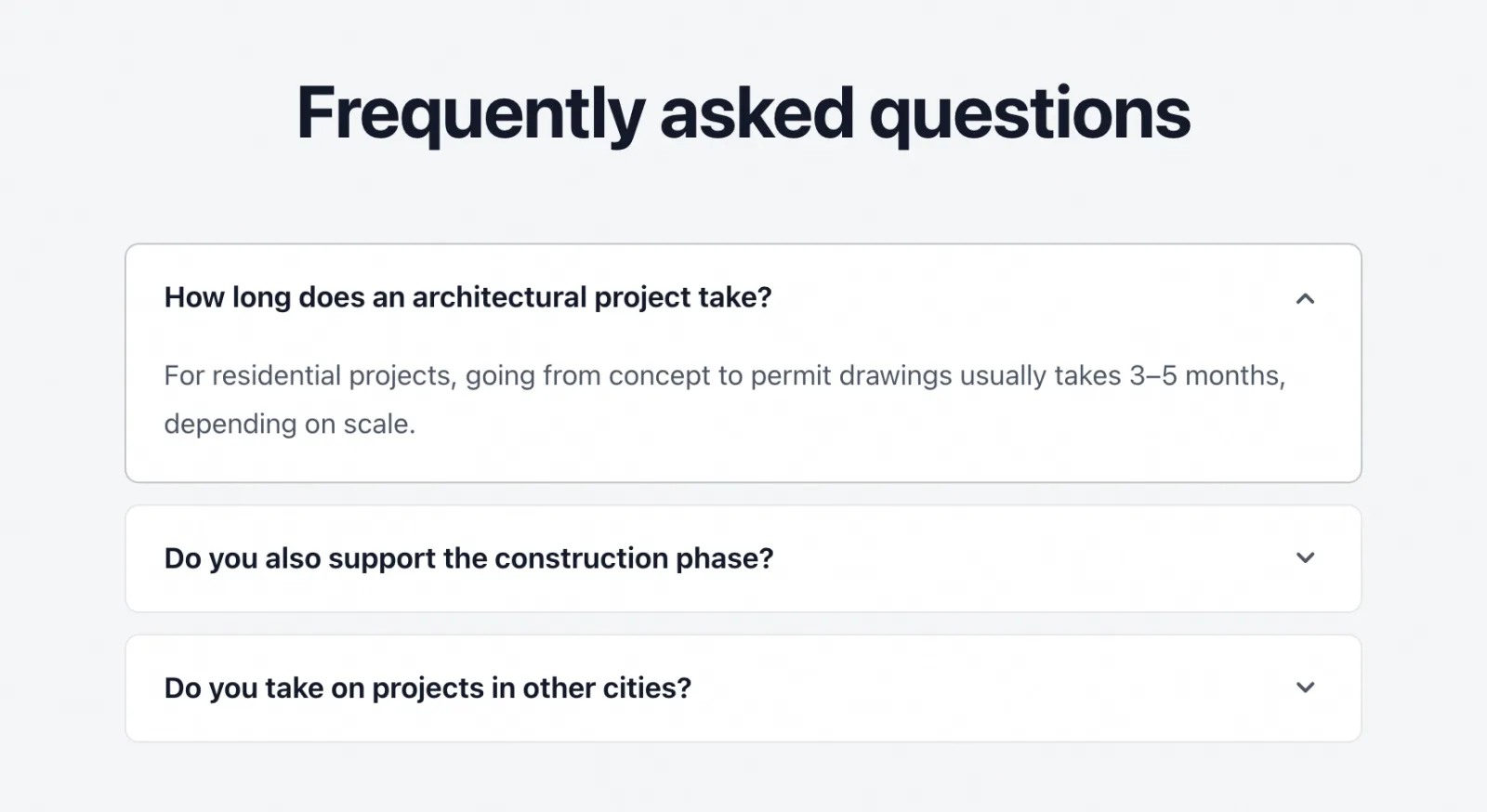
- FAQ: accordion or two columns; pick an existing FAQ group or type the questions straight into the block.
- Gallery, Video and Contact form: place any form you have built in the panel wherever you need it.
- Call to action: banner, card or split layouts for "Get a quote" or "Request a demo".
- Custom HTML: only the top-level administrator can add it; everyone else sees the block as locked.
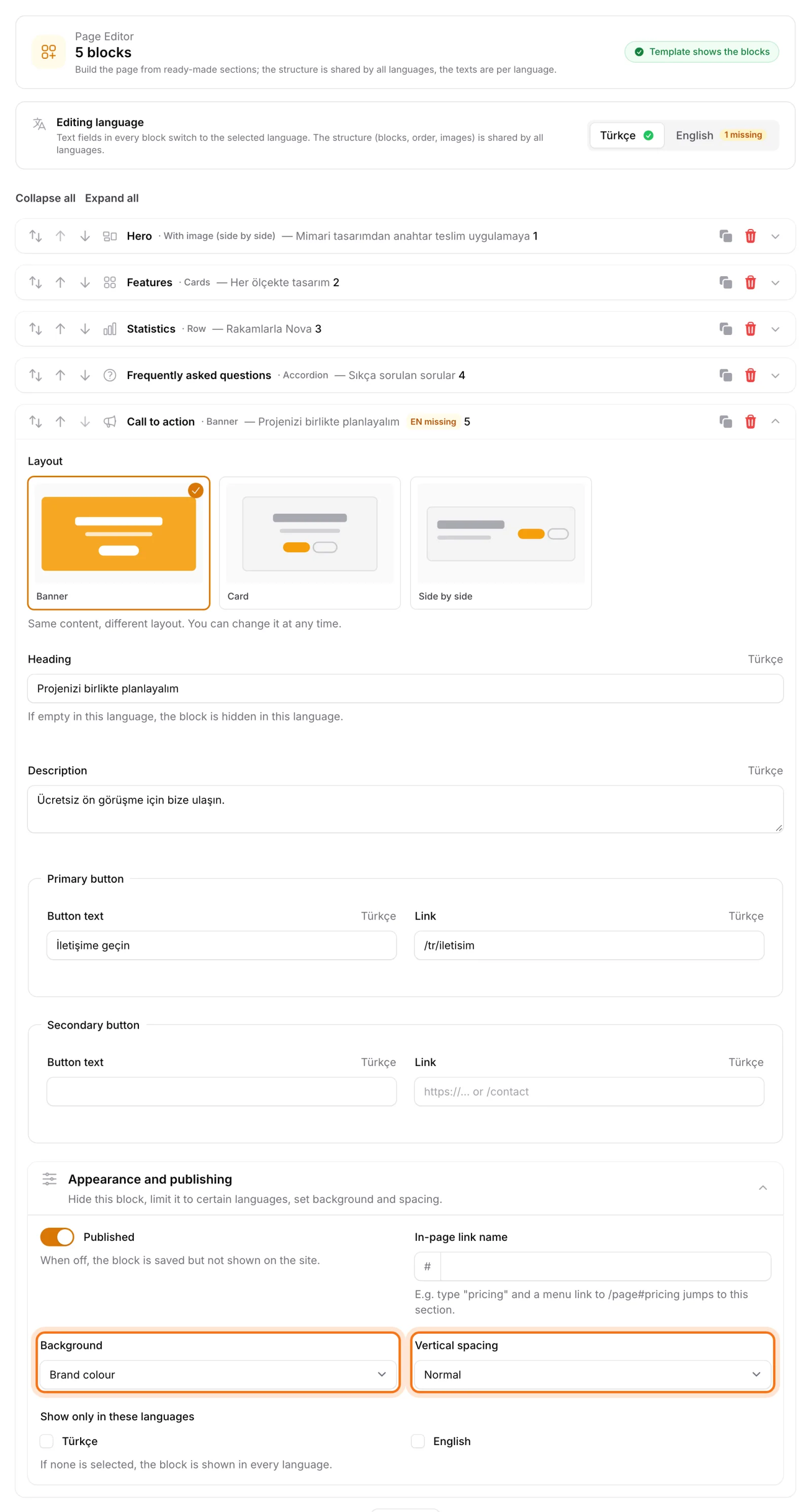
You can duplicate, reorder and temporarily hide blocks, and choose a background and spacing for each one. Give a block an anchor name and you can link straight to that section from a menu or a button.
The design comes from your theme
Block colours, fonts and corner radius are taken from your site theme automatically. Editors never pick a colour by hand; they choose one of the options the theme defines, such as default, muted, accent or inverse backgrounds. So a campaign page built by the marketing team speaks the same visual language as the homepage your agency designed.
Multilingual landing pages: structure once, copy in every language
The biggest difference is how the Page Editor handles languages. The page structure, meaning which blocks appear and in what order, is shared across all languages. You only fill in the text for each language. Add a new FAQ block to the English page and the same block appears in the same place in the Turkish version, waiting for its translation.
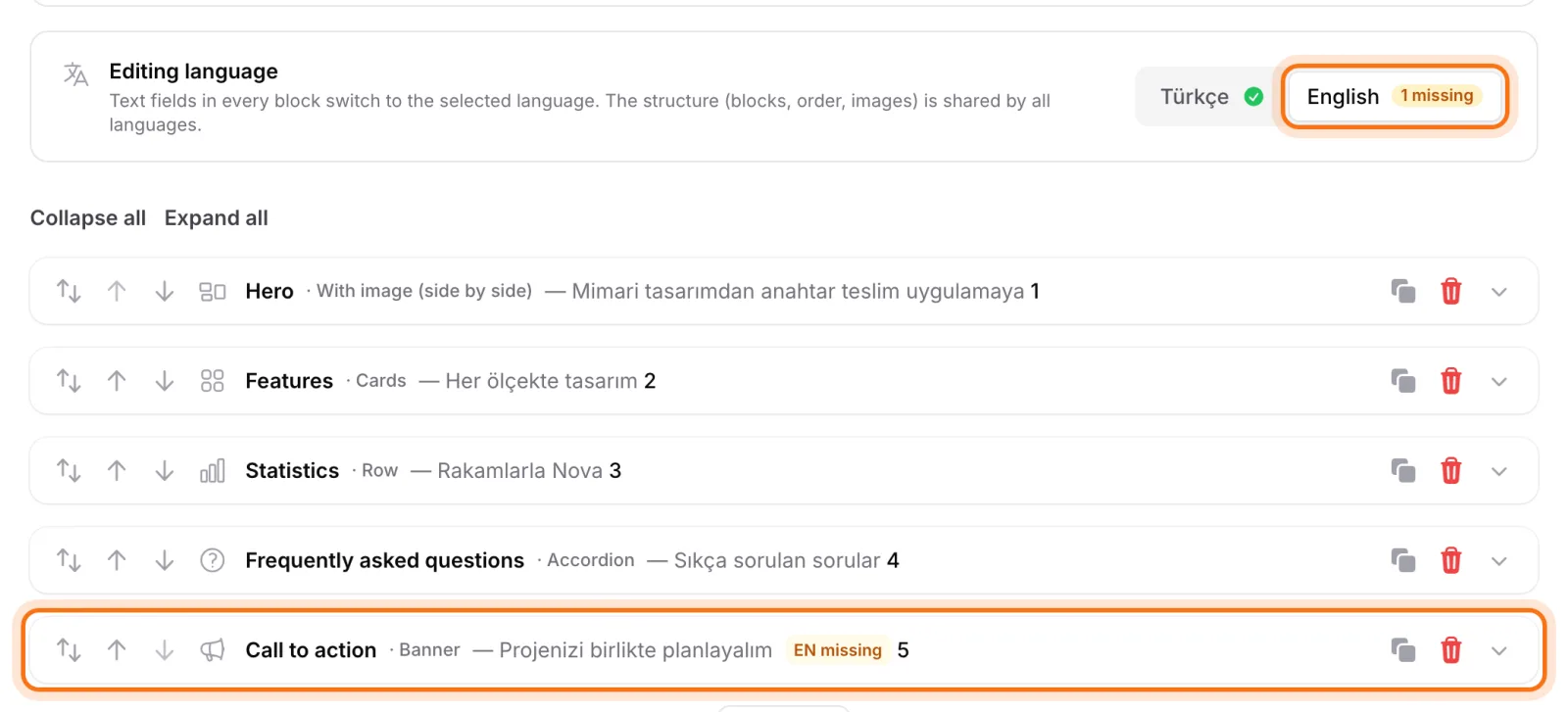
Badges on the language switcher show how many blocks are still missing in each language. A block whose translation is incomplete never goes live in that language, so visitors never see a page that is half English and half something else. You can also restrict a block to specific languages, for example a trade-show announcement aimed only at the German market.
Links are set per language too: the "Get a quote" button on the English page goes to the English contact page, and the Turkish one to its Turkish counterpart. For the fundamentals of running a site in several languages, see our guide to multilingual website management.
Translate blocks in one click with AI
If you have enabled the AI assistant, a page built with the Page Editor can be translated into your other languages in one click. Translation never changes the block structure: the number of blocks, their order and their images stay the same; only the text is written into the target language. Fields that already have content are left alone unless you choose otherwise, and links are not translated.
Preview before saving, edit without risk
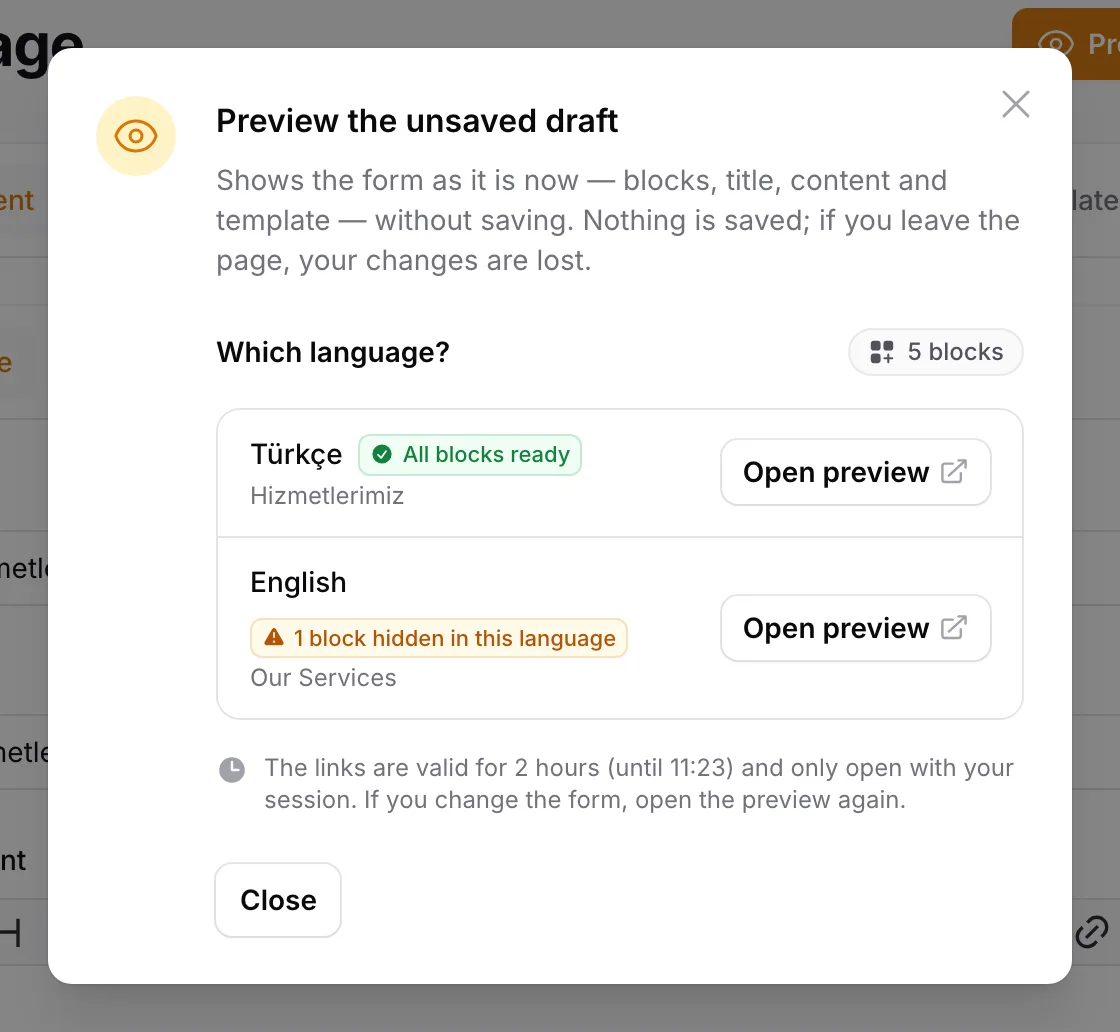
The biggest worry when reworking a live page is that visitors will see it half-finished. The "Preview draft" button shows the unsaved state of the form, separately for each language. Nothing changes on the live site until you press save.
Your existing pages are not left behind either. To move a page written in the classic editor to the Page Editor, the "Convert content to a text block" action places the existing copy at the top as a single rich-text block. You can then start adding new blocks underneath.
Permissions are separate as well: role management has a dedicated permission for the Page Editor. You can let a content editor change the copy while only the marketing lead may change the page structure.
SEO and performance: block pages score fully too
The hidden cost of many page builders is that search engines can't fully see the content. In Sem CMS, blocks are integrated with the rest of the site:
- Site search: block text appears in your site's search results, and blocks visible only in one language are searched only in that language.
- FAQ structured data: questions in FAQ blocks are added to the page's FAQPage structured data automatically, without duplicates.
- Images in the sitemap: images from hero, text + image, gallery and logo blocks are listed in your sitemap.
- Correct heading hierarchy: when the first block is a hero, its heading is marked up as the page's main heading.
- Privacy-friendly video: YouTube and Vimeo videos only load after the visitor clicks, and if cookie consent is on, permission is requested first. No third-party connection is made when the page opens.
We explain why FAQ markup is still worth it in FAQ schema and FAQ pages.
Who is it for?
- Exporters: product and service pages with the same layout for every target market, each in its own language.
- Holdings and groups: consistent-looking pages for different subsidiaries.
- Agencies: a handover where clients can add pages on their own without breaking the design.
- SMEs: teams that want campaign and landing pages without setting aside a developer budget.
Bottom line
The Page Editor lets you create web pages without code and without compromising your brand. The structure is built once, every language goes live with its own copy, incomplete translations stay offline, and site search, FAQ structured data and the sitemap update themselves. See every capability in the Page Editor section of our Features page.
Want to see how your own pages would come together? Request a demo and we'll walk through the panel with you and prepare a quote tailored to your project.