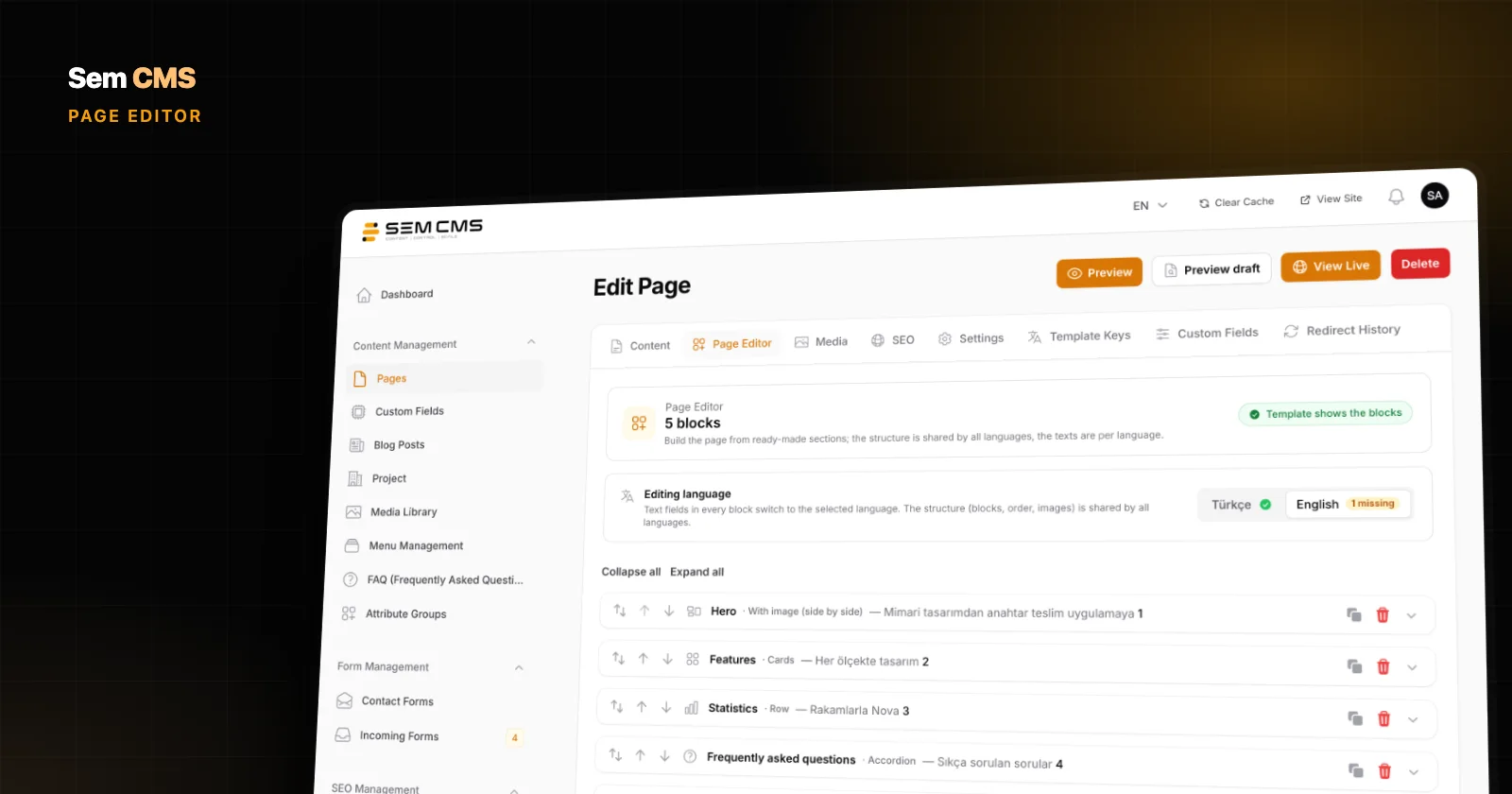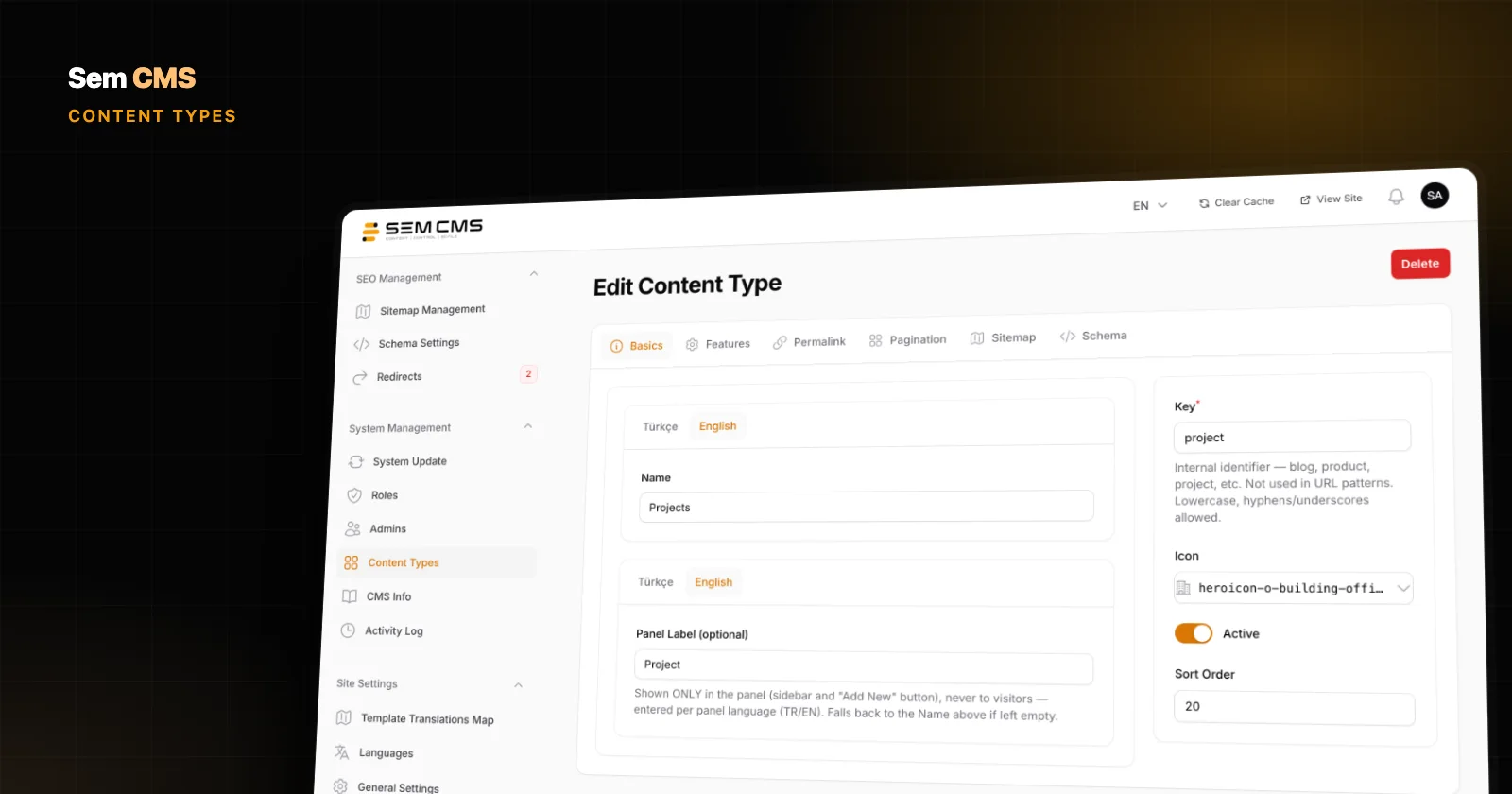
A project page lists the year, the location, the floor area and the client. An event page has a date, a start time and a registration link. Most of the time, these details get typed straight into the body text. You can guess what happens next: every editor enters them in a different order, the year is missing on half the records, the layout looks different on every page, and a simple request like "show the projects we finished in 2023" becomes impossible.
The fix is to pull those details out of the body text and give each one its own field. In Sem CMS you create these custom fields in the panel, without code, and attach them to your content types. In this post we look at how custom field management works and what it does for your editorial team.
What are custom fields, and why use them?
A custom field holds one structured piece of information that's specific to a kind of content. Every system has a title and body for blog posts, but a project's "completion year" or a service's "starting price" is specific to your business. Keeping that information in dedicated fields gives you:
- Consistency: Every record captures the same details in the same format.
- A design that holds up: The theme displays the values the same way on every page, and editors never have to format anything.
- Data you can use: Fields can be included in search and filtered in the panel.
Field groups: keep related fields together
In Sem CMS, custom fields are defined in groups on the Attribute Groups screen. You might create a group called "Project Details" and add year, location, floor area and client fields to it. The group name is entered per language, and you also set the group's key and sort order.
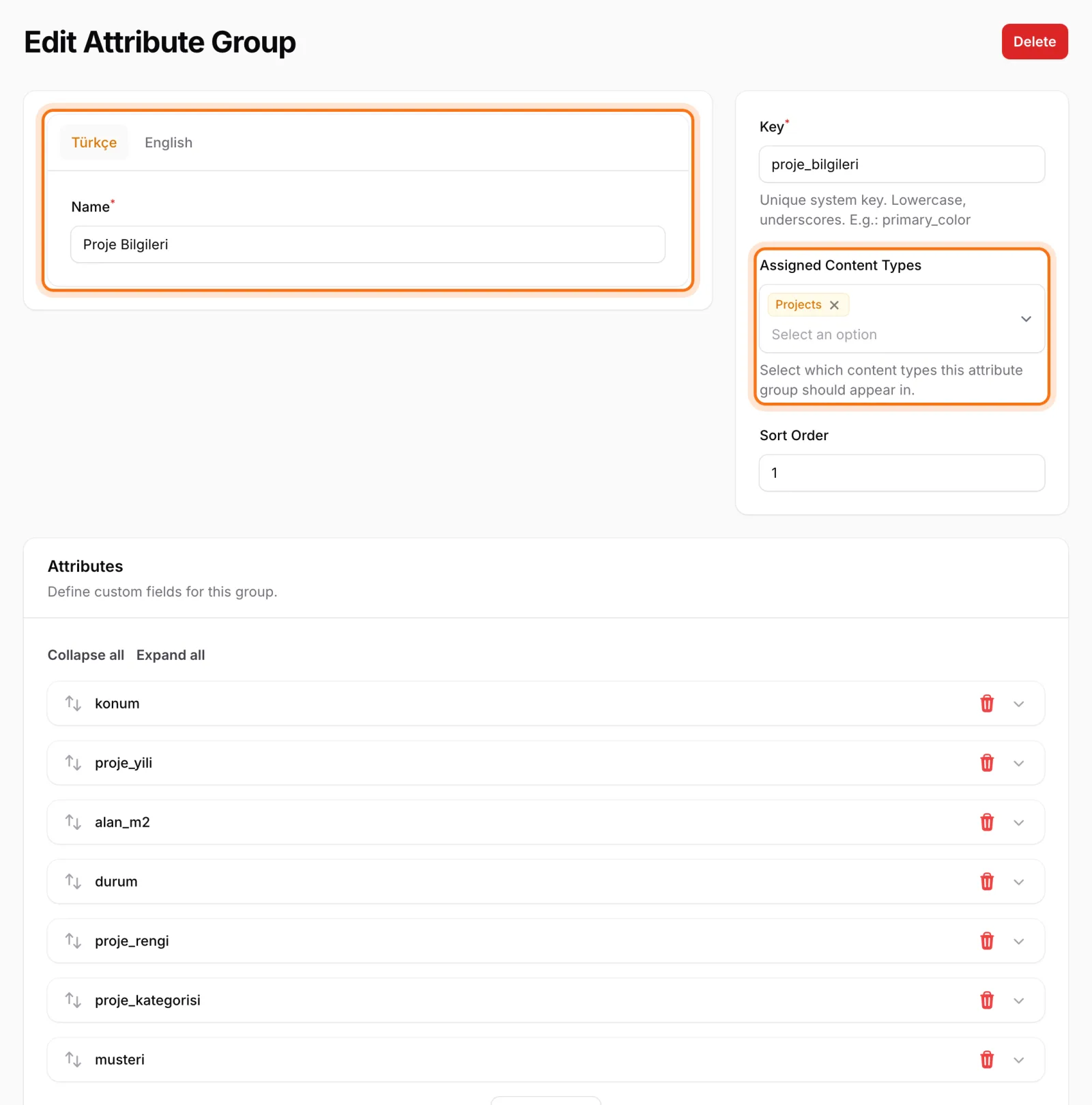
A group can be assigned to more than one content type. A group with "Location" and "Date" fields can serve both Projects and Events, so you define those fields once and maintain them in one place.
14 field types
Each field gets the type that fits the data. Sem CMS offers 14 of them:
| Purpose | Field types |
|---|---|
| Text | Text, textarea, rich text |
| Numbers | Number, decimal |
| Time | Date, date and time |
| Choices | Yes/no, select, multi-select |
| Links and contact | URL, email |
| Other | File, color |
The right field type means the right data. An email field won't accept an invalid address, and a URL field won't accept something that isn't a link. Dates come from a calendar, colors from a color picker, and files from the media library. Editors never have to guess what goes where.
Multilingual fields and per-language option labels
Every field has a Translatable switch. Turn it on and the field appears on the edit screen with a tab for each language, so the project description is written separately in English and German. Leave it off and the field holds a single value for all languages. Floor area or completion year doesn't change by language, so there's no reason to type it in twice.
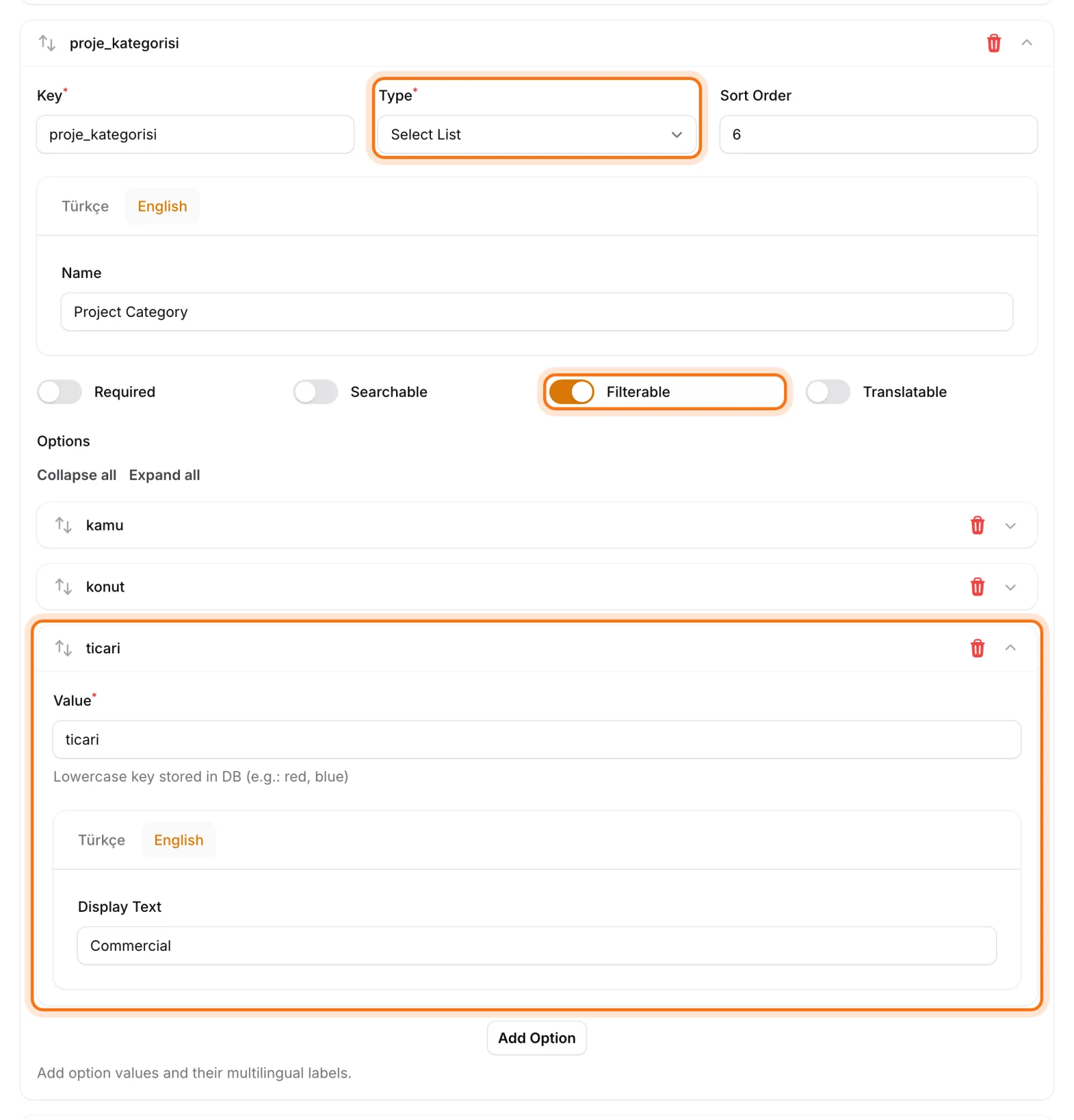
For select and multi-select fields, option labels are defined per language too. A project category with "Residential", "Commercial" and "Public" can read "Konut", "Ticari" and "Kamu" on the Turkish site, while the same value is stored underneath. We cover the wider picture in our post on multilingual website management.
A clean edit screen for editors
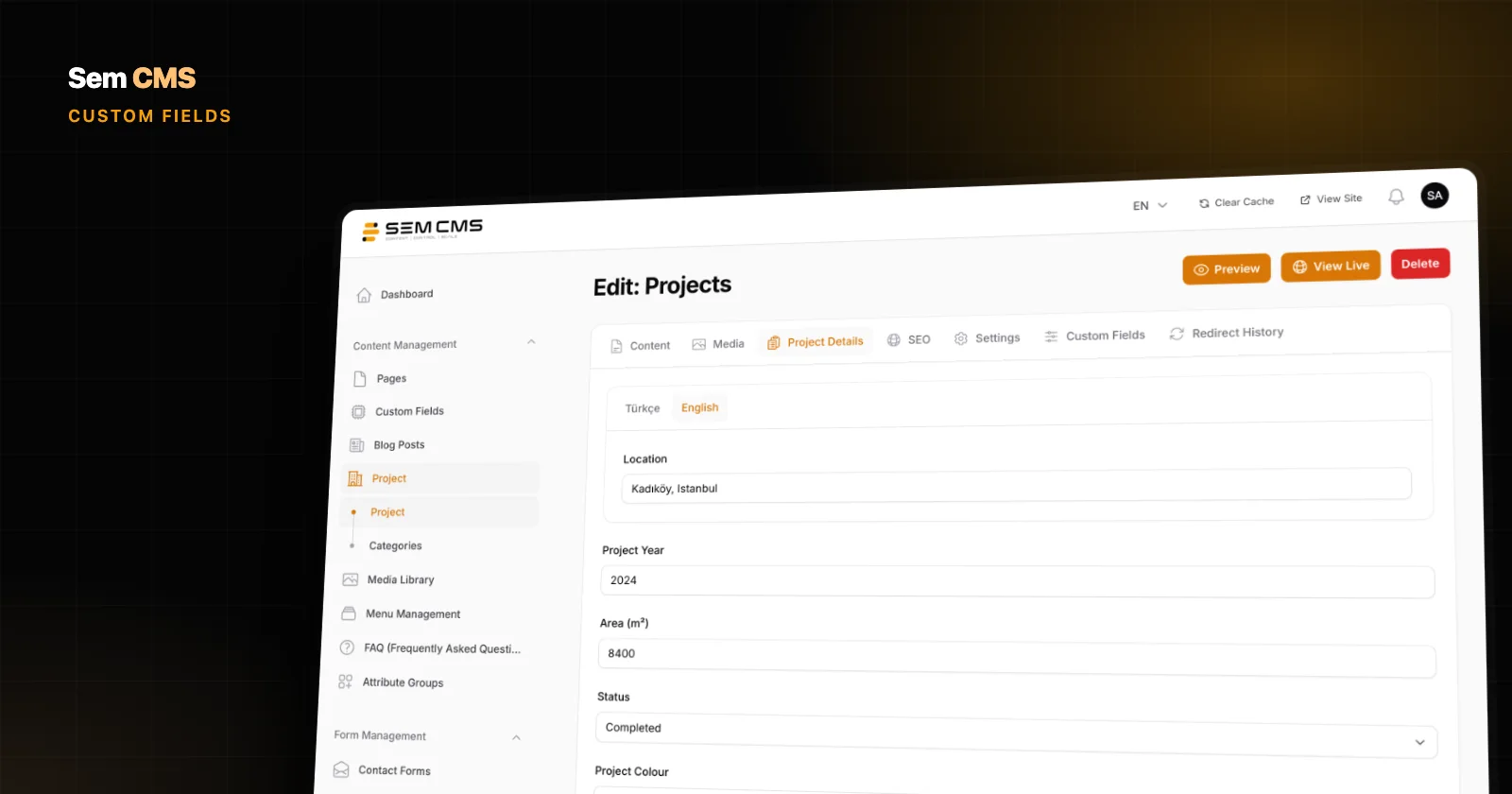
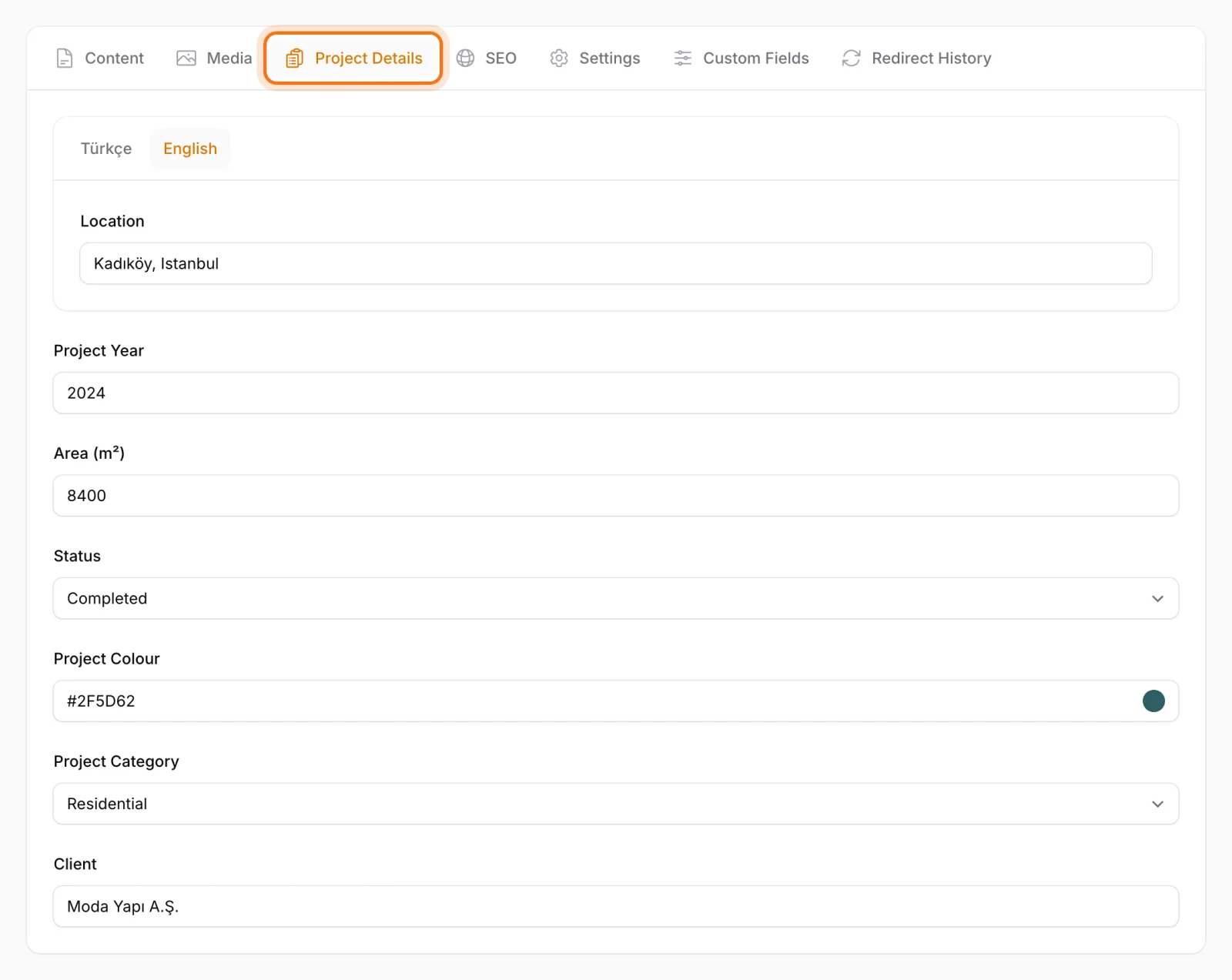
Each group you assign to a content type shows up on the content edit screen as its own tab. When an editor opens a project, they see a "Project Details" tab next to Content, Media and SEO. Fields aren't buried at the bottom of a long form; every group of details has its own place. Assign several groups to one content type, say "Project Details" and "Technical Specs", and each gets a tab of its own, so editors jump straight to the details they're working on.
Your theme can also tie field groups to a specific template. In that case, when an editor switches an item's template, the fields tab updates instantly to show what that template needs. Pages benefit from template-bound fields as well. Editors never have to deal with fields the chosen design doesn't use.
Searchable and filterable fields
Fields aren't just for display; you can put them to work. Each field has two more switches:
- Searchable: Values of searchable fields are included in site search. If a visitor searches for a city, projects whose location field is that city show up, even when the city never appears in the body text.
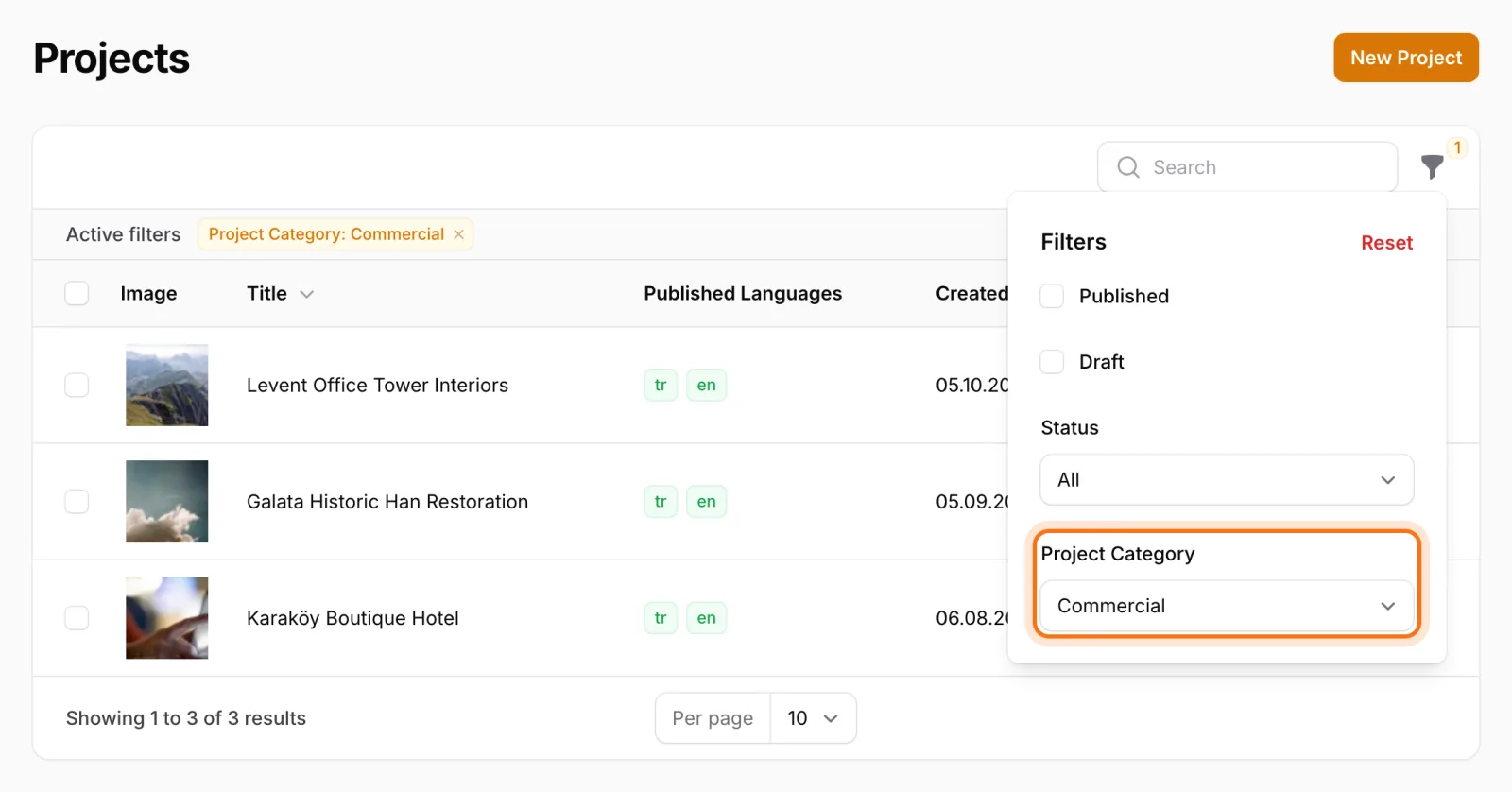
- Filterable: Select, multi-select and yes/no fields become filters on the content list in the panel. Out of hundreds of projects, an editor can list only the "Commercial" ones in one click.
Both pay off more as your content grows. Visitors find what they're looking for no matter where it's mentioned, and editors narrow long lists by criteria that actually mean something.
Example: a "Project Details" field group
Here's what a typical field group for an architecture studio's project records might look like:
| Field | Type | Translatable | Extra |
|---|---|---|---|
| Completion year | Number | No | - |
| Location | Text | Yes | Searchable |
| Floor area (m²) | Decimal | No | - |
| Project category | Select | Option labels per language | Filterable |
| Client | Text | No | Searchable |
| Project brochure | File | No | - |
| Award-winning? | Yes/no | No | Filterable |
Set the group up once and every new project follows the same structure. Editors just fill in the blanks instead of wondering where each detail should go.
Tips for designing custom fields
- Don't make language-neutral values translatable. Keep year, floor area or price as a single field; numbers entered separately per language drift apart over time.
- Use select fields for fixed lists. Capturing a category or status with a select field instead of free text prevents typos and makes panel filtering possible.
- Choose meaningful keys from the start. The field key is how the theme reaches the value, and a clear key like "completion_year" makes life easier for whoever builds the theme.
- Be deliberate about search. Make the details visitors will actually search for, like location or client, searchable, and keep internal notes out of it.
How custom fields and content types work together
Custom fields really come into their own alongside custom content types. First you create the content type, with its URLs, templates, pagination and SEO settings. Then you describe the information specific to that type with field groups. The result is a module shaped around your business, without opening a development project. We walk through setting up content types in our post on custom content types without code.
What changes for agencies and businesses
For agencies, custom fields mean delivering the same system to every client with a different content structure. One client gets a project portfolio, another gets detailed service pages, and the core system stays untouched. Fields are defined in the panel and can keep growing with the client after launch.
For businesses, the win is independence. When project records need a new detail, say a "sustainability certification" field, you add it to the group yourself, without waiting on a developer, and it's ready for the very next record.
Bottom line: structured data, organized content
Separating information from body text is one of the most effective habits in content management. In Sem CMS, custom fields are defined in the panel, reused across content types, work correctly in every language, can be included in search and can be filtered in the panel. Editors make fewer mistakes, the design stays consistent on every page, and your content stays easy to manage as it grows.
See everything else on our Features page, or request a demo and we'll work out which fields your content needs. Questions? Get in touch.