You publish a new project page, update a blog post, remove a category. When will search engines notice? Waiting to be discovered through links can take days, sometimes weeks. Pages that aren't well linked inside the site may never be found at all.
An XML sitemap closes that gap. But hand-made or plugin-generated sitemaps tend to fall behind: they list deleted pages, forget new languages, or hand search engines URLs that were never meant to be indexed. In this post we cover what a good XML sitemap looks like, and how Sem CMS keeps your sitemaps automatic, split by language and always up to date.
What is an XML sitemap, and why do you need one?
An XML sitemap is a list, written for search engines, of the URLs on your site that you want indexed. Google and Bing read it to find new and updated pages faster. It makes the biggest difference for:
- Sites that publish constantly: blogs, newsrooms, project portfolios.
- Multilingual sites, where every language version needs to be discovered on its own.
- Image-heavy sites, where extra information helps images surface in Google Images.
- New sites, where it's the fastest way to get pages with few external links found.
A sitemap isn't a ranking factor, but it is the foundation of discovery and crawling. A good one lists only the pages that should actually be indexed, and always reflects your site as it is today.
In Sem CMS, the sitemap builds itself
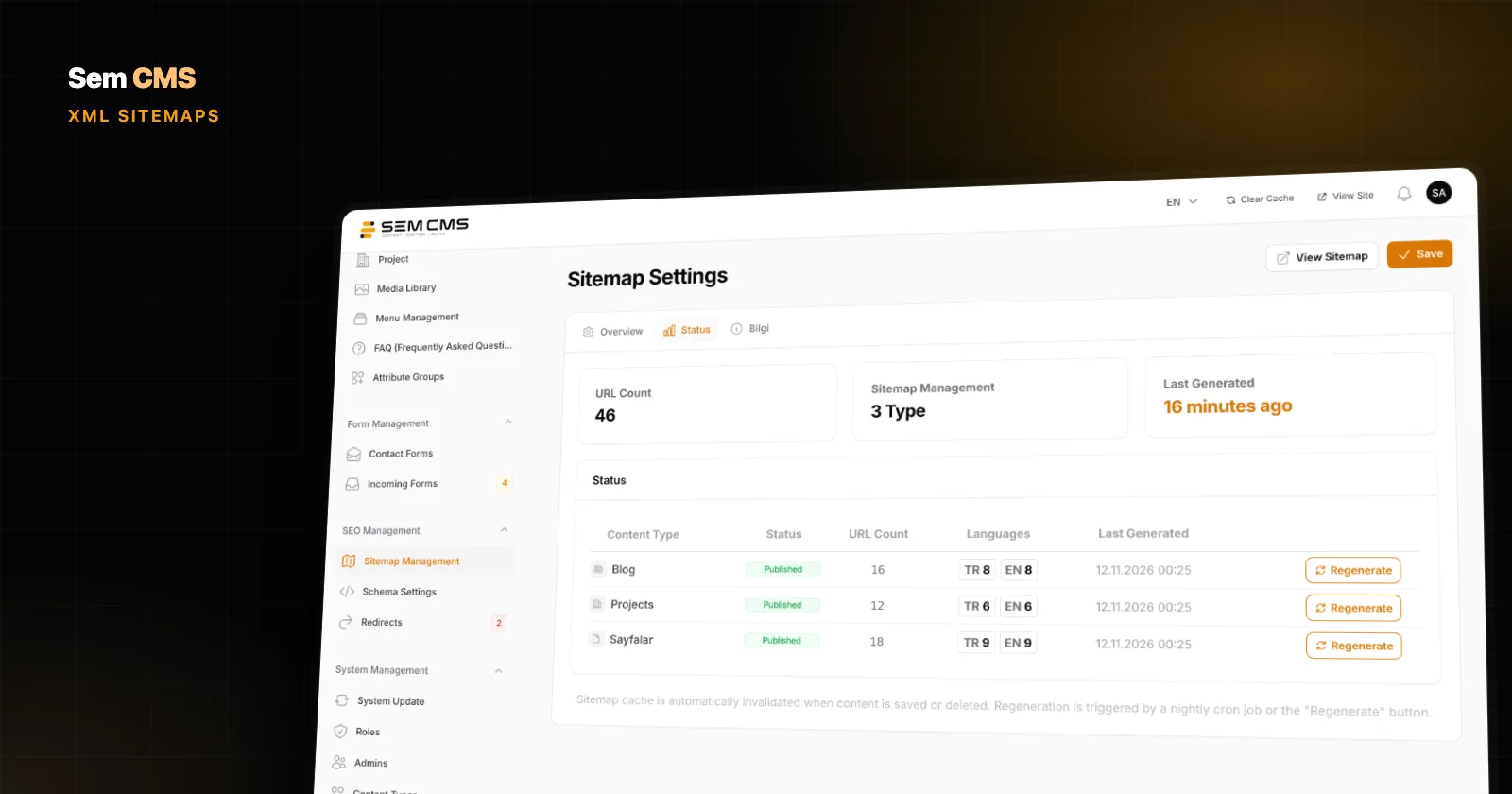
There's no sitemap plugin to install and no file to upload in Sem CMS. The system generates your sitemaps from your content. The Sitemap Management screen in the panel shows, in a single table, which sitemaps exist, how many URLs each contains, which languages are ready and when each was last generated. From any row you can open the file or regenerate just that sitemap.
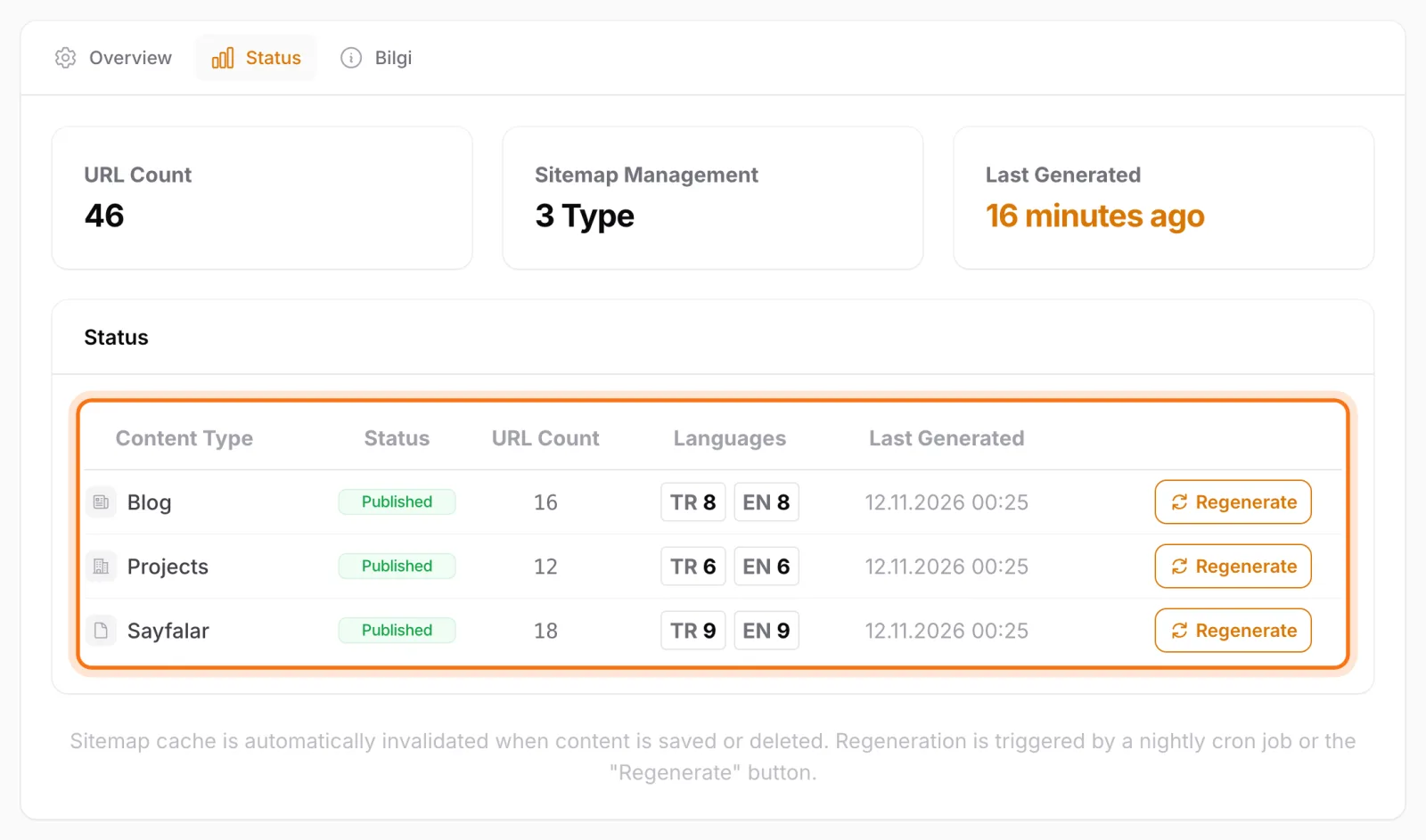
The table doubles as a checklist. If a module's file hasn't been generated for a language yet, that language is greyed out, and modules with unfinished translations are flagged "Missing translations". On a multilingual site you can see which section is lagging in which language right in the panel, without waiting for Search Console reports.
Split by language and by module
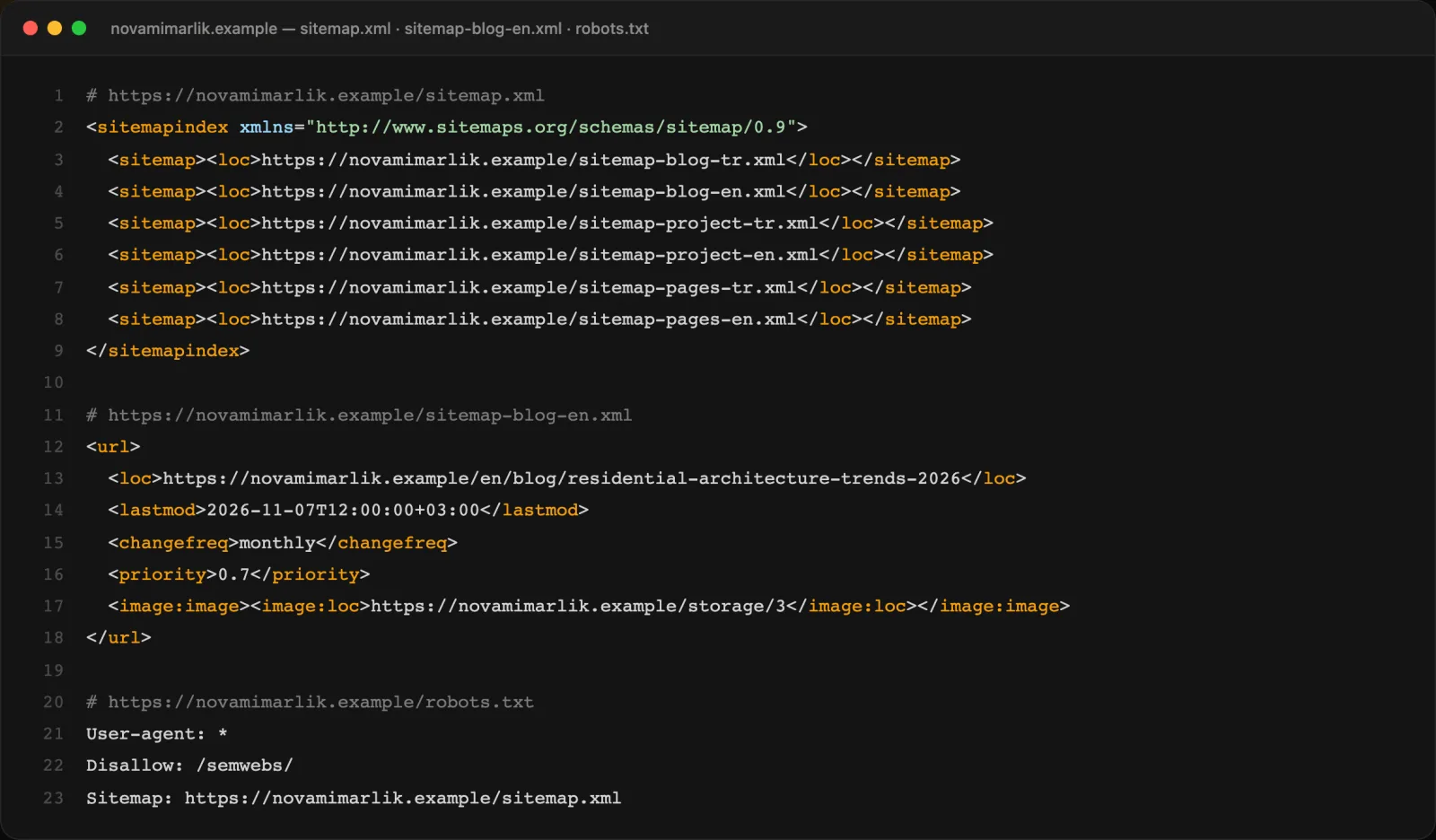
Sem CMS always splits sitemaps by language. With the sitemap index switched on, /sitemap.xml becomes an index that lists a separate file for every module in every language, such as sitemap-blog-tr.xml, sitemap-blog-en.xml and sitemap-projects-tr.xml. With the index off, you get one flat file per language.
That structure pays off in two concrete ways. In Search Console you can track how many pages are indexed per language and per section, so when something goes wrong you know exactly where to look. And each language file contains only the content that's actually published in that language. A page nobody has translated yet never lands in the English sitemap with a URL that doesn't exist. You can rename the files to suit your own conventions, too.
Sitemap settings per content type
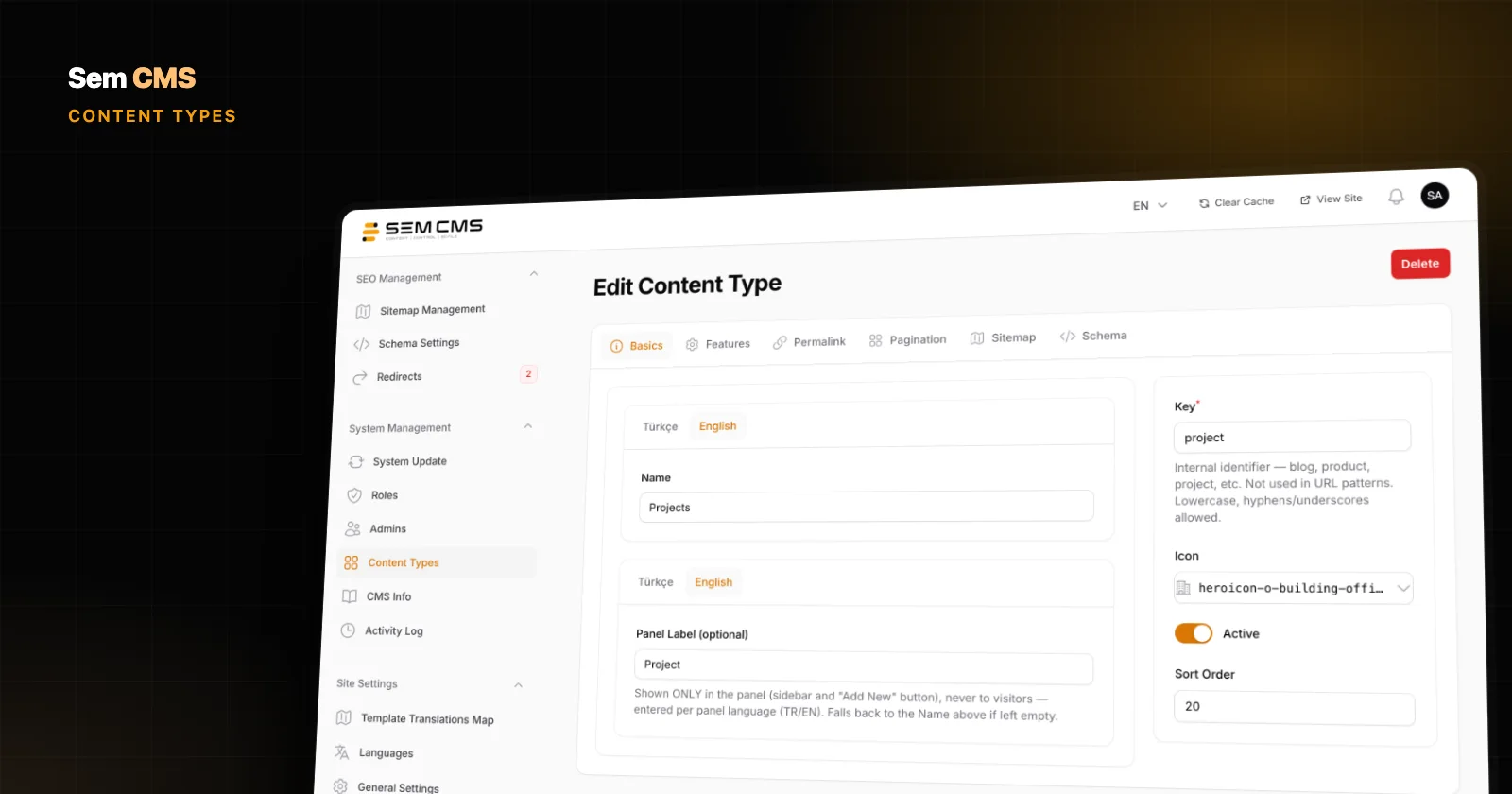
Every content type has a Sitemap tab on its edit screen. That's where you decide whether the type is included, what its file is called, its priority and change frequency, whether image entries are added, and whether the last-modified date (lastmod) is written.
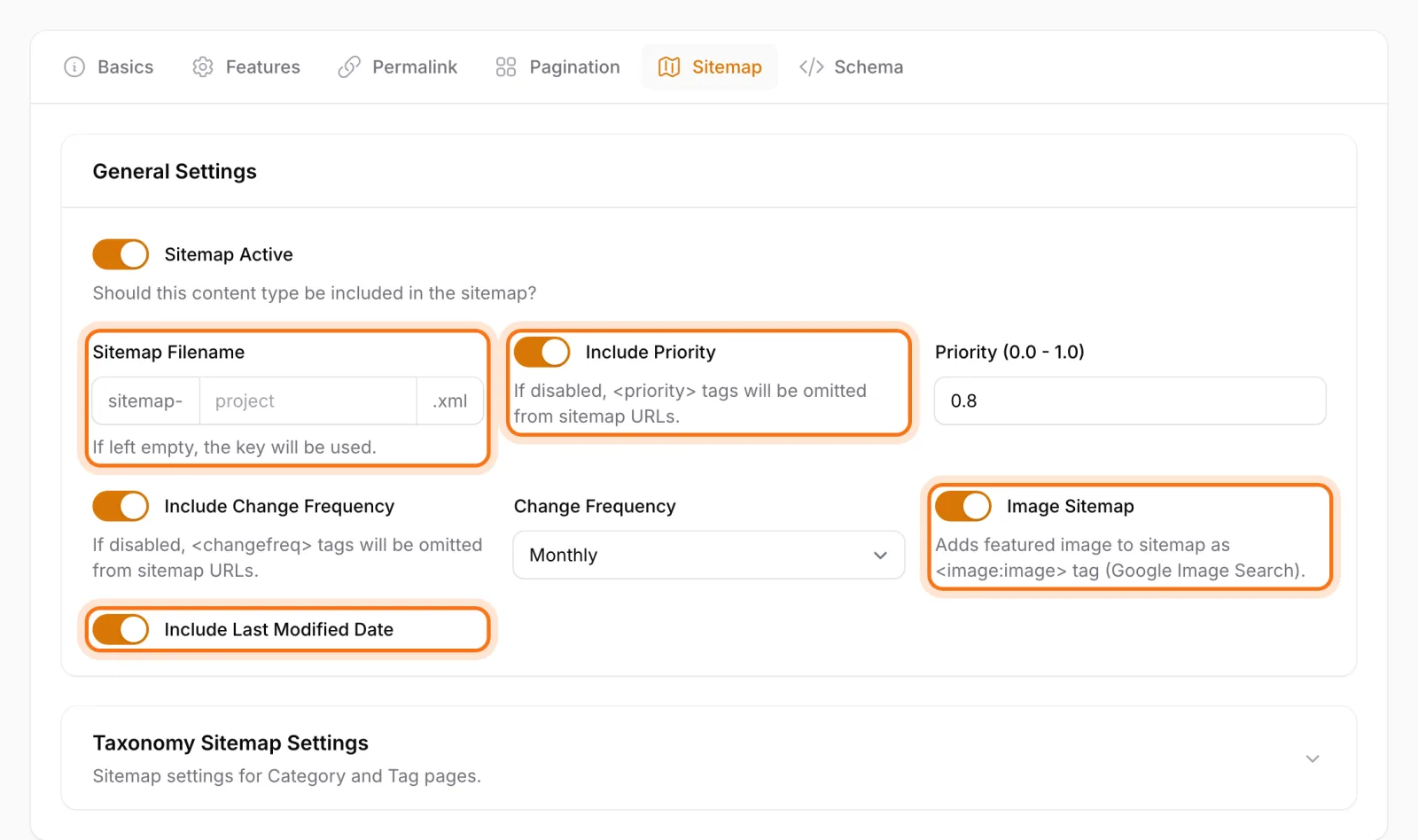
Priority, change frequency and last-modified tags can each be switched on or off independently. They're written only on multilingual sites running in index mode; in the simpler setups (one language, or index off) the files list plain URLs. That flexibility is useful: Google has said plainly that it ignores priority and changefreq but does use an accurate lastmod. Whether you keep your files lean or keep those values for other search engines is up to you.
Category, tag and author pages have settings of their own. You might keep project categories in the sitemap, for example, while leaving thin tag pages out.
Images in your sitemap
For content types with image entries switched on, each URL is listed together with the content's featured image. For an architecture practice, a design studio or a product-led brand, that's a simple, effective way to help images get discovered in Google Images. Nobody adds images to the sitemap by hand: the image you put on the content goes into the sitemap with it.
Google News sitemap
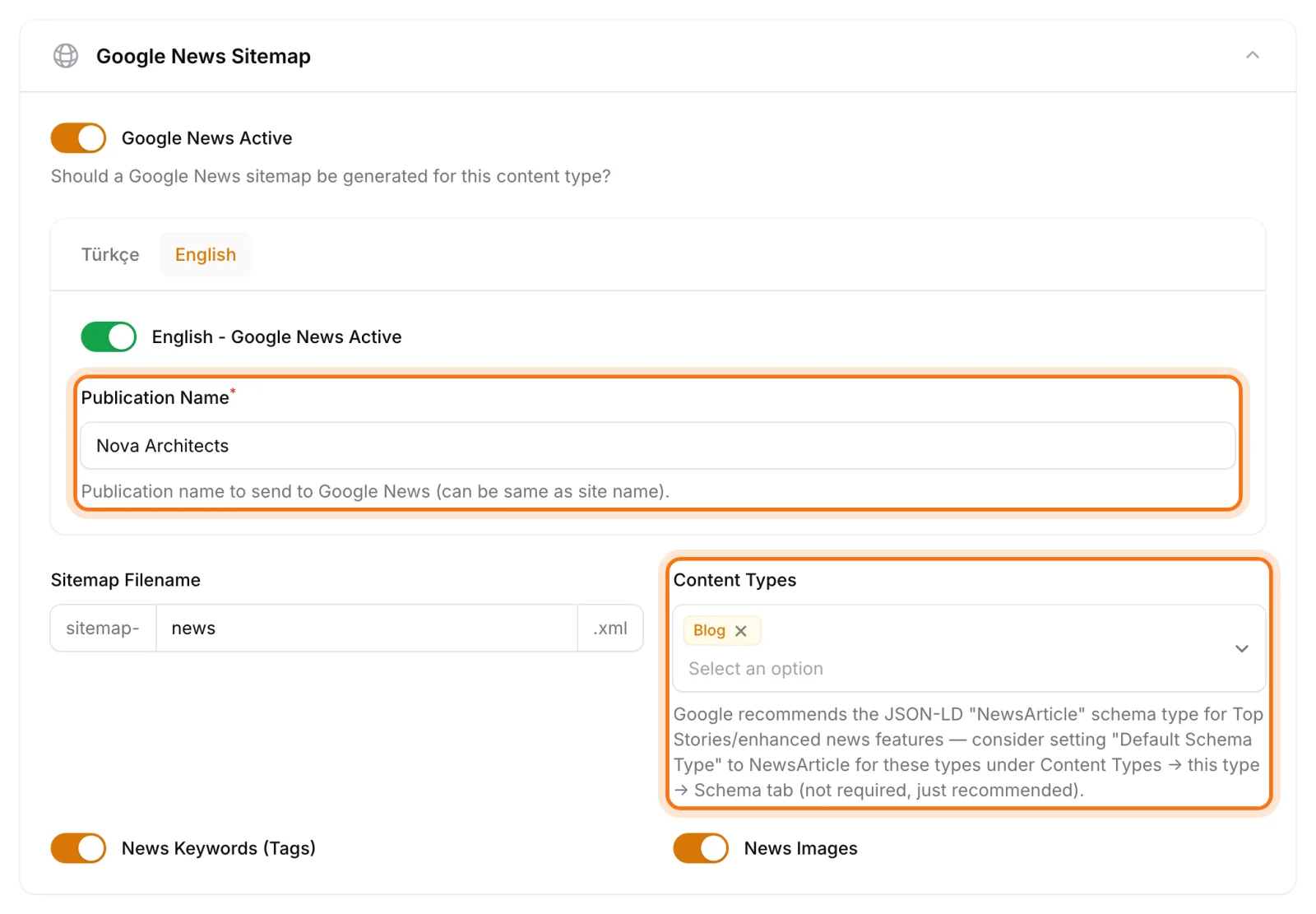
For sites that publish news or timely content, Sem CMS can generate an optional Google News sitemap. It lists only content published in the last two days, which is the structure Google News expects. In the settings you choose:
- Which content types go into the news sitemap.
- A publication name for each language.
- Whether keywords and images are included.
Only the pages that should be indexed
The most common sitemap mistake is listing URLs that don't belong there. Sem CMS never adds:
- Inactive records or unpublished drafts.
- Content scheduled for a future date (until it goes live).
- Content marked "exclude from sitemap". When you set a page to noindex, that flag is switched on automatically when you save.
So you never tell Google "please crawl this page" in your sitemap while the page itself says "don't index me". Those contradictory-signal warnings in Search Console are prevented from the start.
Always current: automatic regeneration
When you save or delete a piece of content, the system invalidates only the sitemap files it affects. Those files are rebuilt on the next request, so the server isn't rewriting the entire sitemap on every edit. On top of that, every sitemap is force-rebuilt each night. If you don't want to wait after a bulk import, two buttons in the panel have you covered: Regenerate All Sitemaps and Clear All Cache.
robots.txt, handled too
Sem CMS generates robots.txt dynamically as well. It blocks crawlers from the admin panel's path and tells search engines where your sitemap lives. Even if you change your panel URL, robots.txt stays correct on its own: no hand-edited file that someone forgets to update.
Submitting your sitemap to Search Console
After setup there's exactly one step left: submit /sitemap.xml once to Google Search Console and Bing Webmaster Tools. To verify site ownership, paste the Google and Bing verification codes into the SEO tab in Settings; no theme files involved.
This is where index mode really earns its keep. Add a new language to the site, or create a new content type and include it in the sitemap, and the matching files are added to the index automatically. There's nothing to resubmit: search engines find the new files through the index. And because the status table on the Sitemap Management screen always shows which files are ready, you can compare the numbers in Search Console with the URL counts in the panel and catch problems early.
Bottom line: a sitemap shouldn't need maintenance
A good sitemap is invisible. It runs in the background, mirrors your site as it is today, and nobody has to remember to update it. In Sem CMS, per-language files, per-content-type settings, image entries, Google News support and automatic regeneration all belong to one system. You create content; search engines find it.
This post wraps up the four-part SEO series. Catch up on the rest: What makes a CMS SEO-friendly, structured data (JSON-LD) and URL management and 301 redirects. Browse everything on our Features page, or request a demo to see it live.