Every custom-designed website has the same weak spot: the next update. An agency spends months on a design that fits the brand perfectly, the site launches, and a few months later a system update shifts the header, resets page templates to their defaults and wipes out hand-made fixes. In most systems, design files live tangled up with core files, so every update is a small gamble.
The second problem is flexibility. "Can the About page look different?" or "Can projects in this category use another layout?" usually means a new ticket for a developer. Sem CMS solves both at once: your design lives apart from the core, and you pick which template a page uses right in the panel.
What to look for in a CMS theme system
- Update-proof design: When the system updates, your design stays exactly where it is.
- Template choice in the panel: Changing a page's layout shouldn't mean editing files.
- Sensible defaults: You shouldn't have to pick a template for every single item.
- Per-language design when you need it: One language's page can look different if the market calls for it.
- Safe theme updates: The design itself can be improved and shipped without putting the live site at risk.
Core updates never touch your design
In Sem CMS, each theme lives in its own folder: page templates, theme text, images and theme details all in one place. The key point: themes are not part of core update packages. When the system moves to a new version, the update package doesn't touch the theme folder at all.
That isn't wishful thinking along the lines of "hopefully this update won't break anything". It's built into the structure. If you're an agency delivering a bespoke design, you don't have to freeze it in place to keep the client's site receiving security and feature updates.
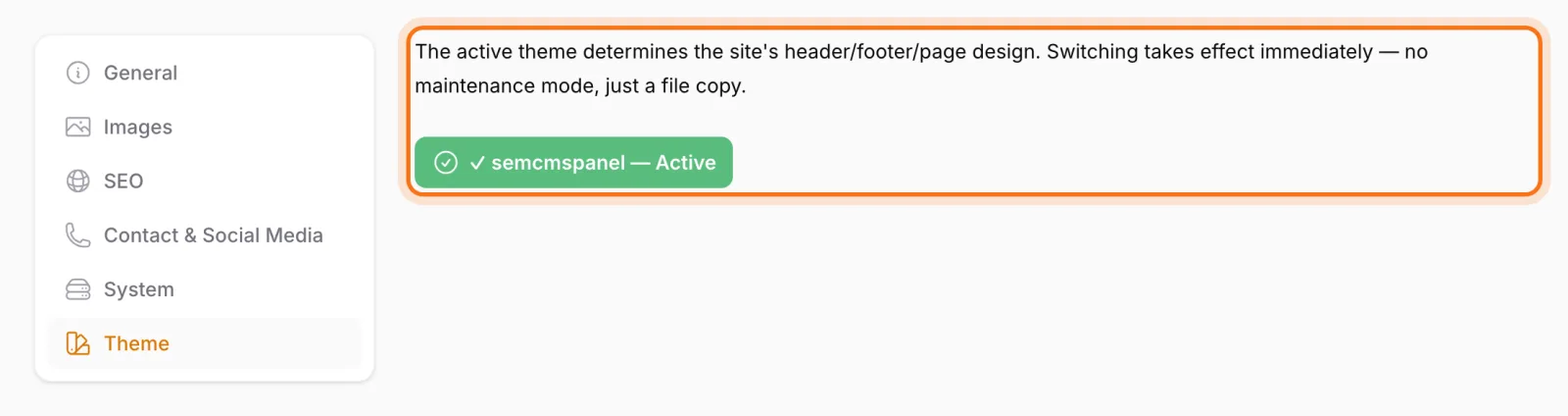
The active theme is chosen on the Theme tab in Settings. If a site has more than one theme installed, switching takes one click and applies immediately.
Choose a page's template in the panel
A theme can offer several page designs: a standard content page, a contact layout, a corporate overview page and so on. Every page in Sem CMS has a Custom Page Design dropdown on its Settings tab. It only lists templates that actually exist in the active theme. Pick one, save, and the page renders with that design.
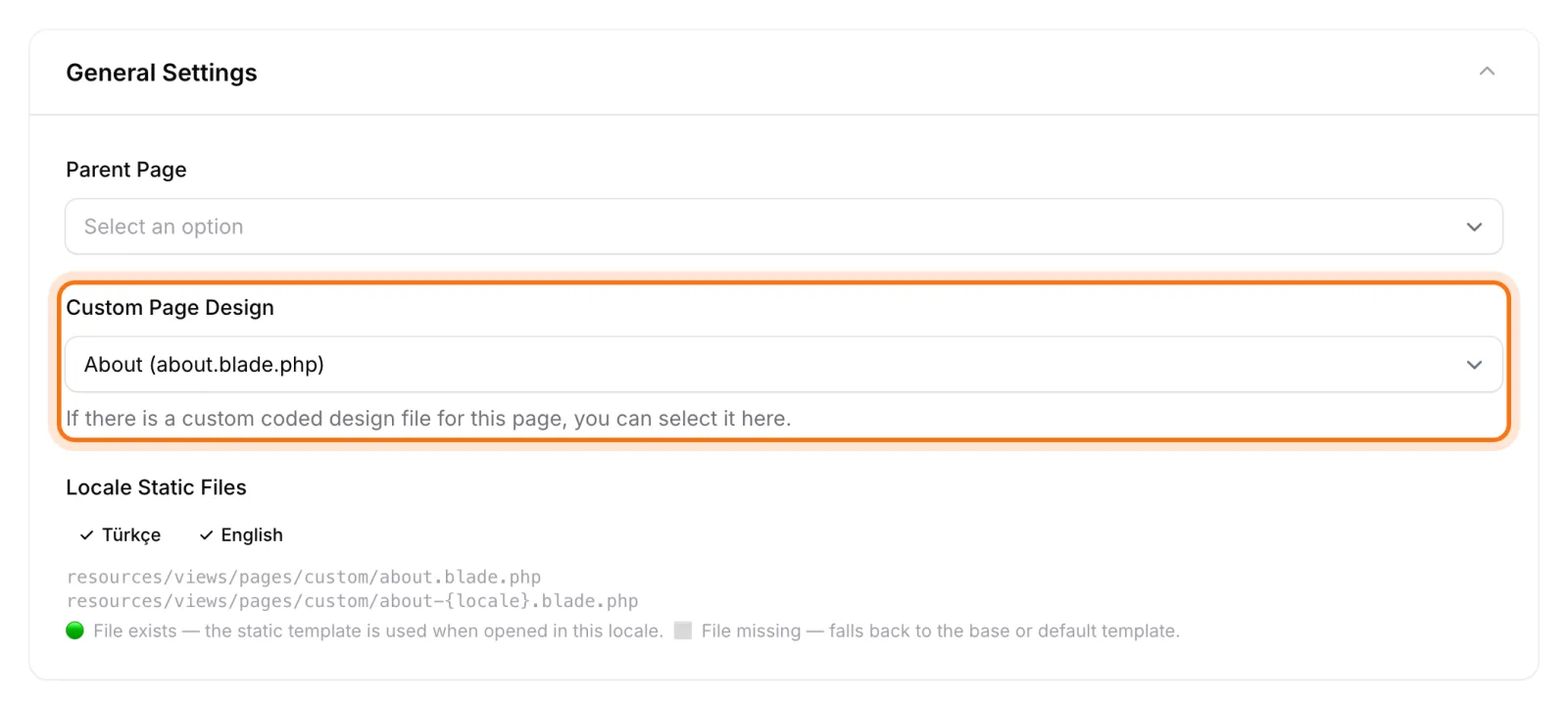
On multilingual sites the dropdown goes a step further: small badges show which languages have their own version of the selected template. If a language-specific version exists, that language uses it; otherwise the shared version takes over. Your Turkish homepage can push local campaigns while the English one leads with international references, and if nobody has built a language-specific version yet, visitors still get a complete page.
Template hierarchy: stop picking templates one by one
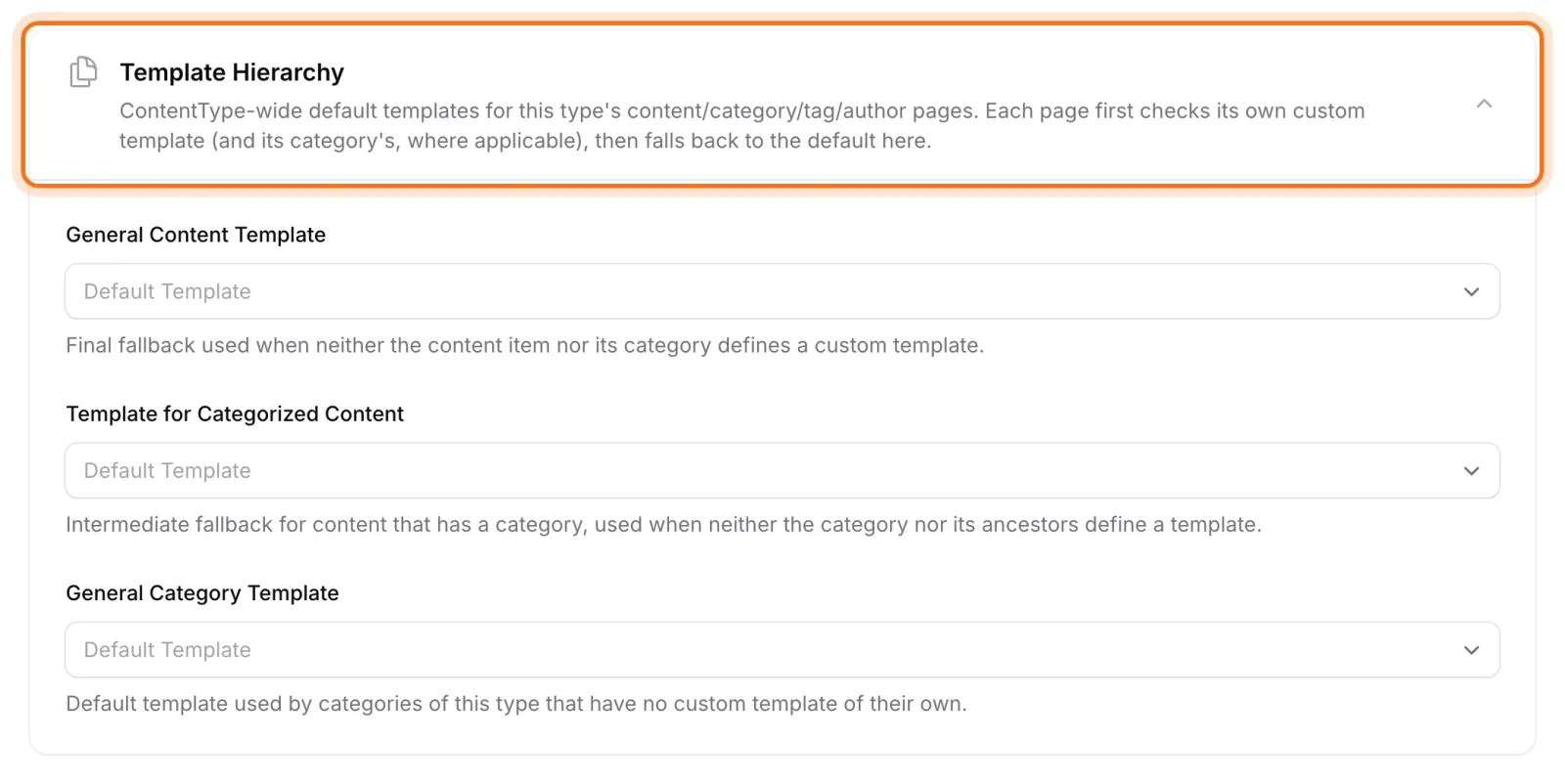
Nobody wants to set a template on each of hundreds of blog posts or projects. That's why Sem CMS uses a template hierarchy: when it renders an item, the system checks from the most specific rule to the most general and uses the first template it finds.
For a content item, such as a project, the order is:
- A template chosen for the item itself.
- Otherwise, the template its category defines for "content in this category".
- Otherwise, the content type's default template.
- If none is set, the system's default design.
Category pages follow similar logic: the category's own template, then the template the parent category sets for its subcategories, then the content type's default. Tag pages check their own template first, then the content type's default.
In practice: to show every project in "Residential" with large hero images and every "Interior Design" project as a gallery, you assign one template to each of those two categories. Every new project picks up its category's design automatically. Want a one-off layout for a single flagship project? Change the template on that record only.
Content-type defaults live in the Template Hierarchy section of the content type's edit screen, with separate settings for content, content-in-category, category, tag and author pages.
Tags and categories: should they have a page at all?
Not every tag or category deserves its own page. Dozens of tag pages holding two posts each look thin and repetitive to search engines. In Sem CMS you decide the role each tag and category plays on the site:
- Has a page: It gets its own listing page, goes into the sitemap and shows as a clickable link.
- No page, name shows: The name still appears on content as plain text, but there's no page behind it and it stays out of the sitemap.
- Panel only: Never shown on the site; used purely to group content in the panel.
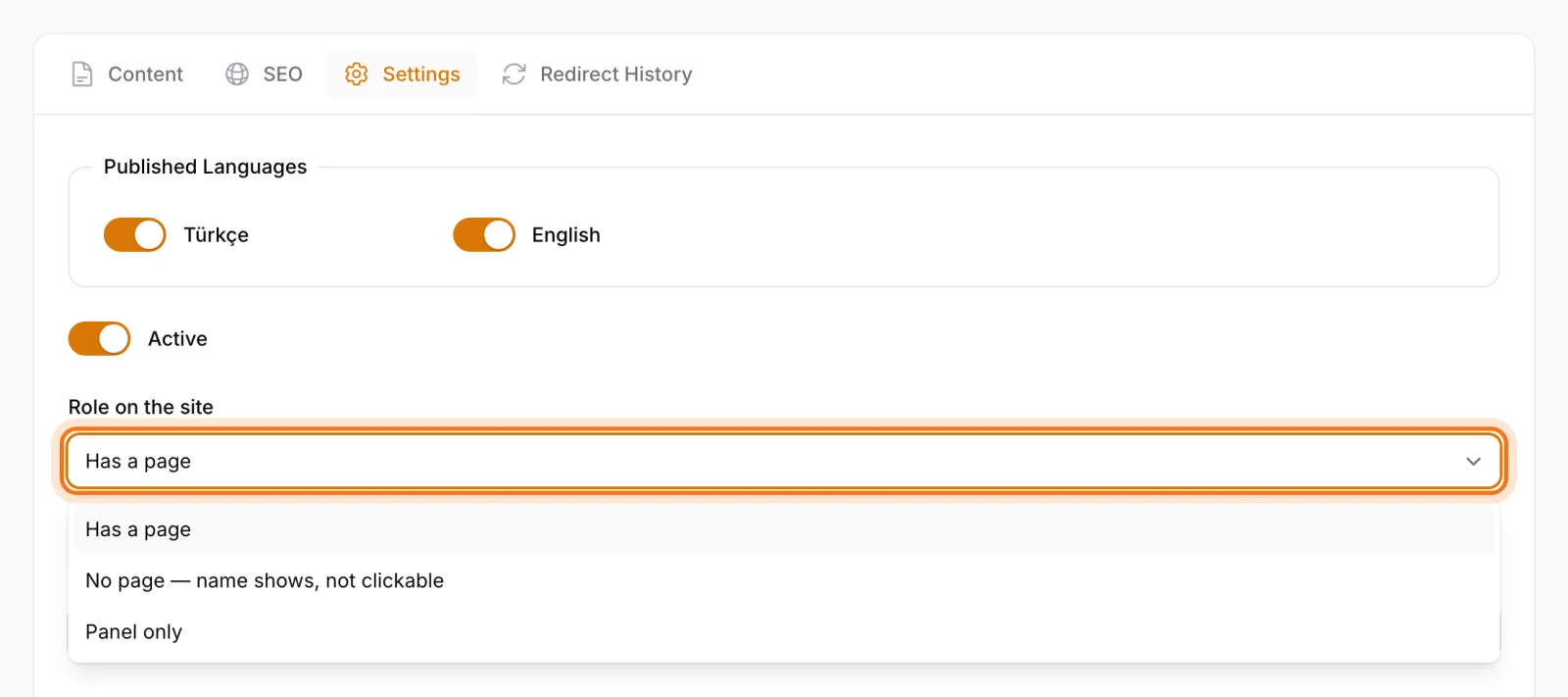
You make that choice in one place and the rest of the system follows: URLs, links and the sitemap all respect it. Turn off a tag's page and the theme won't leave a broken link pointing to it.
Change design copy without calling a developer
A theme can declare the fields its templates need, such as a homepage slogan, a section heading or the text on a call-to-action button. Those fields appear on the relevant page under a Theme Fields tab, so editing the copy in a design never requires touching code. A theme update can add new fields, but it doesn't delete the values you've entered or touch fields you created in the panel yourself. Whether a theme uses this is up to its designer.
Update the theme itself, safely
Because themes are independent from core updates, they get their own update channel. When your agency improves the design, the new theme version can be installed from the Theme Update section on the System Update page. Theme updates use an optional theme license key that's separate from the core license.
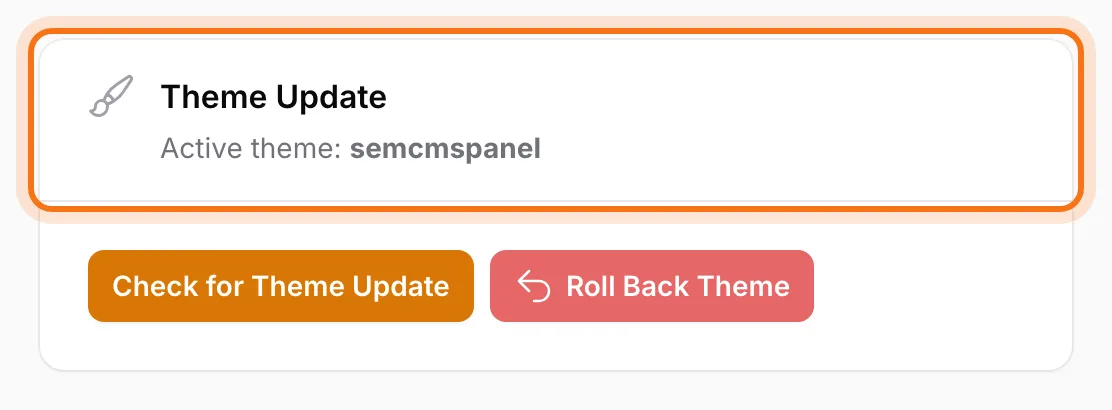
Theme updates are built so they can't take the live site down:
- The new version is unpacked into a separate folder first; the live design isn't touched.
- The system checks that the theme supports the Sem CMS version you're running.
- Theme files edited by hand on the server are detected, and their old versions are kept in the backup.
- The package is verified as complete, and the homepage is test-loaded to confirm it actually renders.
- If any step fails, the previous version is restored automatically. You can also roll back to an earlier backup by hand.
What it means for each person involved
- For business owners: Your investment in a bespoke design isn't lost at the first update. The site keeps its look while the system keeps receiving security and feature updates.
- For agencies: Deliver the design once, without re-checking and patching every client site after each core release, and ship design improvements through their own safe channel.
- For editors: Pick a layout from a list when creating a page. Add a new project and the right design comes from its category automatically; there's nothing to remember.
Design decisions get made once, at the right level, and the system applies them consistently to every new item. Keeping the site visually coherent depends on the structure, not on people's memory.
Bottom line: custom design and an up-to-date system, not one or the other
On many projects, a custom design is paid for by never updating the system again. In Sem CMS the theme lives apart from the core, page and content templates are chosen in the panel, the template hierarchy lets a few decisions cover hundreds of records, and even the theme updates with a way back. Your design stays yours; your system stays current.
Templates work best alongside content types, so see our posts on no-code custom content types and custom fields, and read about the update pipeline in one-click updates. Browse everything on our Features page, or request a demo to see how your own design would run on Sem CMS.