Plenty of websites run old versions not because nobody noticed the update, but because everyone is afraid of it. Files get uploaded to the server by hand, one plugin breaks another, theme files get overwritten, and the site throws errors for half an hour. After that happens once, nobody wants to touch the "Update" button again. Meanwhile, the longer a system goes without updates, the more security holes and incompatibilities pile up.
Updates only happen often when they are safe. In this post we walk through the one-click update system in Sem CMS: the backup taken automatically before every update, the rollback that kicks in on its own when something fails, how your customised files are protected, and how you keep an eye on system health from the panel.
At a glance: updates and maintenance in Sem CMS
- One-click updates: Check for a new version in the panel, install it with one click and watch the progress live.
- Backup first: A backup of the system files is taken automatically before every update.
- Automatic rollback: If an update fails halfway, the system restores the previous version by itself.
- Customisations protected: Files you've changed and your custom templates are never overwritten.
- A separate theme channel: Your theme is updated and rolled back independently of the core.
- Notifications and a health page: You hear about new versions through panel notifications and see whether background tasks are running on a single screen.
How an update works
The System Update page, under System Management in the panel, shows the version you're running. Click Check for Updates and the system asks the license server whether a newer version exists. If it does, Update Now starts the process.
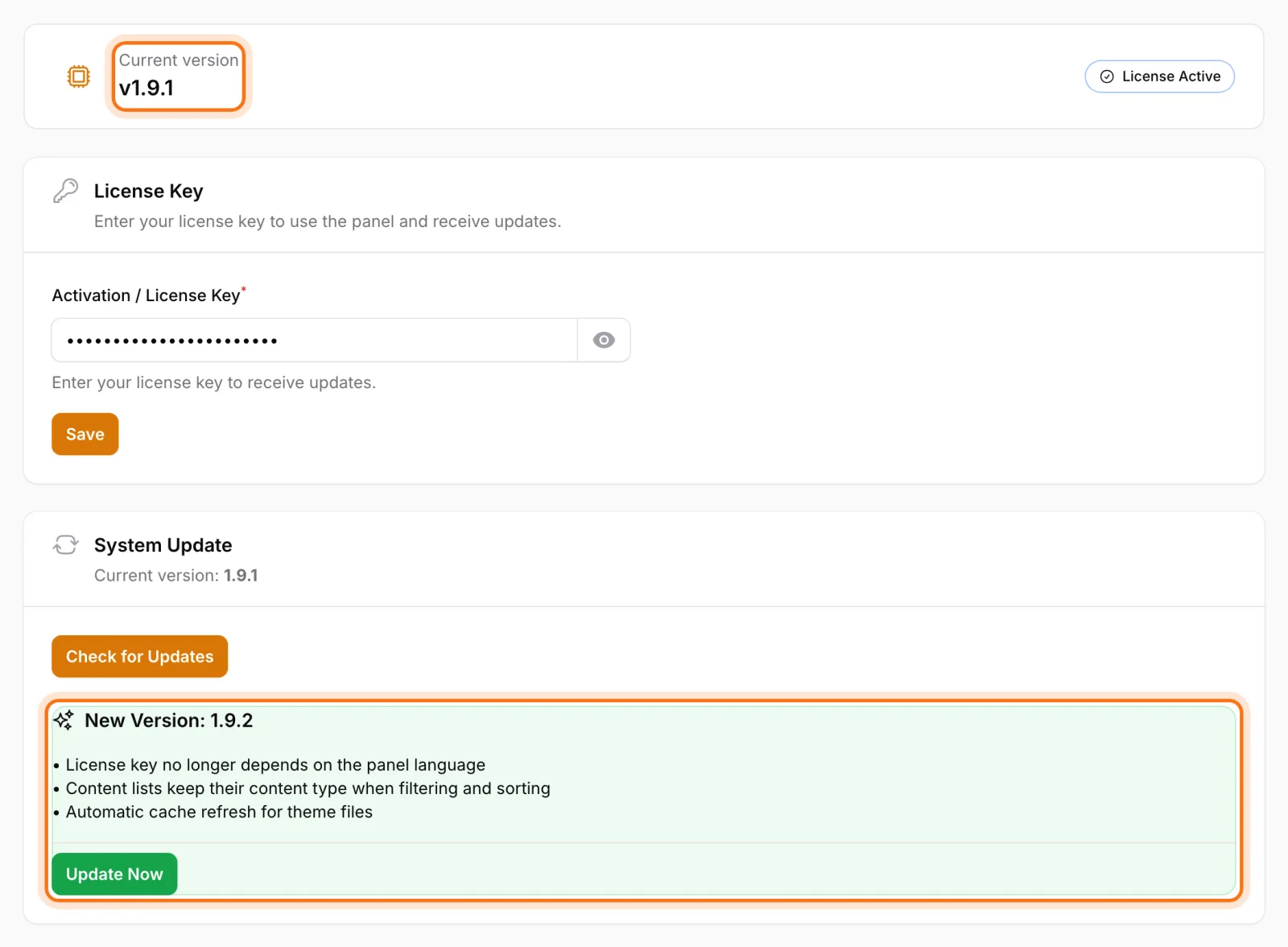
The update runs in the background, and while the page is open a step-by-step progress bar shows exactly what's happening:
- Download: The package is only accepted from the license server's configured address. A package from anywhere else is rejected, and the downloaded file is checked to be a valid, intact archive.
- Backup: A code backup of the current version is created.
- Maintenance mode: The site is briefly put into maintenance mode so visitors never see a half-updated site while files change.
- Files, dependencies and database: The new files are applied and the database structure is updated as needed.
- Clean-up and go live: Caches are cleared and the site comes back online.
If the background process silently stops for any reason, the screen doesn't wait forever. After five minutes without progress the update is flagged as stalled, and a button appears that lets you reset it.
Backup first, update second
In Sem CMS, an update that can't be backed up doesn't start. If the backup step fails, the process stops right there and tells you why, before a single file has changed.
The backup covers the code side of the system: application files, configuration, the files that define your database structure, routes, templates and public compiled assets. The environment file holding your server settings is protected separately during the update and is never replaced by the new package. The last three backups are kept and older ones are removed automatically, so backups never fill up your server's disk.
One honest note: this is a code backup, not a backup of your content or media files. For the database and uploaded files, keep your hosting provider's regular backups running.
When something goes wrong: automatic rollback
If an error occurs while files are being applied or the database is being updated, Sem CMS doesn't leave you with a half-finished system. It restores the backup automatically: the code goes back to its previous state, and any database structure changes made during the update are reversed. The panel tells you what went wrong and that the system has been rolled back.
And if the rollback itself fails? Then the site is deliberately left in maintenance mode. A short maintenance screen is always better than visitors hitting a site running half new and half old code. The panel also states clearly that manual intervention is needed.
Roll back by hand whenever you want
Even after a successful update, you might notice behaviour in the new version you didn't expect. The Backups & Rollback section on the System Update page lists every backup with its date and size. Restore to this Backup takes you back to the one you choose.
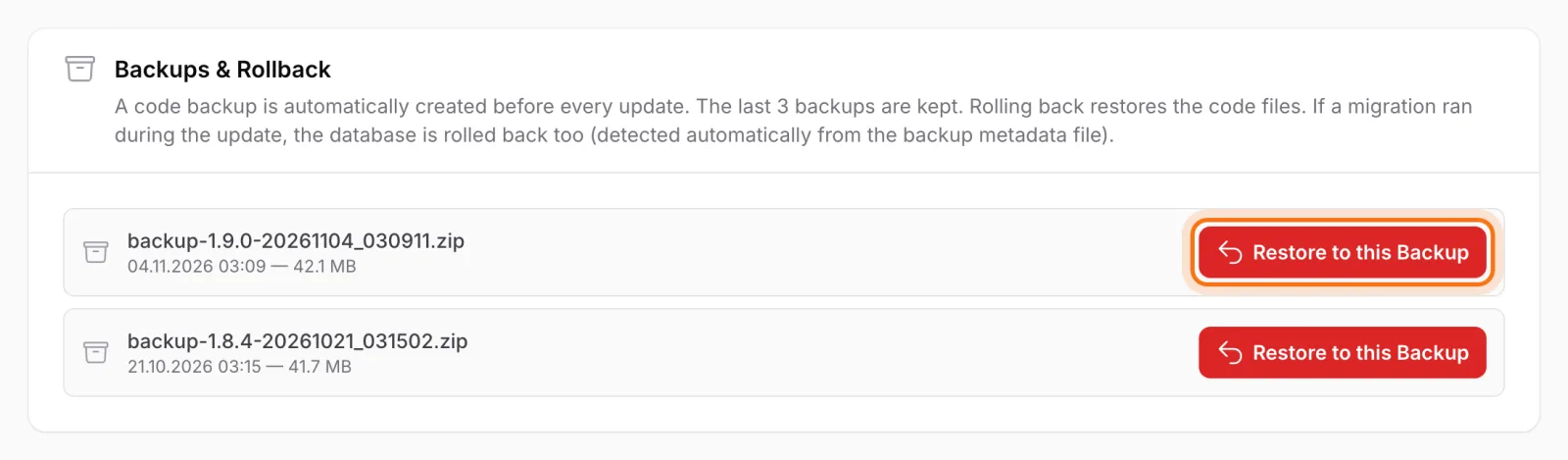
A manual rollback comes with the same safeguards. If that update changed the database structure, the system detects it from information stored with the backup and reverses it. The version number switches back to the restored version too, so you're never left wondering whether the rollback actually worked.
Your customisations survive every update
This is what agencies worry about most: a file you customised for a client quietly reverts to stock on the next update. Sem CMS prevents that with file fingerprints.
- Changed files are detected: Every release package ships with fingerprints of the files it contains. If the system sees that you've changed a file since the last update, it won't overwrite it.
- Custom template folders are skipped: Updates never touch the
customfolders that hold your custom templates for pages, categories and tags. - The theme lives outside the core: Your site's bespoke design is never part of a core update package, so a core update structurally cannot change your theme.
A separate update channel for your theme
In Sem CMS the core system and the theme are two separate products, updated with two separate license keys. The System Update page has its own section for your theme: Check for Theme Update, installing the update and Roll Back Theme all work independently of the core.
In practice, that means you don't wait for a core release to ship a design fix, and you don't have to retest the design every time the core updates. For a closer look at how themes are structured, read our post on the theme system and template hierarchy.
You won't miss a new version
Every day at 09:00 the system checks on its own whether a new core or theme version is available. If there is one, super admins and users allowed to manage settings get a notification under the panel's bell icon. Each version triggers a single notification, so you aren't nagged with the same alert every morning. We cover how those permissions are handed out in our roles and permissions post.
System health on one screen
When scheduled tasks quietly stop running, nobody usually notices: notifications stop arriving and background jobs pile up. The panel's CMS Info page makes problems like this visible:
- the installed version number,
- the scheduler's latest heartbeat and the number of jobs waiting in the queue,
- the status of the storage link that makes uploaded media visible on the site,
- whether the server's document root points to the right folder,
- ready-to-paste scheduled task lines written for this specific installation.
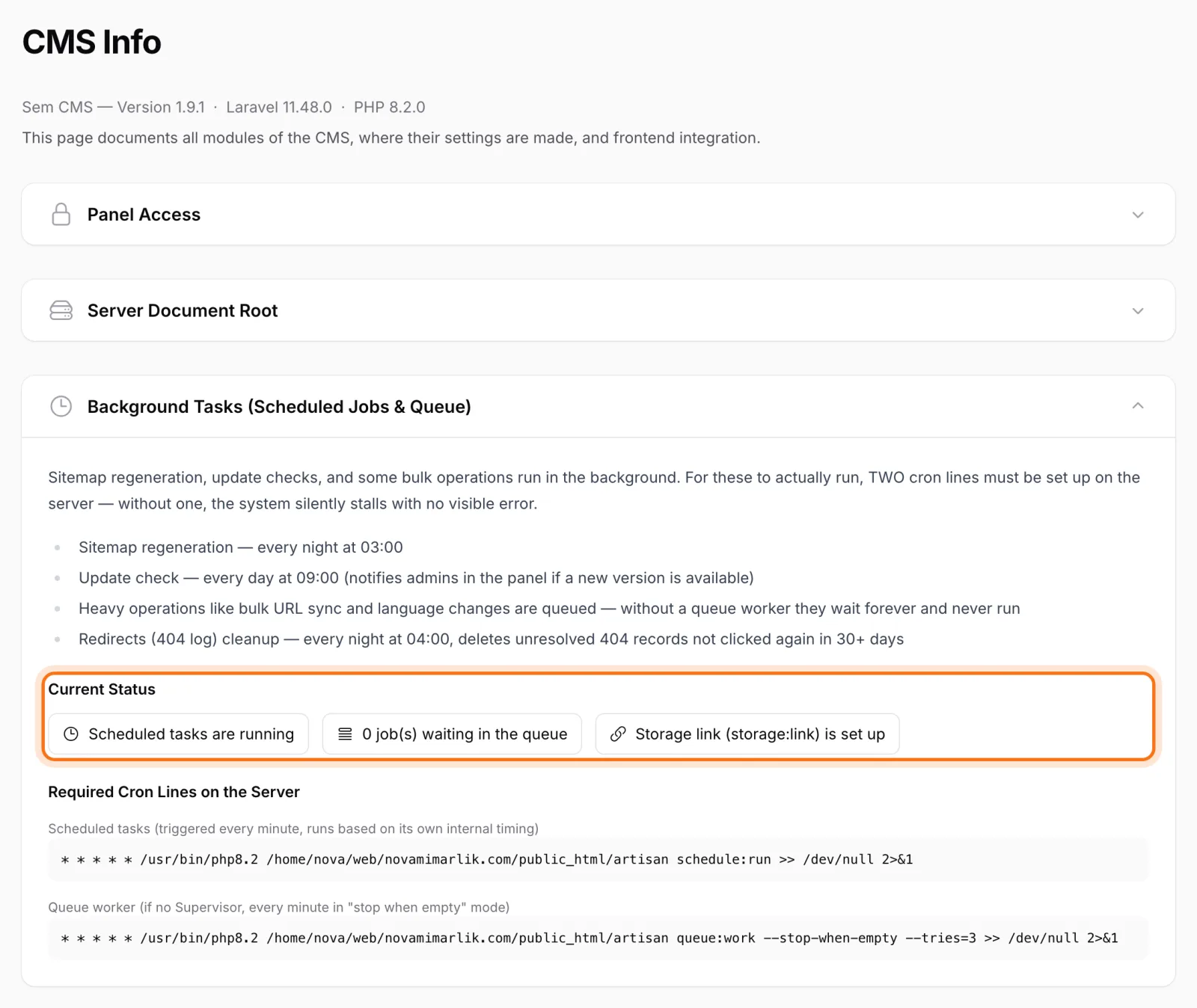
If the scheduler has stopped or the queue is backing up, you'll see it on the dashboard as well, not just on this page. The health warning only appears when there's a problem; when everything is fine, it stays out of your way.
Maintenance mode with your own message
Before a major content overhaul or a redesign, you may want to take the site offline for a while. The Maintenance Mode switch on the System tab in Settings shows visitors a maintenance screen. You can write the message yourself; leave it blank and a default message is used.
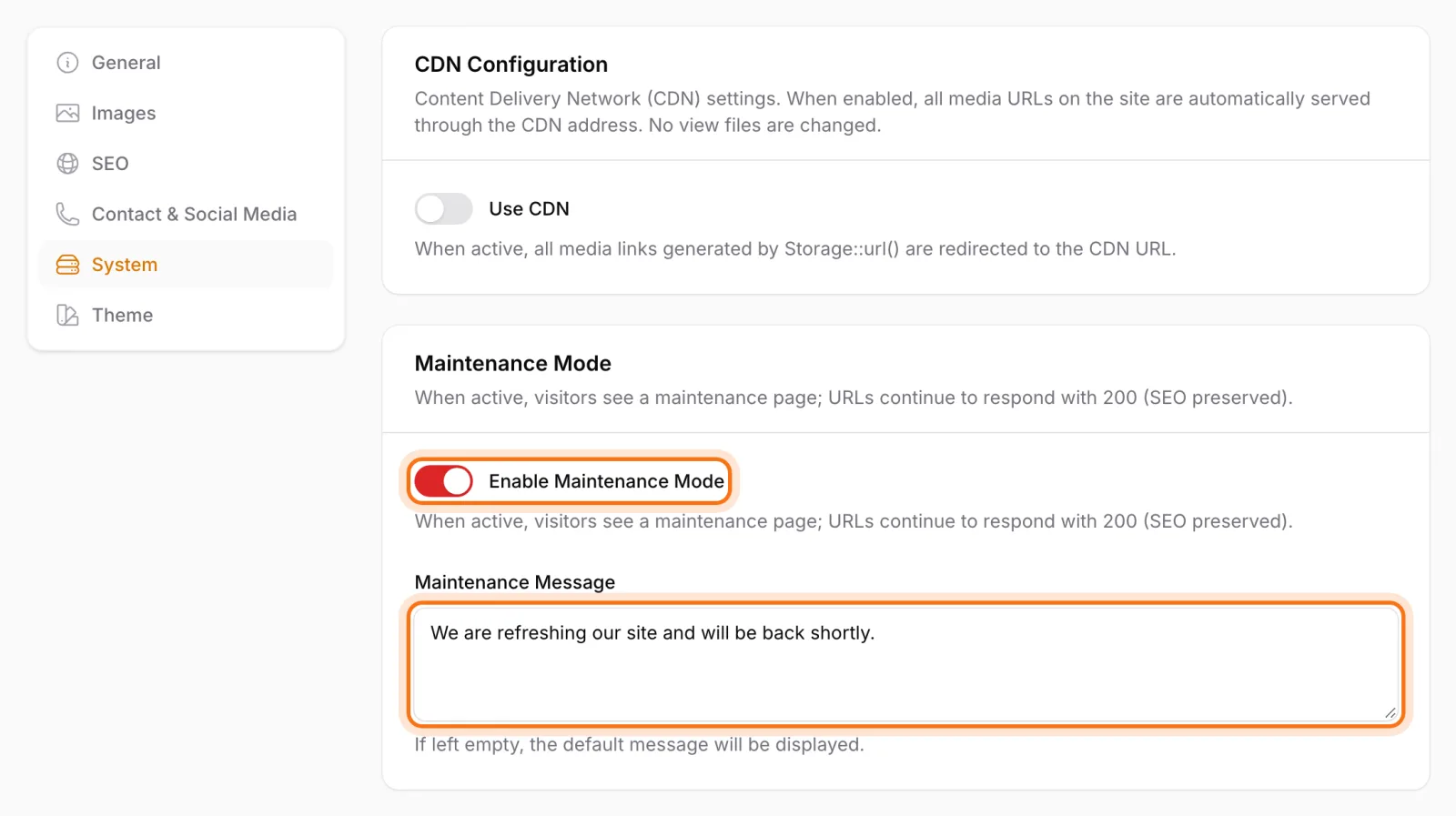
While maintenance mode is on, the panel stays reachable. Your team keeps adding content and adjusting settings, and you flip the switch off when you're ready.
Bottom line: updating should be routine, not a risk
Safe updates are the only sustainable way to stay current. In Sem CMS a backup is taken before every update, the system rolls itself back if anything fails, your customised files are left alone, the theme updates through its own channel, and system health is visible on one screen. You press "Update Now" as a routine task, not with your fingers crossed.
You'll find everything Sem CMS can do on the Features page. To see the update and maintenance workflow live, request a demo, or get in touch with any questions about installation and licensing.