When one person runs a website, permissions rarely come up. As the team grows, the picture changes: blog authors, an intern entering project pages, a marketer who edits menus and one administrator who should be the only one touching settings. Giving everyone full access is easy, until someone deletes a page by accident, changes a site setting or breaks live copy, and nobody can tell who did what.
Good CMS user roles and permissions answer two questions clearly: who can do what, and who changed what, and when? In Sem CMS both answers live inside the panel, through granular role management and an activity log that shows content changes field by field.
What to look for in CMS user roles
- Permissions per area: "Can edit the blog but can't delete projects" should be easy to express.
- Permissions per action: Viewing, creating, editing and deleting should be separate rights.
- Automatic coverage for new modules: Adding a content type shouldn't mean defining its permissions by hand.
- Protection against privilege escalation: Someone who can edit roles shouldn't be able to hand out rights they don't have.
- Change history: You should see exactly what changed in a piece of content, before and after.
12 separate permissions for every content area
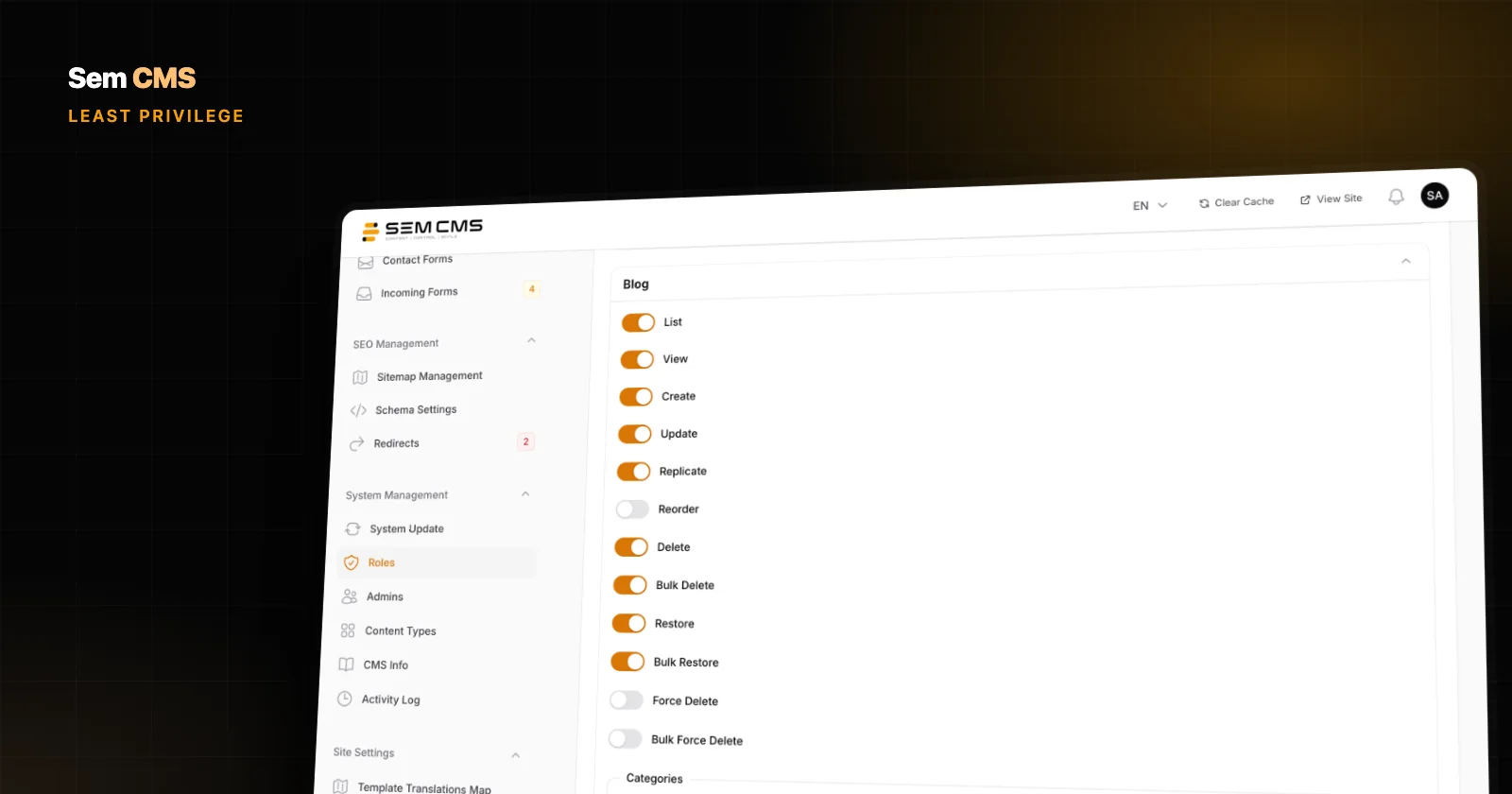
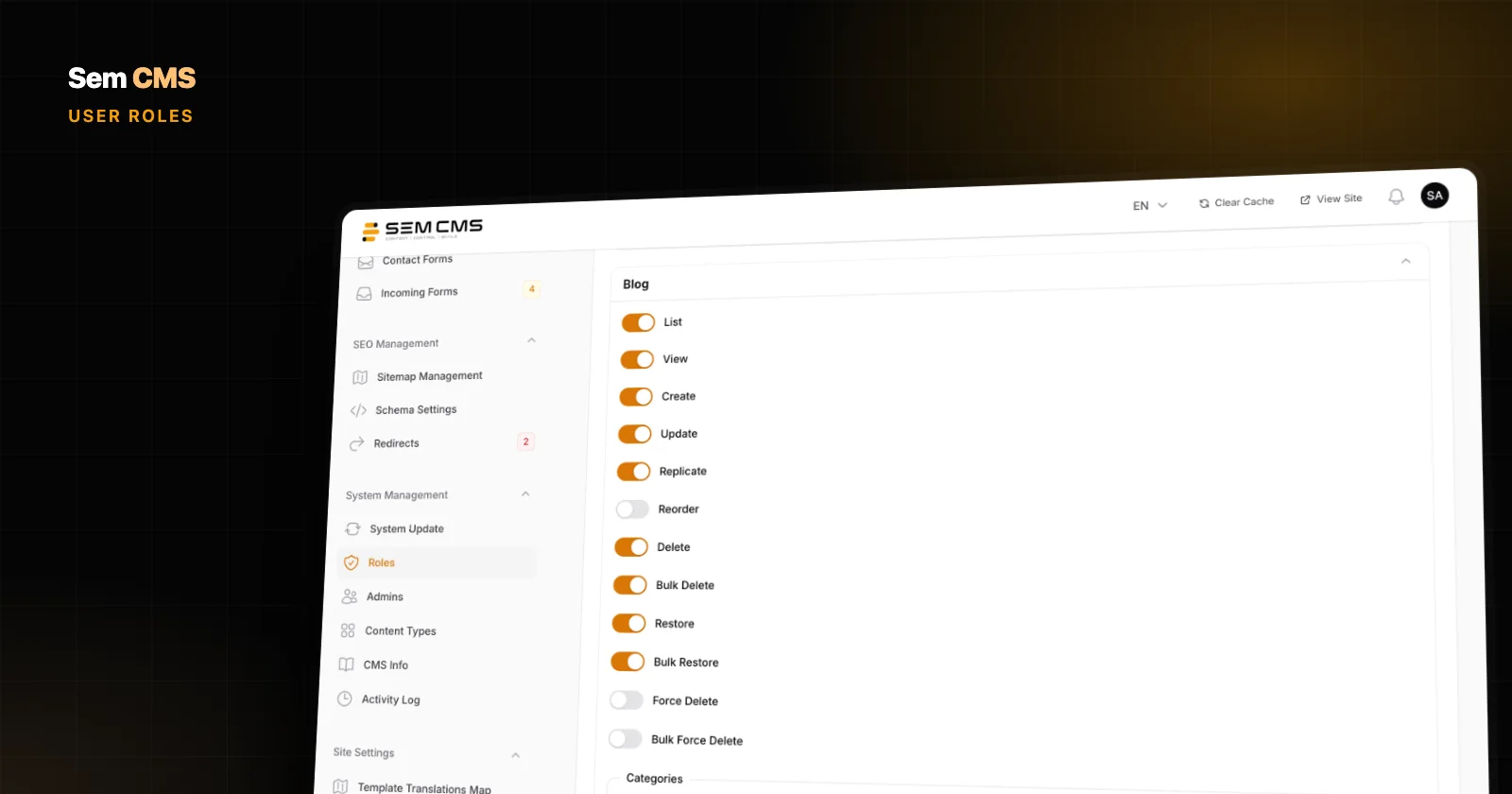
When you edit a role in Sem CMS, each content area gets its own section: pages, the blog and every custom content type you've created. Each section has a switch for 12 separate actions:
- List and view a single record
- Create, edit and duplicate
- Reorder
- Delete and bulk delete
- Restore and bulk restore
- Permanently delete and bulk permanently delete
For content areas that use categories and tags, the same 12 permissions repeat in their own sub-groups. So you can let an editor work on blog posts without letting them touch blog categories.
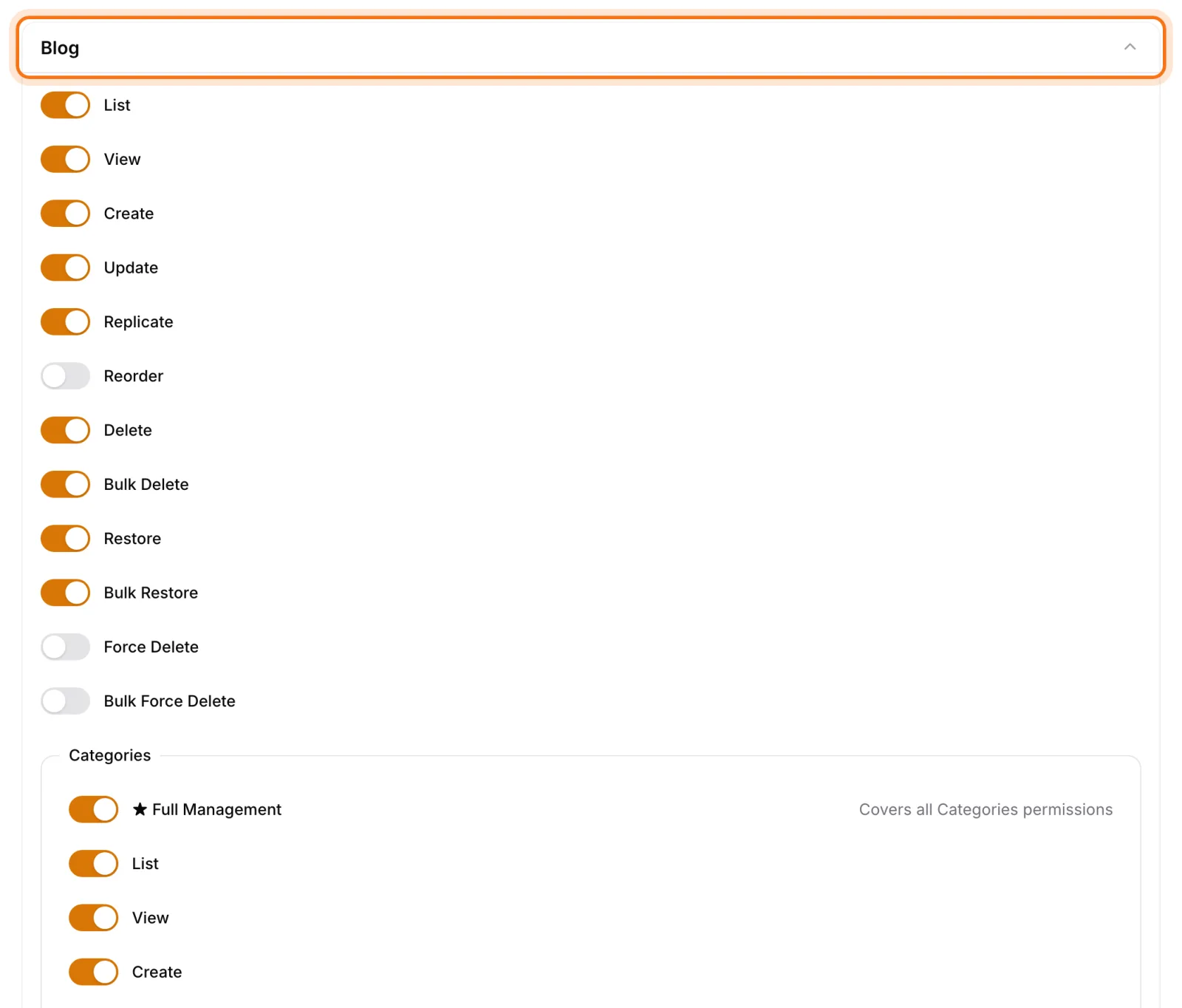
Each section starts with a Full Management switch that ticks every permission in that area at once. Full access for a trusted content lead takes one click; a narrow "list, view, create" set for an intern takes a few seconds.
That granularity pays off in practice. Keep permanent deletion for administrators only, and anything an editor deletes stays in the trash where an authorized user can restore it. One wrong click never turns into permanent data loss.
New content types arrive with their permissions
When you create a new content type in the Sem CMS panel, say "Projects" or "Team", its permissions are generated automatically and appear in the role editor straight away, in their own section. If the type uses categories or tags, those sub-groups are added too. Delete the content type and its permissions are cleaned up with it, so the list never fills up with forgotten, meaningless switches.
Your permission setup doesn't become a separate maintenance project as the site grows. We covered how content types are built in no-code custom content types.
Separate permissions for system areas
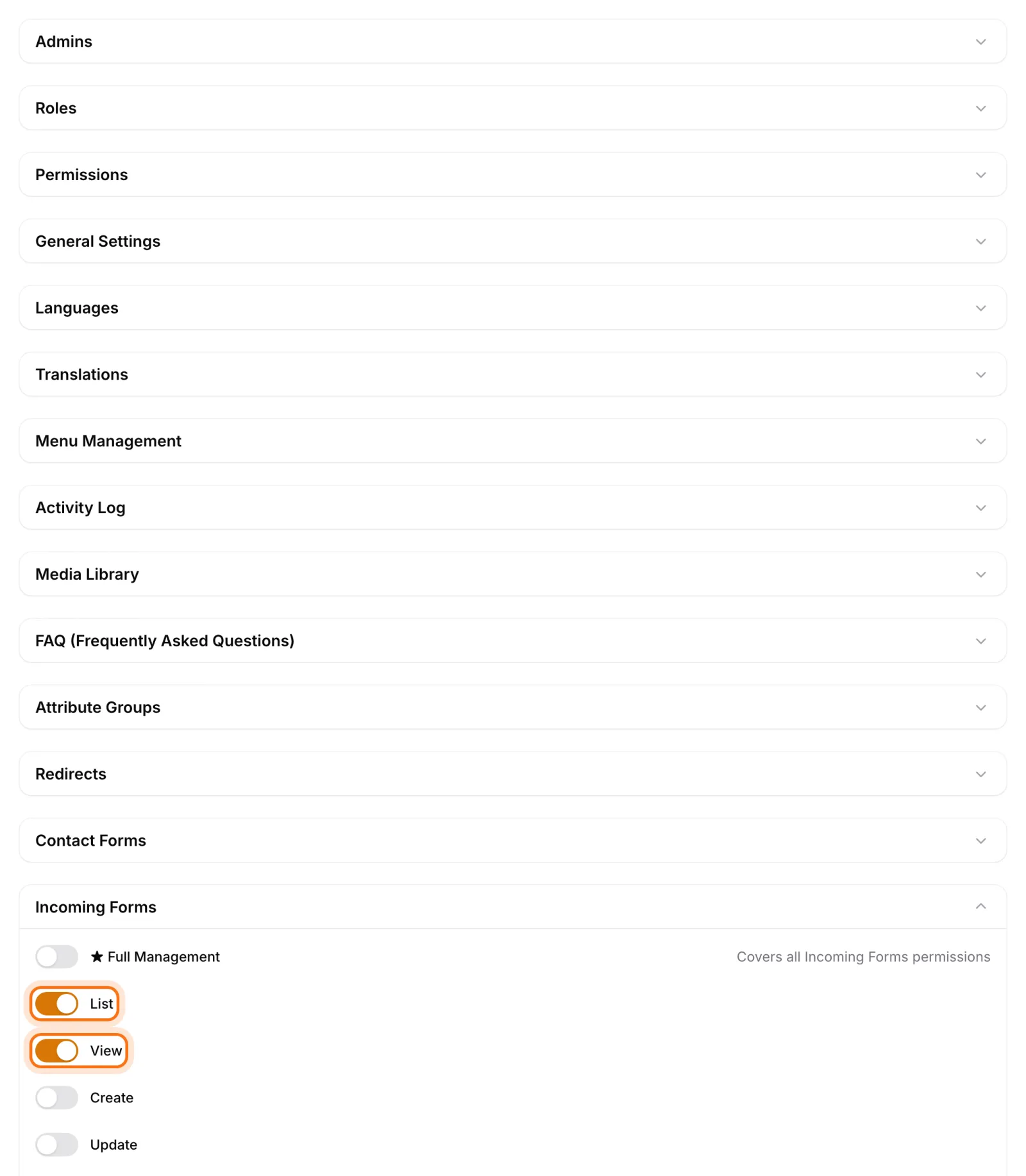
Administrative areas outside content follow the same 12-action structure. The role editor covers 14 system areas:
- Administrators, roles and permissions
- General settings, languages and translations
- Menus, the media library and the activity log
- FAQs, custom field groups and redirects
- Contact forms and incoming form submissions
On top of that, Access Panel is its own permission. A sales rep who follows up on enquiries can be given access to incoming submissions only, with menus and site settings closed off entirely.
Built-in protection against privilege escalation
Delegating role management is risky: the person you hand it to could grant themselves or others rights you never gave them. In Sem CMS, a user who isn't a super admin can only grant permissions they already hold when editing a role. The right to edit roles is not a back door to unlimited access.
The super admin role itself is locked: its permissions can't be changed and it can't be deleted. You can't end up with a site where, through one mistake, nobody has full access any more.
User profiles and author pages
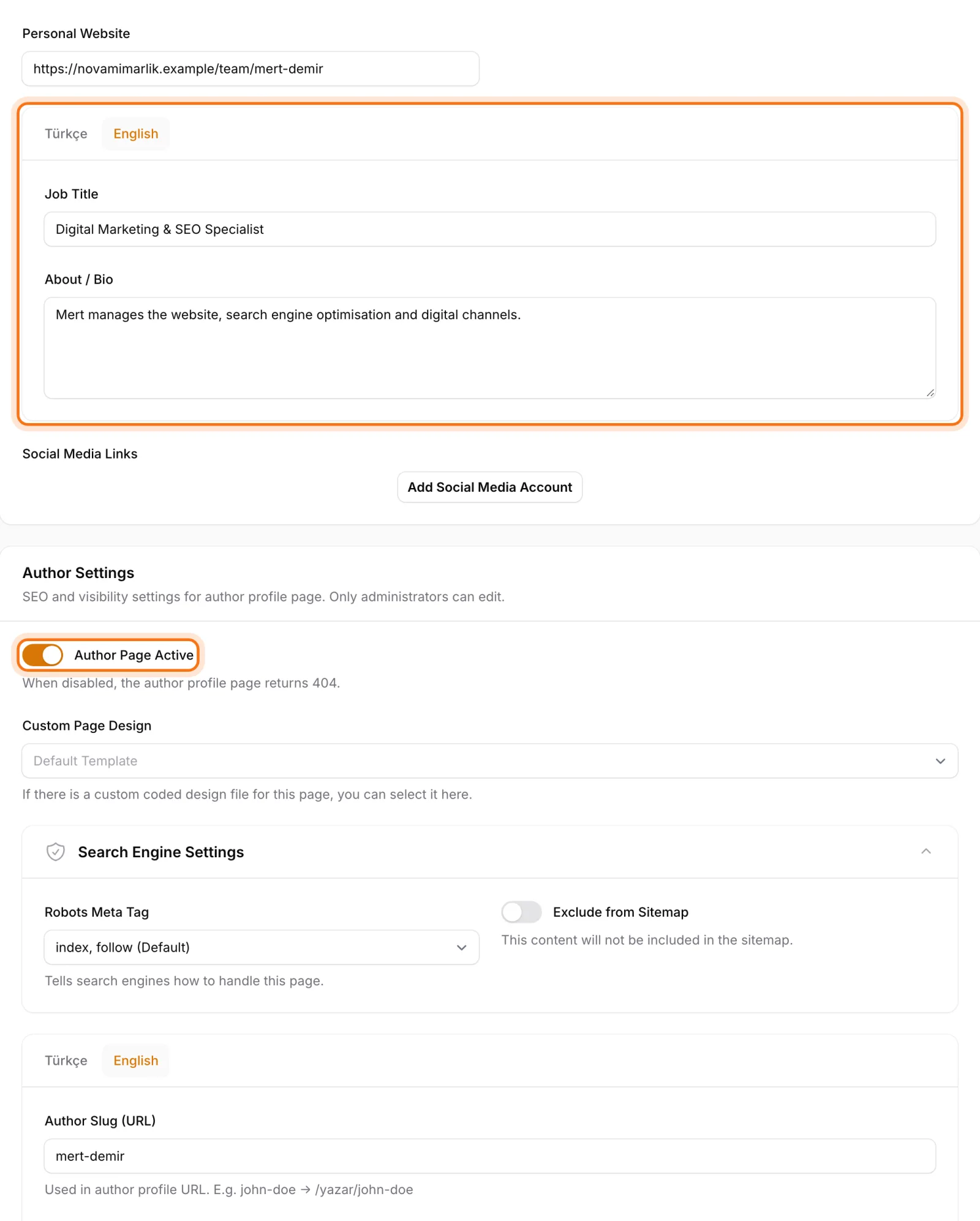
Every user profile has an avatar, website, job title, social links and a bio written separately for each language. You can switch on a public author page for any user, and that page gets its own URL, a meta title and description per language, a robots setting and the option to keep it out of the sitemap. Showing the experts behind your articles is one of the simplest ways to build trust in your content.
The panel's interface language is also chosen per user. An editor who works in Turkish and a teammate who prefers English use the same panel in their own language, independently of the site's content languages.
Activity log: who changed what, and when?
Sem CMS records every create, update and delete on content and pages in the Activity Log. Each entry shows who made the change, what kind of change it was, which record it touched and when. You can filter by event and by record type, and jump to the record in one click.
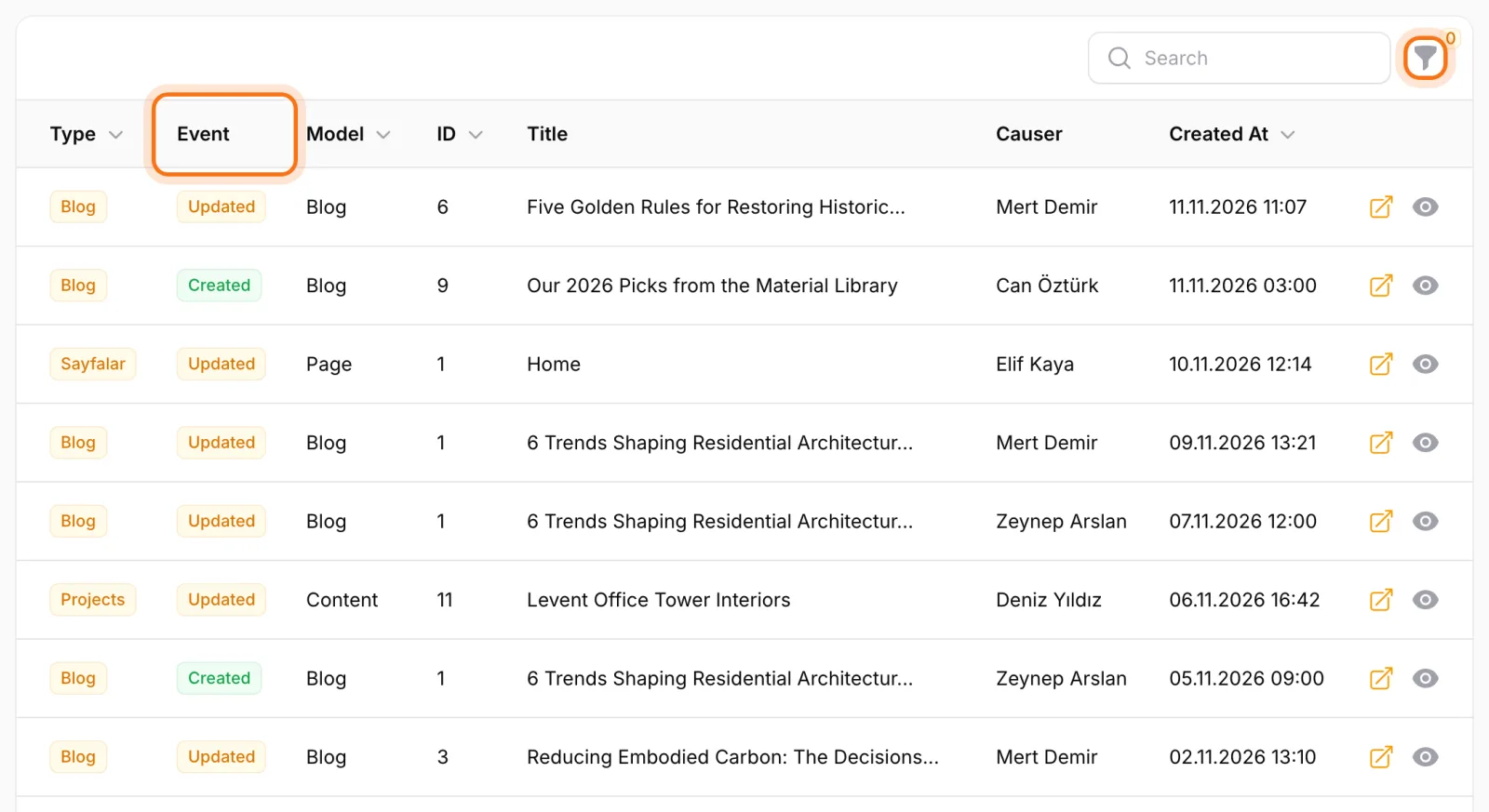
Entries go well beyond "this page was updated". The system stores only the fields that actually changed and shows them together: the old value in red and struck through, the new value right below it. Translatable fields are compared per language, so you can see at a glance that the English title changed while the Turkish one didn't.
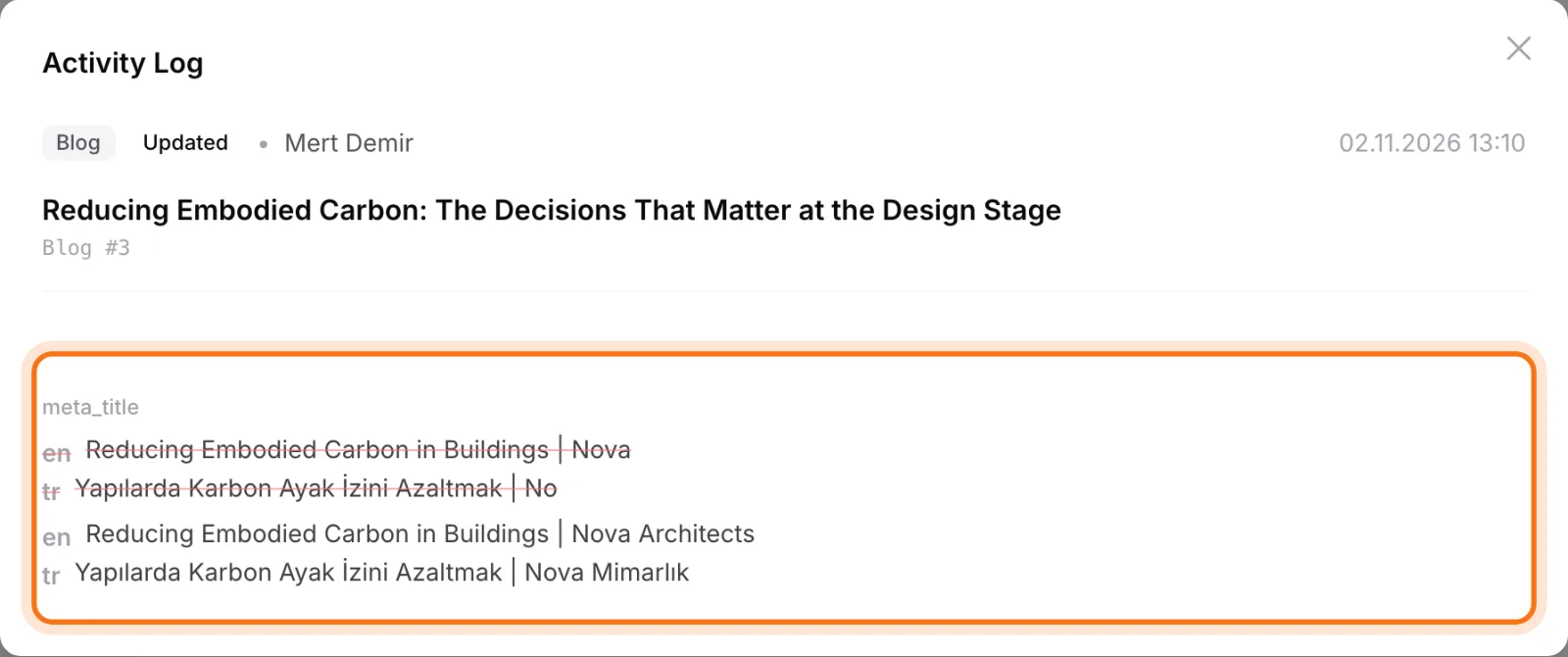
When a client says "the pricing on that page changed by itself", you don't have to guess. Open the log, show who changed what on which day and what the previous value was, then put the old text back in minutes. Deletions are logged too, so you can also see when an item was deleted and by whom.
Example: a role setup for an architecture studio
To make this concrete, picture a fictional architecture studio called Nova Mimarlık. The site has pages, a blog, a "Projects" content type and a contact form. Five people work on it, and each needs something different:
| Role | Permissions |
|---|---|
| Administrator | Super admin: every area, settings and roles |
| Content Editor | Full Management on Blog and Projects, including categories and tags; edit pages; no permanent deletion |
| Intern | List, view and create projects; no deleting, no category management |
| Marketing | Menus, FAQs and redirects; view-only on content |
| Sales | List and view incoming form submissions only |
With this setup, the intern can enter new projects but can't delete a live one. Sales follows up on quote requests without ever seeing site settings. Marketing updates the menu with no risk of breaking content. And if something does go wrong, the activity log shows what happened. Setting all of this up takes a few minutes and no code.
Bottom line: give your team exactly the access it needs
In Sem CMS, user roles are defined per content area and per action, new content types bring their own permissions, role editing can't be abused to escalate access and content changes can be traced field by field. Your team can grow without you losing control.
Working with a team across languages? Our post on multilingual website management is a good next read. See the full list on our Features page, request a demo to map out the right role structure for your team, or get in touch.