On a lot of websites, everyone who can log in to the admin panel is an administrator. It feels efficient at first: nobody waits around because they can't open a screen. Then an intern deletes a category by mistake, someone at the agency changes a site setting, or a former employee's account stays active for months after they've left. Nobody meant any harm. The problem is that everyone could touch everything.
There's a well-established fix for this: the principle of least privilege. This guide explains how to apply it to a content team, which roles most teams actually need, the most common user permission mistakes, and how to run a simple permissions review.
TL;DR: Least privilege means giving every user exactly the access their job requires, and nothing more. For content teams that comes down to personal accounts, roles defined by task, risky actions such as permanent deletion and site settings limited to a few people, same-day offboarding, and a record of who changed what.
What is the principle of least privilege?
Least privilege is one of the oldest principles in information security: a user, an application or a service account should have only the access it needs to do its job. A blog author needs to write posts. They don't need to add users, rearrange menus or edit redirect rules.
Applied consistently, it reduces three kinds of risk:
- Human error: People can't accidentally delete what they have no permission to delete.
- Compromised accounts: A leaked editor password puts that editor's area at risk, not the whole site.
- Unclear accountability: When it's clear who can do what, it's also clear where to look when something goes wrong.
Typical roles for a content team
Every team is different, but a starting point like the one below covers most company websites. Define roles around tasks, not people; two people doing the same job should share the same role.
| Role | Can do | Shouldn't do |
|---|---|---|
| Author | Create and edit content in their own area | Delete, change settings, manage users |
| Editor | Edit content, manage categories and tags, reorder | Permanently delete, manage users or roles |
| SEO / marketing | Edit content, redirects, menus, FAQs | Users, roles, system settings |
| Site manager | Settings, languages, forms, media | Role management, unless needed |
| Super admin | Everything | Shouldn't be used for day-to-day content work |
That last row matters. Keep the number of all-powerful accounts to a handful, and don't use them for everyday work. Even administrators can do routine editing from a separate editor-level account.
Common permission mistakes
- Shared logins: Accounts like "agency@" or "editor@" used by several people. You can't tell who did what, and rotating the password after someone leaves disrupts everyone.
- Admin by default: "Let's make them an admin for now and fix it later." Later never comes.
- Not separating delete from edit: When everyone who can edit can also permanently delete, irreversible mistakes are only a click away.
- Underestimating user management: Whoever can assign roles to users indirectly decides everyone's permissions. That access is as sensitive as role management itself.
- Forgotten accounts: The project ended, the agency contract finished, the intern moved on, and the accounts are still active.
- No audit trail: If you can't see what changed and who changed it, debugging turns into guesswork.
A least-privilege checklist
- Give everyone a personal account. No shared logins.
- Define roles by task and start every new user on the narrowest one. You can always add access later.
- Restrict permanent deletion, user management, role management and site settings to a few people.
- When you create a role, log in as a test user and check what it can really see and do.
- Give external contributors such as agencies and freelancers access only to the area they work on, and close the account when the job is done.
- Offboard on the same day someone leaves: delete the account or remove its role.
- Review users and roles every quarter. Is each account still needed? Is it still in the right role?
- Use a system that records content changes, and check that record first when something breaks.
Least privilege in Sem CMS
A principle is only as good as the tooling behind it. If your panel offers two blunt options, "editor" and "admin", least privilege stays on paper. The role editor in Sem CMS is built for finer distinctions.
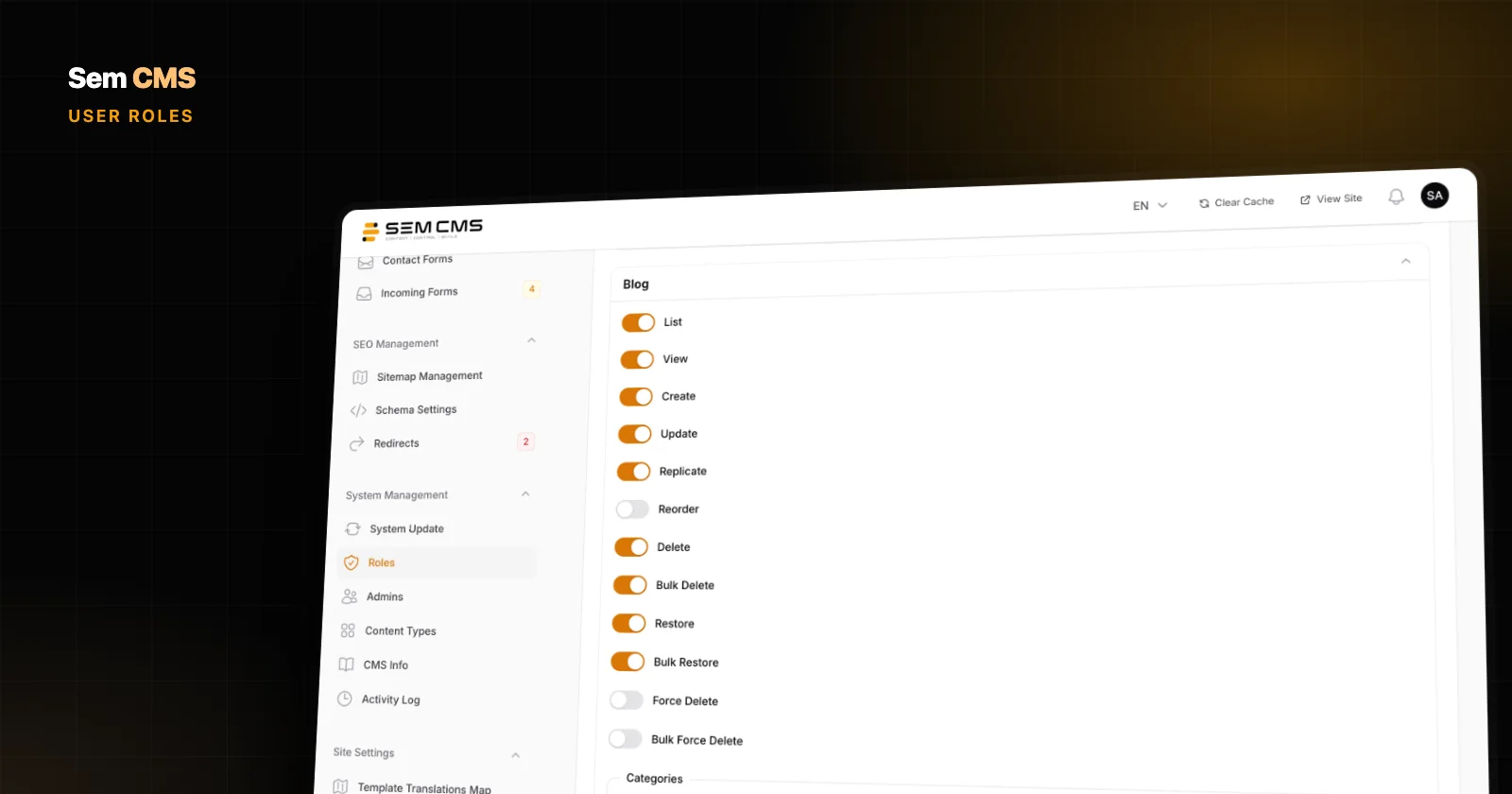
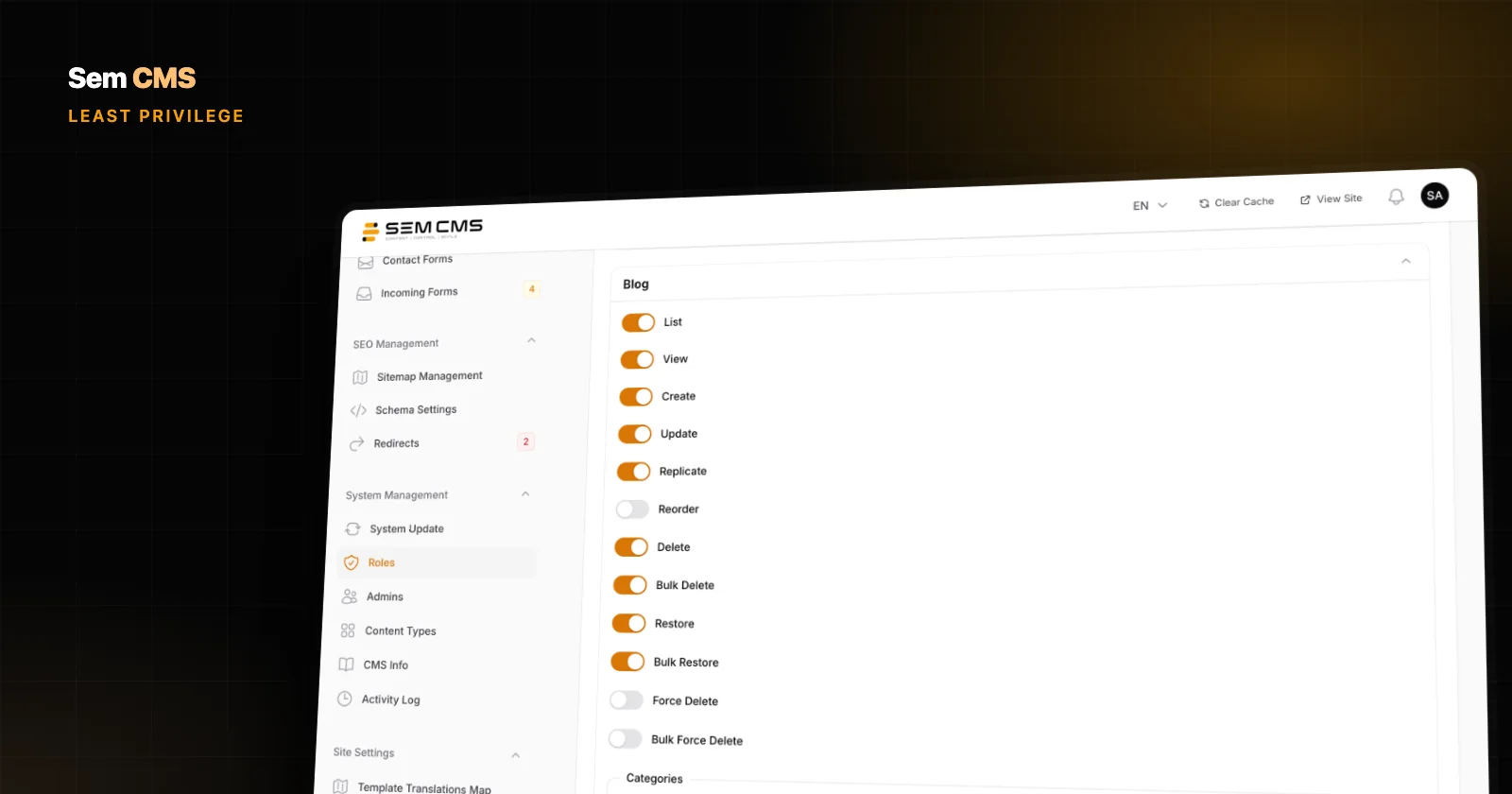
Twelve separate actions for every content area. In the role editor, pages, the blog and every custom content type you create get a section of their own. Each section has separate switches for viewing the list, viewing a record, creating, editing, duplicating, reordering, deleting, bulk deleting, restoring, bulk restoring, permanently deleting and bulk permanently deleting. Areas that use categories and tags repeat the same set as sub-groups, so an editor can edit blog posts without being able to touch blog categories.
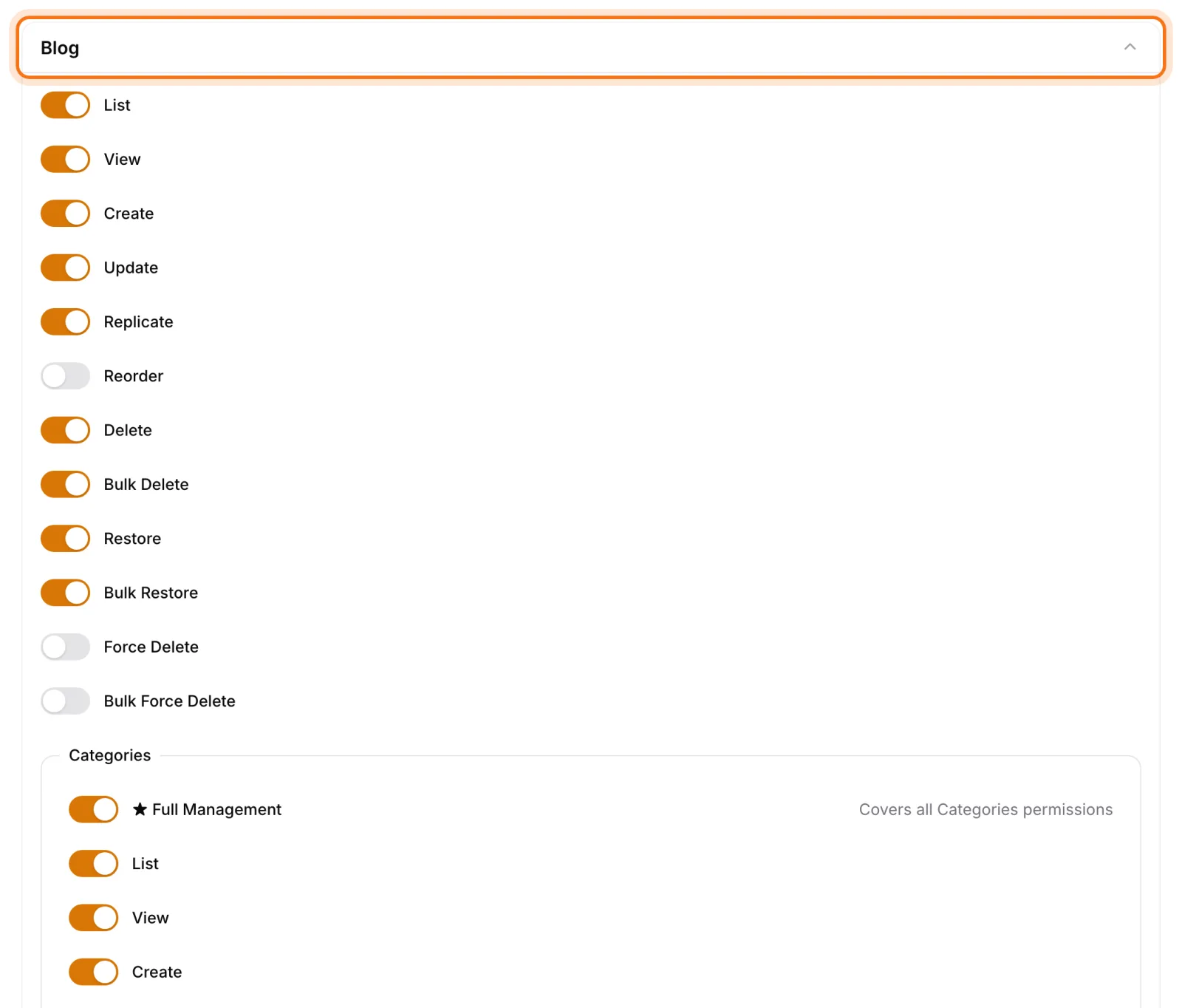
Keeping delete and permanent delete apart pays off in practice. Reserve permanent deletion for administrators, and anything an editor deletes stays in the trash where an authorized user can restore it. For someone you trust with a whole area, the Full Management switch at the top of each section turns on every permission in one click.
New content types arrive with their permissions. When you create a content type such as "Projects" in the panel, its permissions are generated automatically and appear as a new section in the role editor; delete the type and its permissions are cleaned up. Creating and configuring content types is reserved for the super admin, which deliberately keeps changes to the site's structure in a small circle.
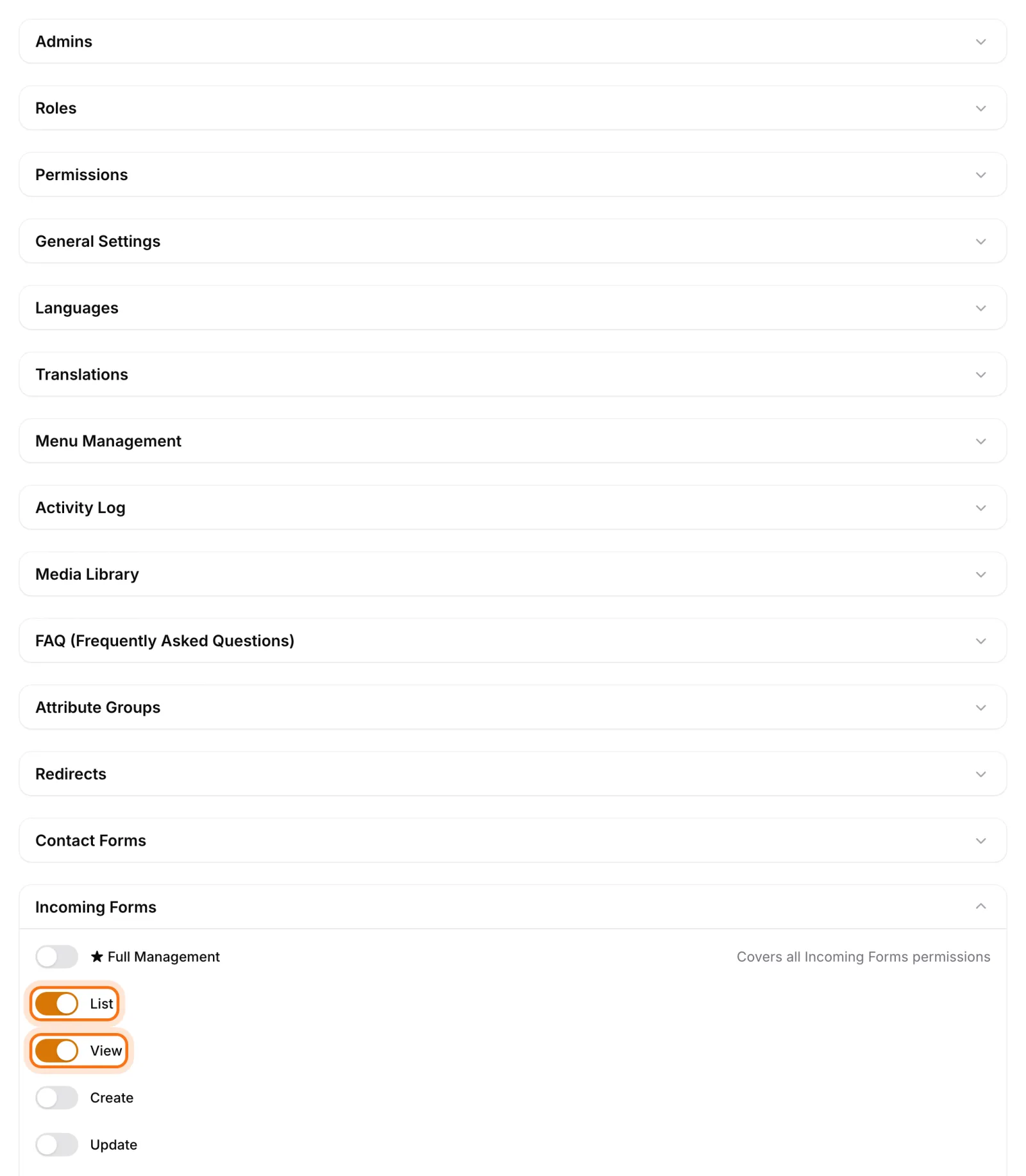
System areas, one by one. Users, roles, permissions, settings, languages, translations, menus, the activity log, media, FAQs, custom field groups, redirects, forms and form submissions are separate permission areas. Your SEO lead can manage redirects and menus while users and settings stay off-limits. Panel access is a permission of its own, too: a role without it can't get into the panel at all.
An escalation guard in role editing. A user who can edit roles but isn't a super admin can only grant permissions they hold themselves. They can't hand out access they don't have by editing a role. The super admin role is locked: it can't be edited or deleted.
One thing to keep in mind: this guard works in the role editor. Assigning roles to users happens on the user edit form. So the advice from the checklist above applies to Sem CMS as well: treat user management as at least as sensitive as role management, and give it only to administrators you trust.
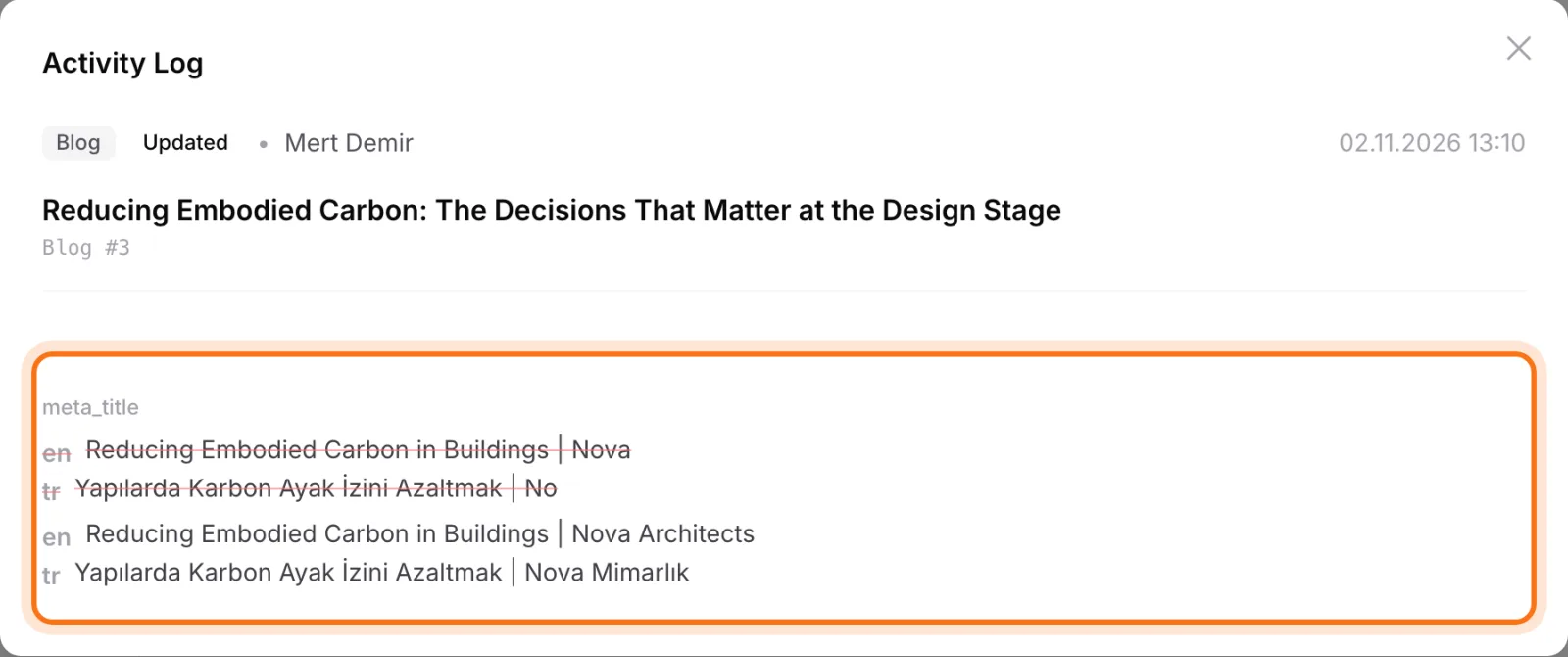
See exactly what changed. The activity log records create, update and delete events on content and pages, with the user and the date. Open an entry and you see only the fields that changed, side by side and per language, with the old value struck through in red and the new one in green. The log covers content and pages only; it doesn't track changes to settings, menus, media or users. That's one more reason to keep permissions for those areas tight.
Permissions in Sem CMS aren't split by language: a user who can edit a content area can edit it in every language. If you work with translators who should only touch one language, manage that through your team's workflow and keep an eye on the activity log.
Bottom line: let the job decide the access, not convenience
Least privilege isn't red tape that slows your team down. It's a simple habit that shrinks the impact of mistakes and compromised accounts. Personal accounts, task-based roles, a small circle for risky actions, a regular review and a change log are enough for most teams, and with a CMS that makes fine distinctions, setting it up takes minutes.
See the role editor and activity log with screenshots in Roles and permissions. For how permissions fit into overall site security, read our CMS security best practices, and see how new content types come with their own permissions in No-code custom content types. Browse everything on our Features page, or request a demo and we'll map out a role structure for your team.