Most company websites aren't hacked by someone who picked them out. They're found by automated scans. Bots constantly probe for outdated versions with known vulnerabilities, leftover installer files, weak passwords and unprotected forms. A small site is no exception: one day there are links on your homepage you never added, or your contact form fills up with hundreds of spam messages.
The good news is that CMS security mostly comes down to a handful of solid habits. This guide is a practical checklist for protecting a content management system: updates, access, backups, file uploads, forms and monitoring. Then we show how Sem CMS handles each point, and where you still need to add your own safeguards.
TL;DR: Keep the system updated, keep the attack surface small, give everyone a personal account with the least privilege they need, back up code, database and media separately and regularly, protect uploads and forms, delete installation leftovers and monitor the system's health. No system is "secure" on its own; security is the sum of software, server and team habits.
1. Don't delay updates
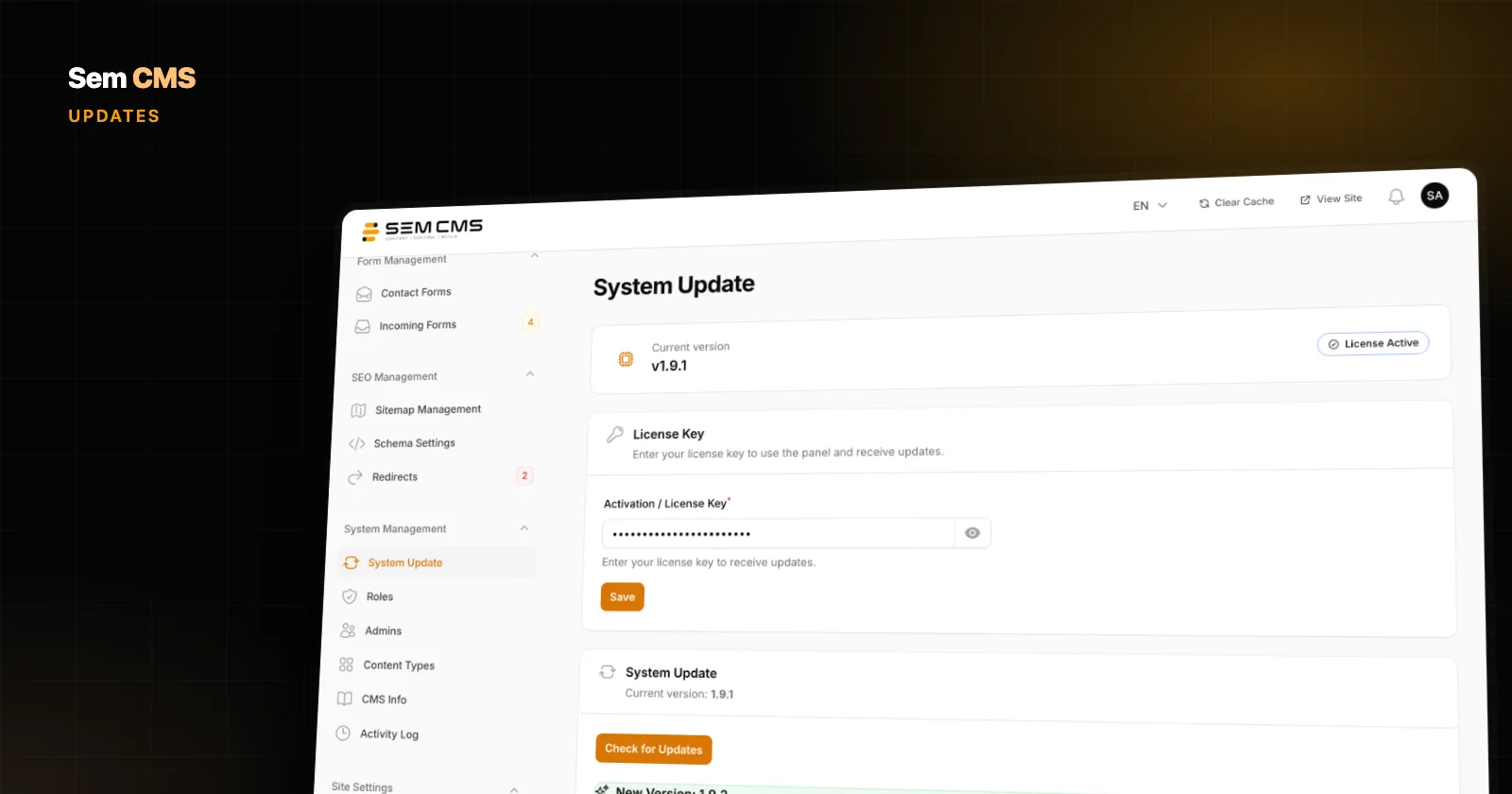
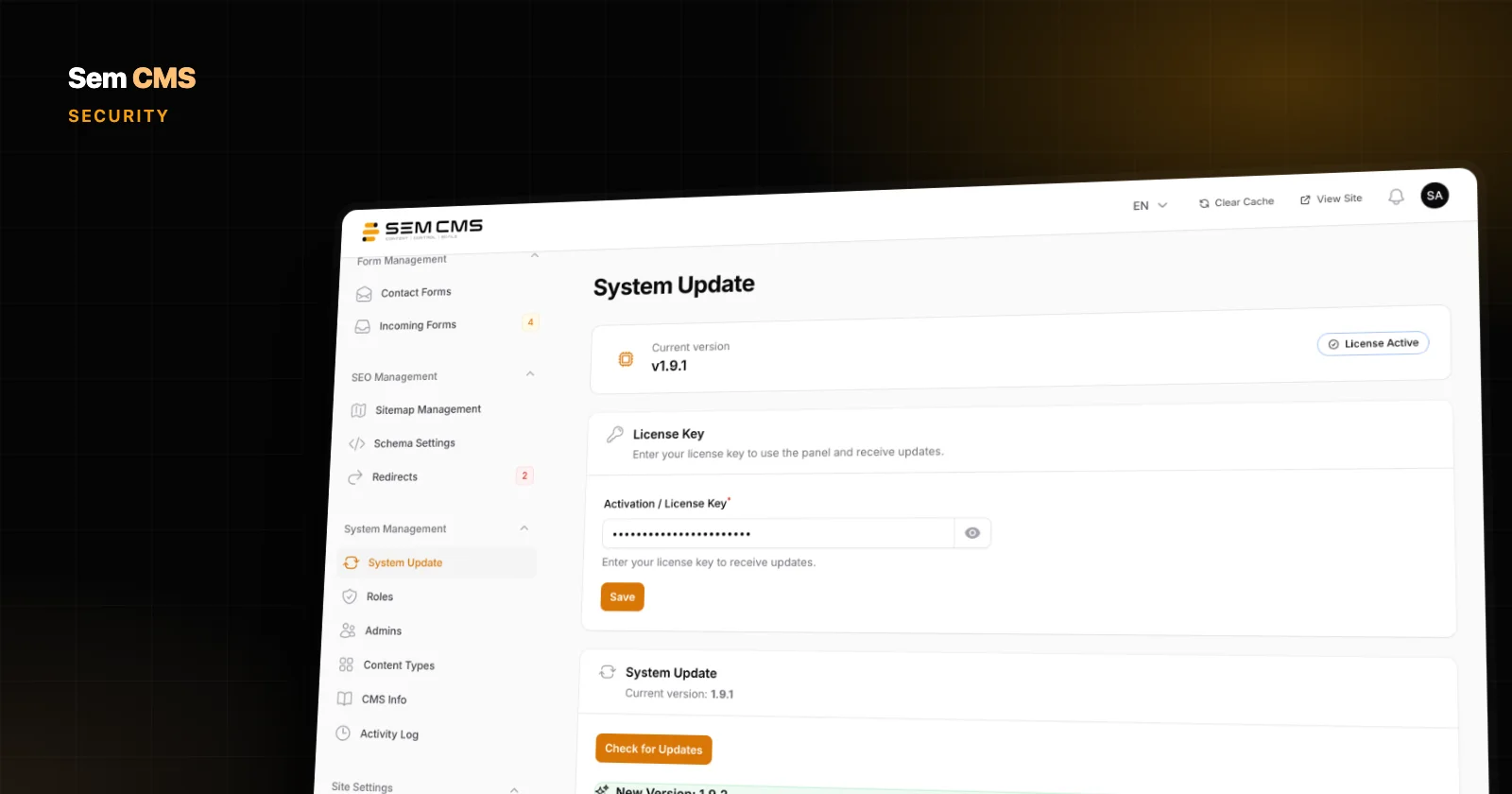
When a vulnerability is published, attackers add it to their automated scans almost immediately. Putting off an update for weeks means spending the period when the flaw is public knowledge with the door open. The real reason updates get postponed is usually fear: "If I update, the site will break." That's why a safe update process matters as much as security itself: a backup before the update, a rollback if something fails, and customizations that survive.
2. Keep the attack surface small
Every plugin, every unused module and every third-party script is a potential way in. On plugin-based systems it's normal for a site to run code from dozens of different developers, each of which has to be kept up to date on its own. Remove plugins you don't use, and where you can, prefer a setup where the features you rely on are part of the core.
3. Lock down access
- Give everyone a personal account. No shared logins.
- Use long, unique passwords, and give the team a password manager.
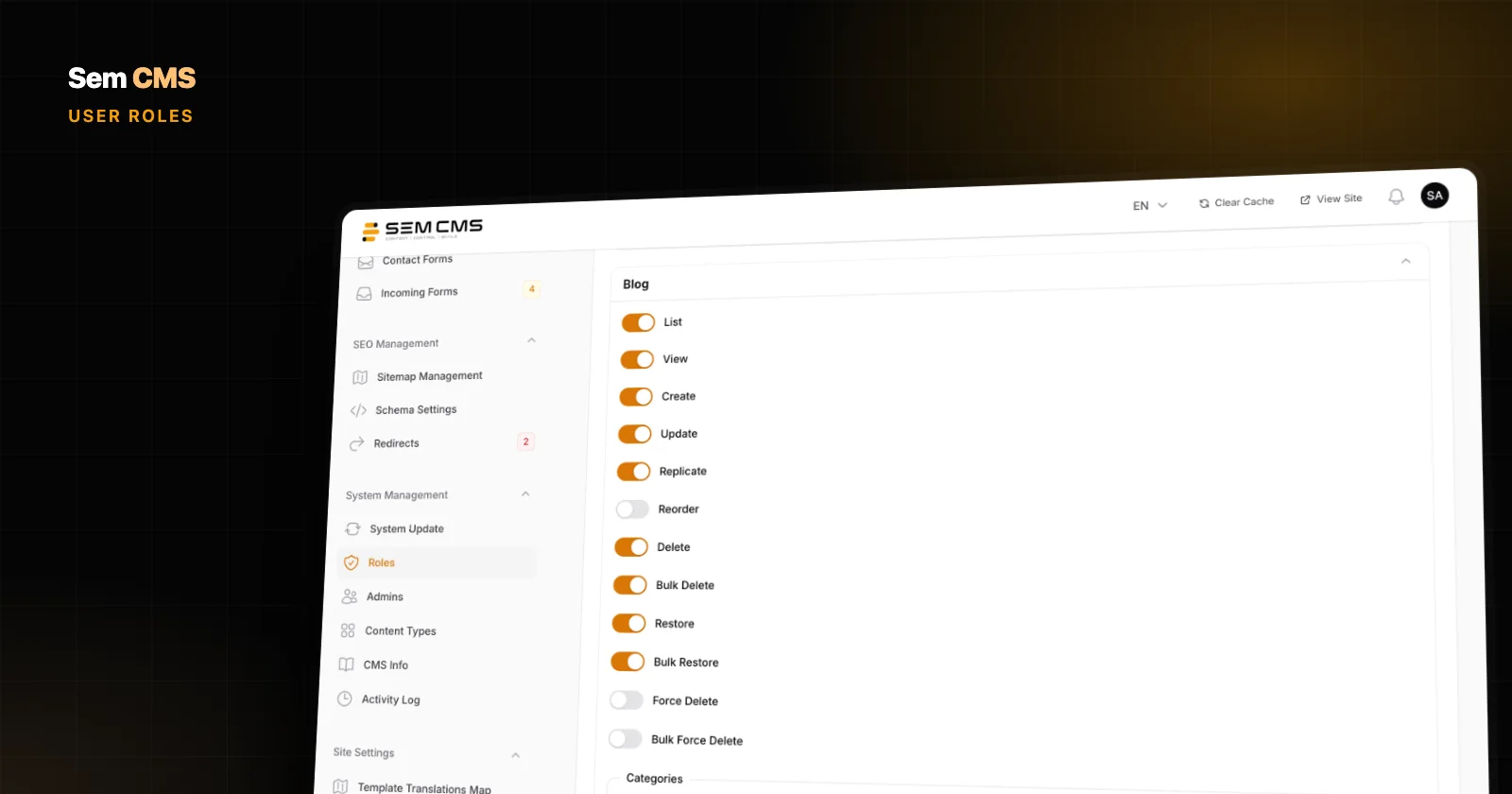
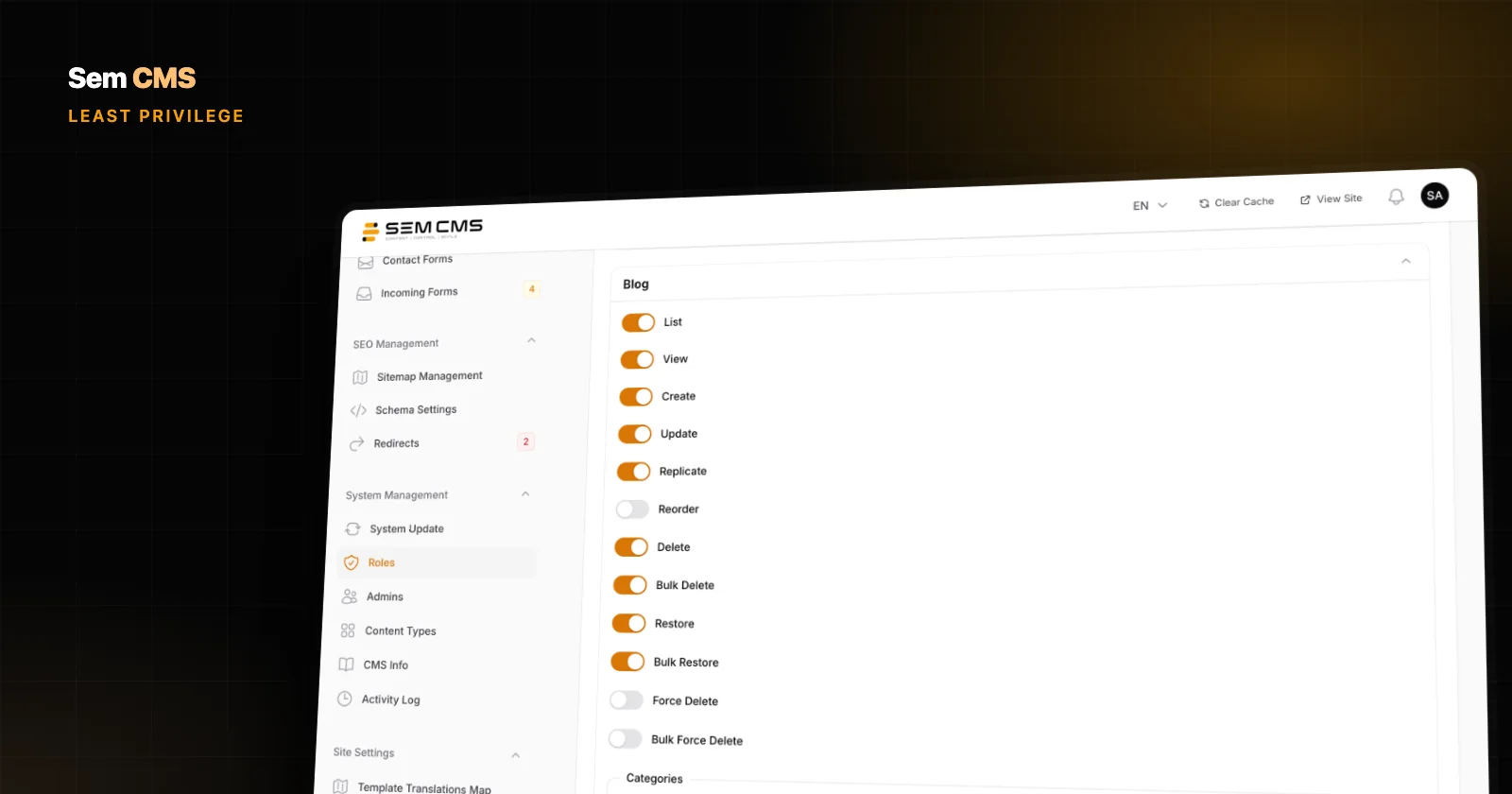
- Grant each user only the access their job requires. Our guide to least privilege for content teams walks through it.
- Close accounts on the day someone leaves.
- Make sure login attempts are rate-limited; unlimited attempts invite brute-force attacks.
4. Think of backups in three layers
A website is made of three parts: code, database and uploaded files (media). In a real disaster you need all three. The common 3-2-1 rule says to keep three copies of your data, on two different types of storage, with at least one off-site. Having backups isn't enough, either. Every so often, actually try restoring from one.
5. Make file uploads safe
Upload fields are among the most abused entry points. Limit the allowed file types, set a size cap and pay special attention to formats that can carry scripts, SVG in particular. An SVG file looks like a harmless logo, but a script embedded inside it can run in the browser of anyone who opens the page.
6. Protect forms and content output
Forms are a natural target for spam and abuse. Rate-limiting submissions, cross-site request forgery (CSRF) protection and server-side validation are the baseline; sites under heavy spam may want an extra layer such as a captcha. The same logic applies to content output: rich text entered by editors should be cleaned of malicious code before it's rendered on the page. Otherwise a single compromised editor account can serve malicious scripts to every visitor.
7. Clean up after installation
Setup wizards, helper files that display server information and test scripts tend to be forgotten once the job is done. They hand attackers useful details: server versions, file paths, installed extensions. Delete them when installation is complete, and make sure detailed error messages are never shown to visitors.
8. HTTPS, server and monitoring
Serve the whole site over HTTPS, and keep the server software and hosting environment up to date. Check that the web server only exposes the folder that's meant to be public. Finally, keep an eye on the system: pending updates, whether scheduled tasks are running, and unexpected changes.
How Sem CMS handles these points
Below is how the checklist above maps to Sem CMS, separating what the system takes care of from what remains on your side.
Safe updates and verified packages
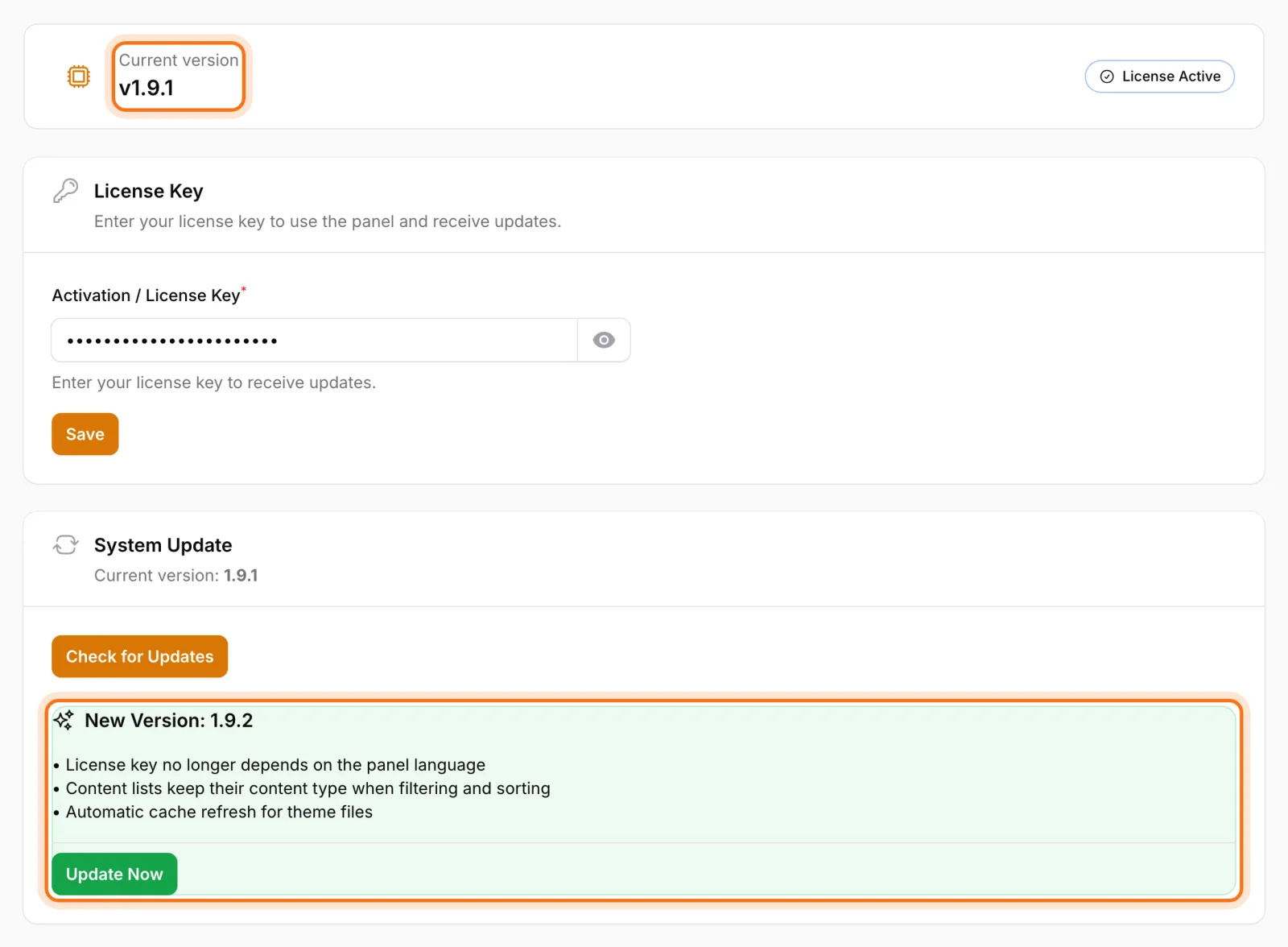
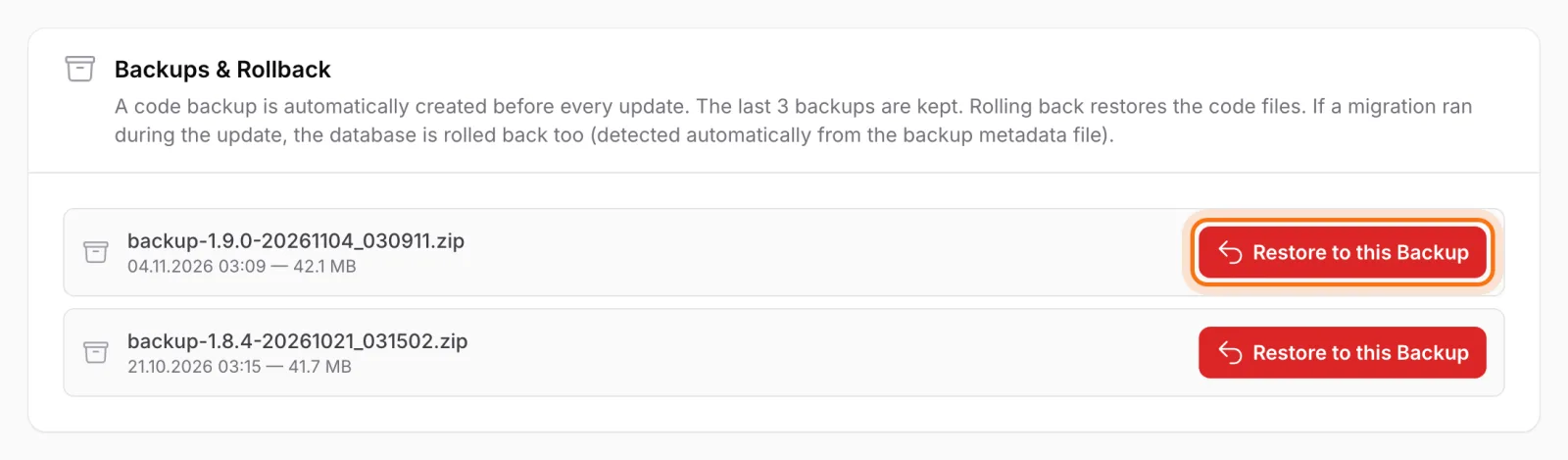
Sem CMS updates run from the panel with one click, in the background, with a live progress bar. Update packages are downloaded only from the address the license server approves, and each package's integrity is checked before it's installed. Before every update the code is backed up automatically, the last three backups are kept and the site switches to maintenance mode during the update. If something fails, the system rolls back on its own. Files you've customized are detected and not overwritten. The system checks for new versions every day and notifies administrators in the panel when one is available.
One important caveat: these automatic backups cover code only. Keep your hosting provider's backups switched on for the database and uploaded media, or run your own regular backups. The three-layer backup rule above applies to Sem CMS too.
The installer helper is removed on every update
The helper file used during installation to check server compatibility isn't included in update packages, and it's deleted from the server after every successful update. A file that reveals server details can't be forgotten and left exposed.
Features in the core
Redirect management, sitemaps, structured data, the form builder, the media library and role management are part of the core, so the essentials don't depend on separate plugins that each need patching. Themes aren't part of core updates and have their own update channel.
Access and permissions
Repeated failed login attempts on the panel are rate-limited. The panel address can be set to a path of your choice during installation. Panel access is a permission of its own; every content area has 12 separate actions, and system areas have their own permissions. A user who can edit roles but isn't a super admin can't hand out permissions they don't hold by editing a role. Because roles are assigned to users on the user form, we recommend keeping user management in a small circle as well. Changes to content and pages are recorded in the activity log with their old and new values.
File uploads and content output
The media library accepts only specific types (JPEG, PNG, WebP, SVG, PDF) up to about 10 MB. Uploaded SVG files are sanitized automatically: scripts, iframes and embedded objects, event-handler attributes and javascript: links are stripped out. In the default templates, rich text in blog posts and content items is also cleaned of dangerous attributes and links before it's rendered on the page.
Contact forms
Form submissions are limited to five per minute and come with CSRF protection. Fields are validated on the server, and file fields are limited to 10 MB and specific types. Each submission stores the language and the IP address. Sem CMS forms don't include a captcha or honeypot; if a site attracts heavy spam, consider an extra safeguard such as a firewall rule at the hosting or CDN level.
Monitoring
The CMS Info page shows the version, when scheduled tasks last ran, queued jobs and the storage link status, and checks whether the web server exposes only the public folder. The system health widget on the panel dashboard helps you spot problems early.
Bottom line: security is a process, not a feature
A CMS is only as secure as the way it's run. An update process that makes staying current easy, a small attack surface, tight permissions, sanitized uploads and protected forms belong on the system side. Regular database and media backups, strong passwords, HTTPS and an up-to-date server are on yours. When both sides do their part, you stop being an easy target for automated scans.
See the update and rollback process with screenshots in One-click CMS updates, the permission model in Roles and permissions, and SVG sanitizing and upload rules in Media library. Browse everything on our Features page, or request a demo to talk through your security questions.