Images make up most of a web page's weight. An editor uploads a 4 MB photo straight from their phone, the theme serves that same file to desktops and phones alike, and the page crawls. The alt text stays empty, an SVG logo slips in carrying a script nobody noticed, and when traffic grows every file is still served from a single server.
Most of these problems have little to do with how careful your editors are and a lot to do with what your content management system does with images. In this post we look at the Sem CMS media library: how files are managed, how the site automatically serves the right size in WebP, how SVG files are cleaned, and why moving to a CDN is a single switch.
What the Sem CMS media library gives you
- One home for every file: JPEG, PNG, WebP, SVG and PDF uploads up to about 10 MB, reusable across all your content.
- Descriptive fields: Alt text, title, caption and description for every file.
- Automatic responsive WebP: Visitors get a WebP image sized for their device, while your original file is kept exactly as uploaded.
- Crops and presets: Thumbnail, medium and large crops from the same image.
- Safe SVG: Uploaded SVG files are stripped of anything dangerous automatically.
- One-switch CDN: Media links are served from your CDN without touching a single template.
Every file in one place
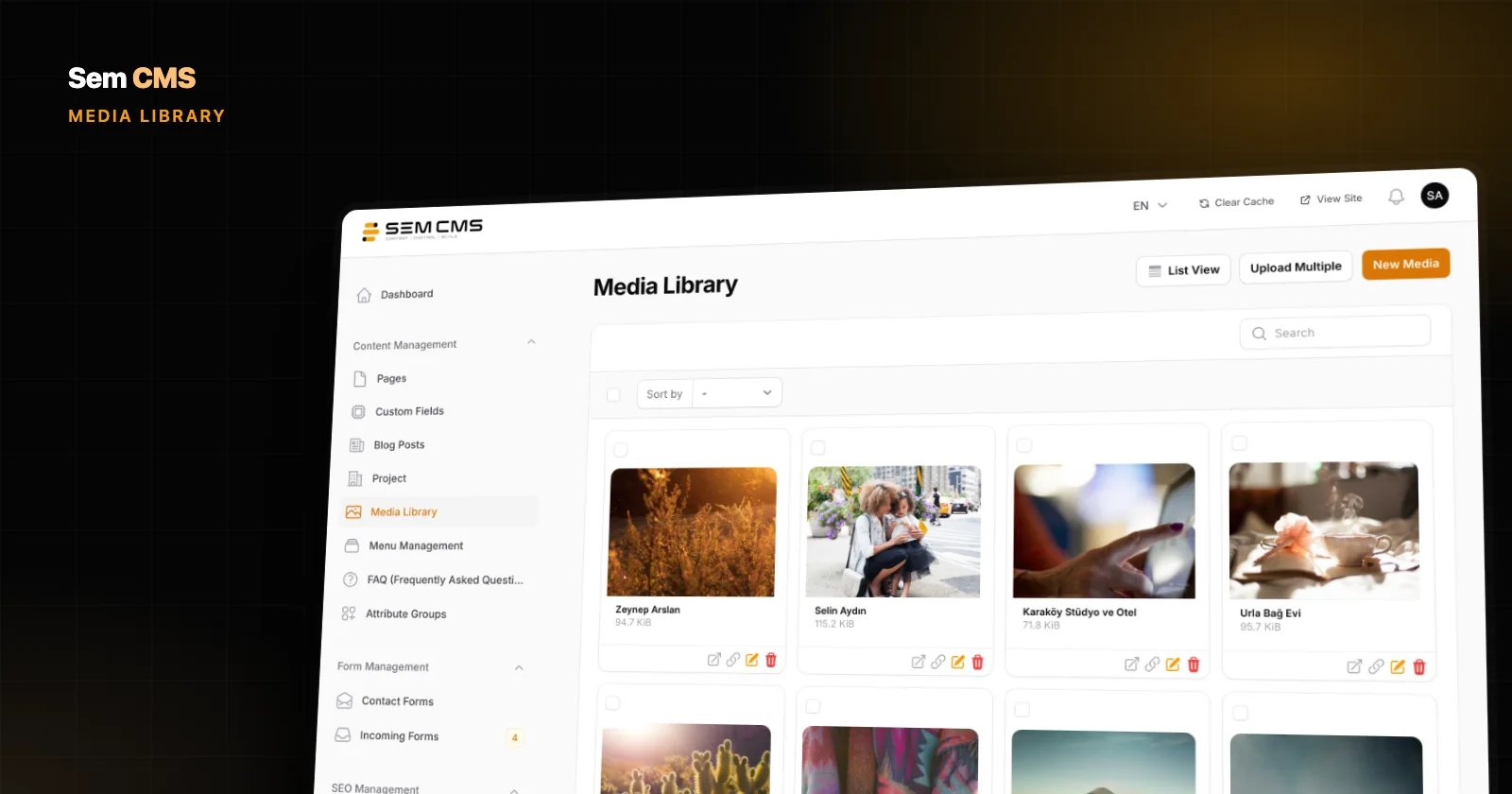
The Media Library, under Content Management in the panel, is where all your site's images and documents live. Files open in a grid view by default, so you find the right image by its preview rather than by guessing at file names. Any file can be opened in a new tab, and its link copied with one click.
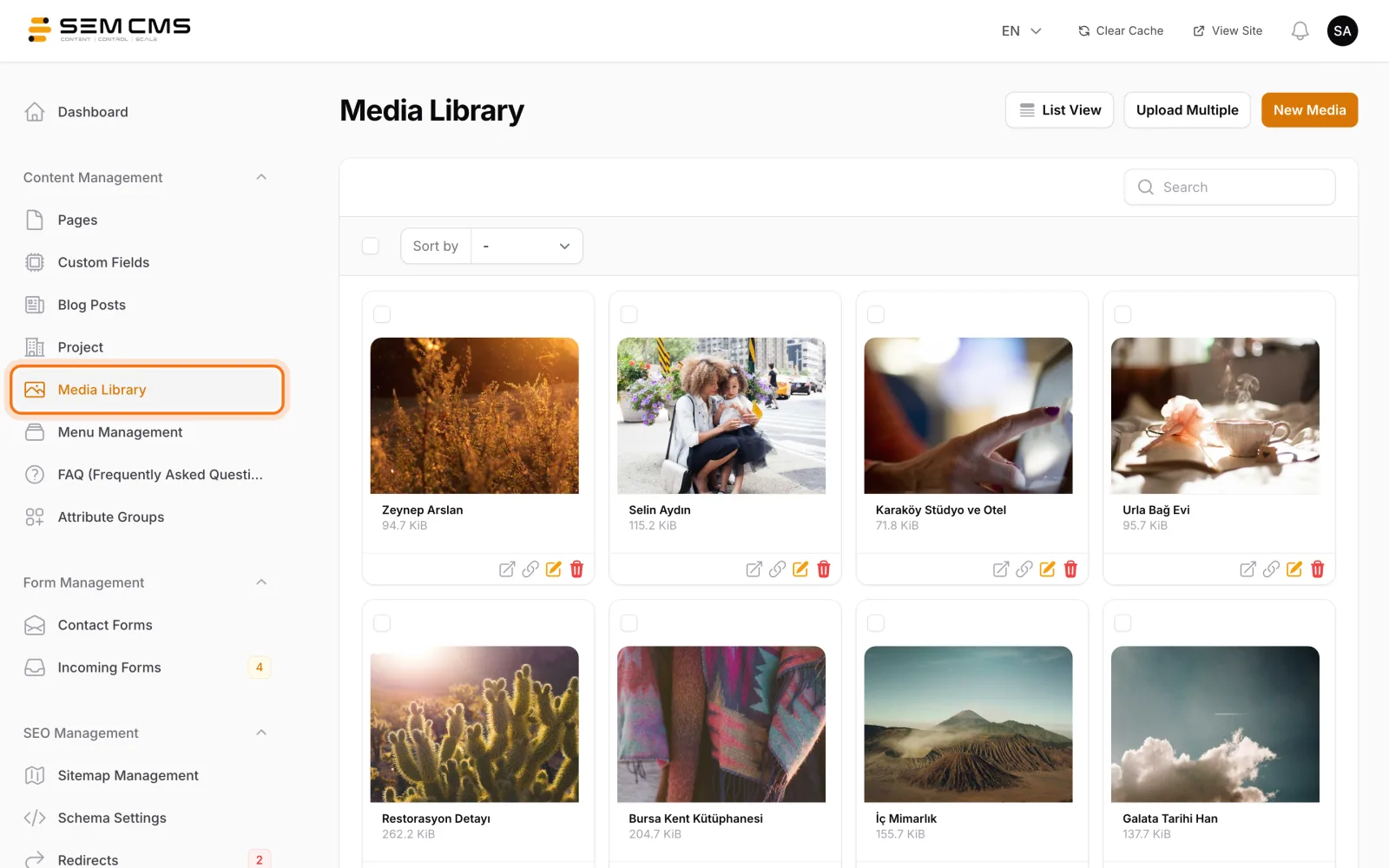
The image fields on blog posts, pages, categories and custom content types all draw from the same library. Upload a project photo once, then pick that same file on the project record and on the blog post that tells its story. You don't end up with five copies of the same image on the server.
Alt text, title and caption travel with the file
Each file's edit screen has fields for alt text, title, caption and description. They are stored with the file itself, so wherever you use the image, its descriptive information comes along.
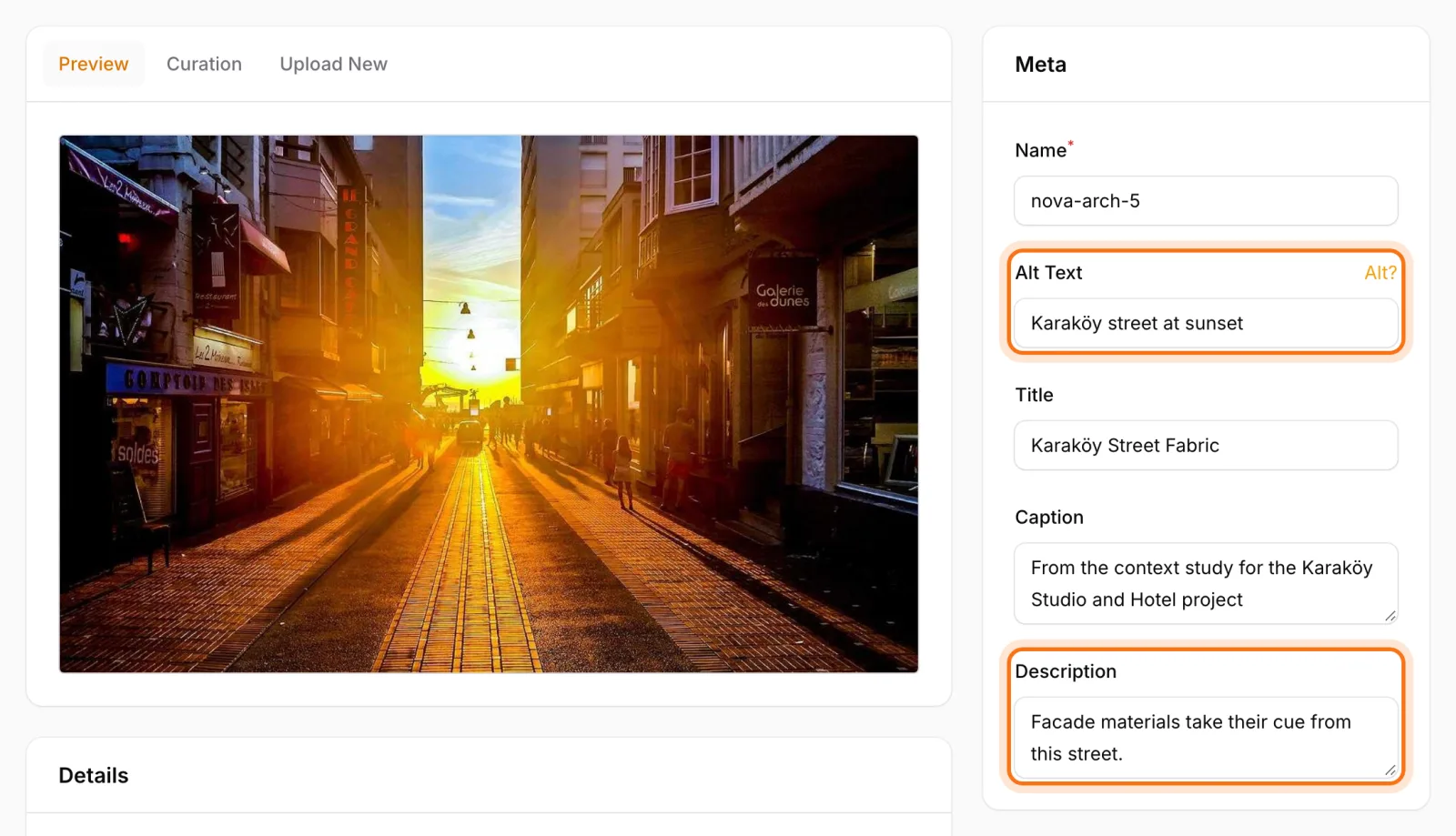
Why bother with alt text? Visitors using screen readers rely on it to understand what an image shows, and search engines use it to understand the image too. Traffic from Google Images depends heavily on well-written alt text.
Sem CMS's default templates use the library's alt text when they render a featured image. If the alt text is empty, the content's title steps in. Even an image uploaded by an editor in a hurry never reaches the page without a description.
Your original stays intact, visitors get the right size
Sem CMS does not compress or shrink your file on upload; the original is stored exactly as you sent it. That's deliberate. If you later want to use a print-quality photo on a large hero section, there is no resolution that was thrown away at upload time.
The clever part happens on the visitor's side. When a theme renders images through Sem CMS's shared image component, every library image is offered to the browser in four WebP widths: 400, 800, 1200 and 1600 pixels. A phone downloads the small one, a wide desktop screen the large one. Editors don't have to do anything.
- Generated once: Each size is created the first time it's requested and saved to disk. Every visitor after that gets the ready-made file.
- Kept fresh: Replace the source image and its variants are regenerated.
- Never upscaled: A 900-pixel original will never be stretched into a blurry 1600-pixel copy.
- Lazy loading: The component adds
loading="lazy"by default, so images below the fold load only when the visitor scrolls to them.
The difference is significant. In our testing, the WebP variants came out 76 to 79 percent smaller than the same image served as PNG. For a mobile visitor, that means less data and a faster page, and page speed affects both user experience and how you perform in search.
Security was part of the design as well. Widths come from a fixed list, so nobody can request thousands of arbitrary sizes to keep your server busy generating images. And if the server can't produce WebP, visitors see the original file instead of a broken image.
Crops and presets
Sometimes you need a specific frame rather than the whole picture: a square thumbnail on a listing page, say, or a wide cover strip. The curation tools on the media edit screen let you create different crops from the same image. Presets include a thumbnail, a medium size at 800 pixels wide and a large size at 1200 pixels wide, with the medium and large sizes produced as WebP.
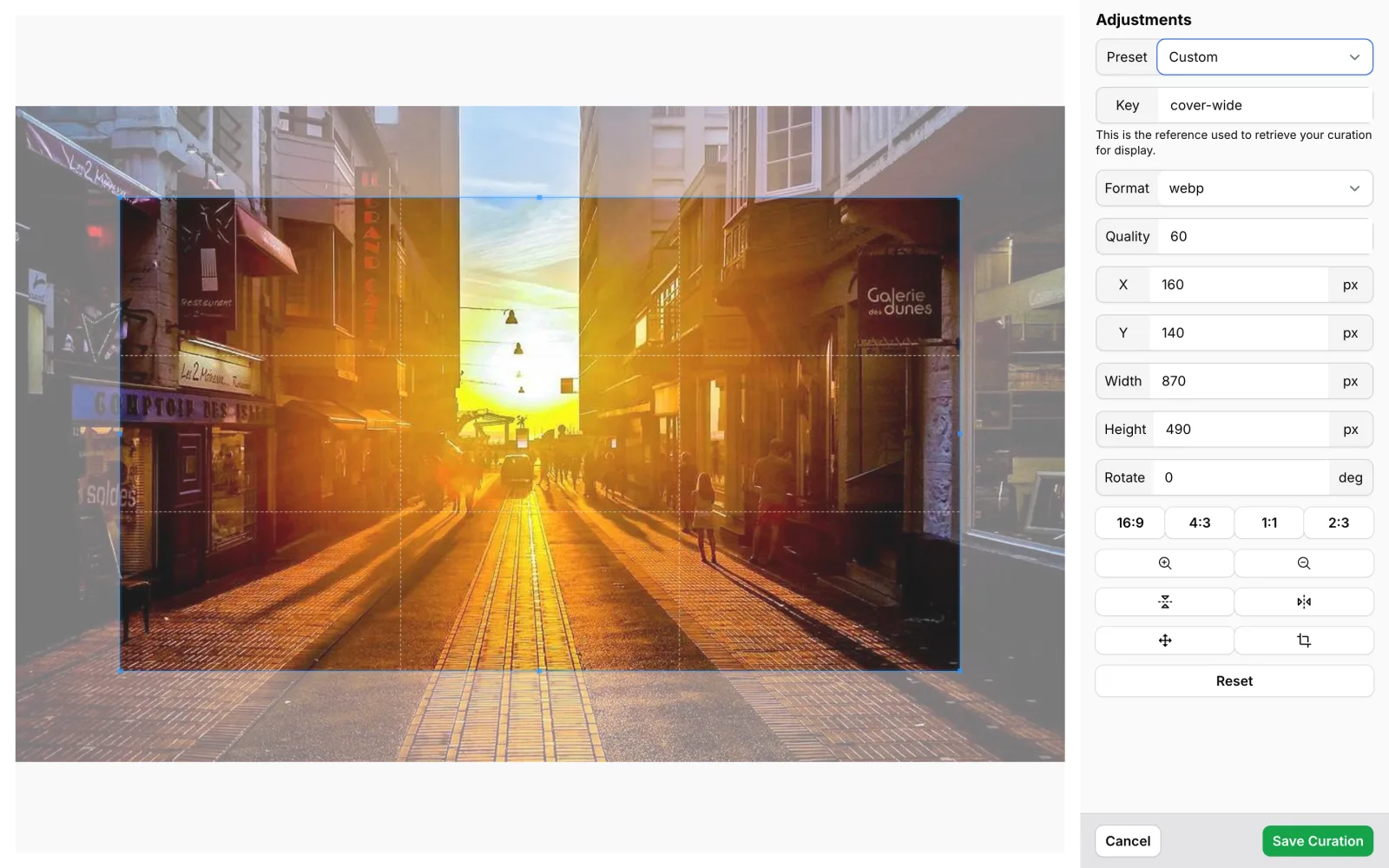
Crops can be saved as JPG, PNG, WebP or AVIF. Your original is still untouched; crops sit alongside it as separate files.
Uploading SVG is no longer a security risk
SVG logos and icons are indispensable because they stay sharp at any size. But an SVG isn't really an image, it's a text document, and it can carry embedded scripts. A single malicious or carelessly exported SVG is enough to run code in the browser of everyone who visits your site.
Sem CMS sanitizes every SVG uploaded to the library. The following are removed:
script,iframe,foreignObject,embedandobjectelements,- every event attribute starting with
on, such asonclickandonload, - links starting with
javascript:ordata:.
You can upload whatever your designer sends without inspecting it line by line. The visible artwork stays; the dangerous parts go.
Moving to a CDN: one switch, zero template changes
As a site grows, serving images from servers close to each visitor, in other words using a CDN, starts to matter. In many systems that move means rewriting addresses in templates or installing yet another tool.
In Sem CMS you open the System tab in Settings, turn on Use CDN and enter your CDN's base URL. From the moment you save, media file links are generated through the CDN address. No template file is changed.
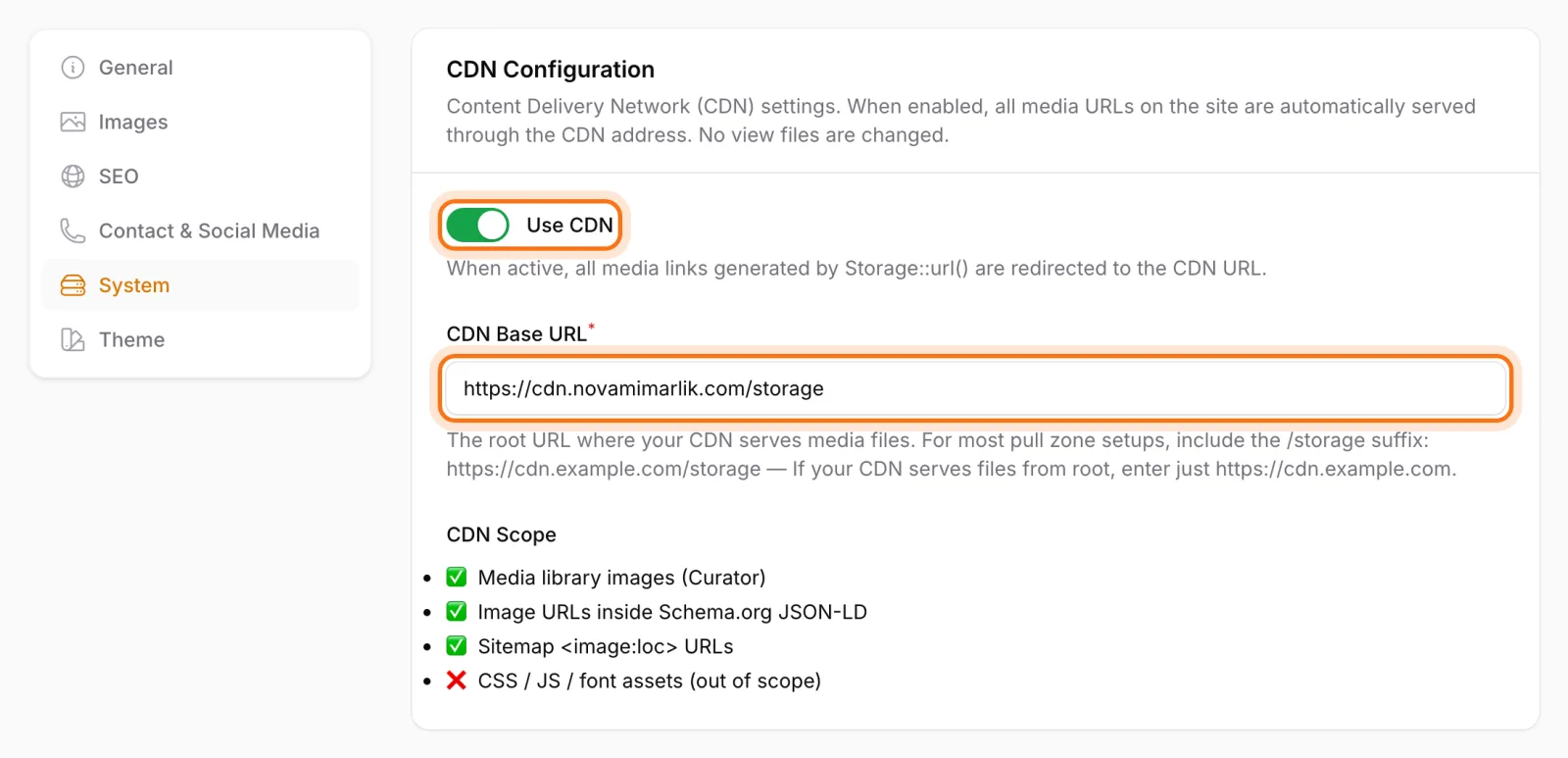
The scope goes beyond the images on the page. Image URLs inside structured data (JSON-LD) and image entries in your sitemap use the CDN address too. Theme assets such as CSS, JavaScript and fonts stay out of scope, and the screen says so plainly. The setting is shared across all languages, so you only switch it on once.
Images are part of your SEO
A well-prepared image in the media library pulls its weight in search and on social media, not just on the page:
- A content item's featured image becomes its 1200×630 Open Graph image when it's shared.
- Sitemaps include image entries that you can turn on or off per content type, helping Google discover your images.
- Alt text supports both accessibility and visibility in image search.
Bottom line: let the system handle images, not your editors' memory
A good media library doesn't create work for editors; it does the work for them. In Sem CMS your original file is preserved while visitors get a WebP version sized for their device, featured images in the default templates fall back to the content title when the alt text is left blank, SVG files are cleaned on upload, and a CDN is one switch away.
For more on how images help in search and on social media, read our posts on the SEO-friendly CMS and automatic XML sitemaps; to see how themes render images, see our theme system post. The full list is on the Features page, and you can request a demo to see the media library with your own content.