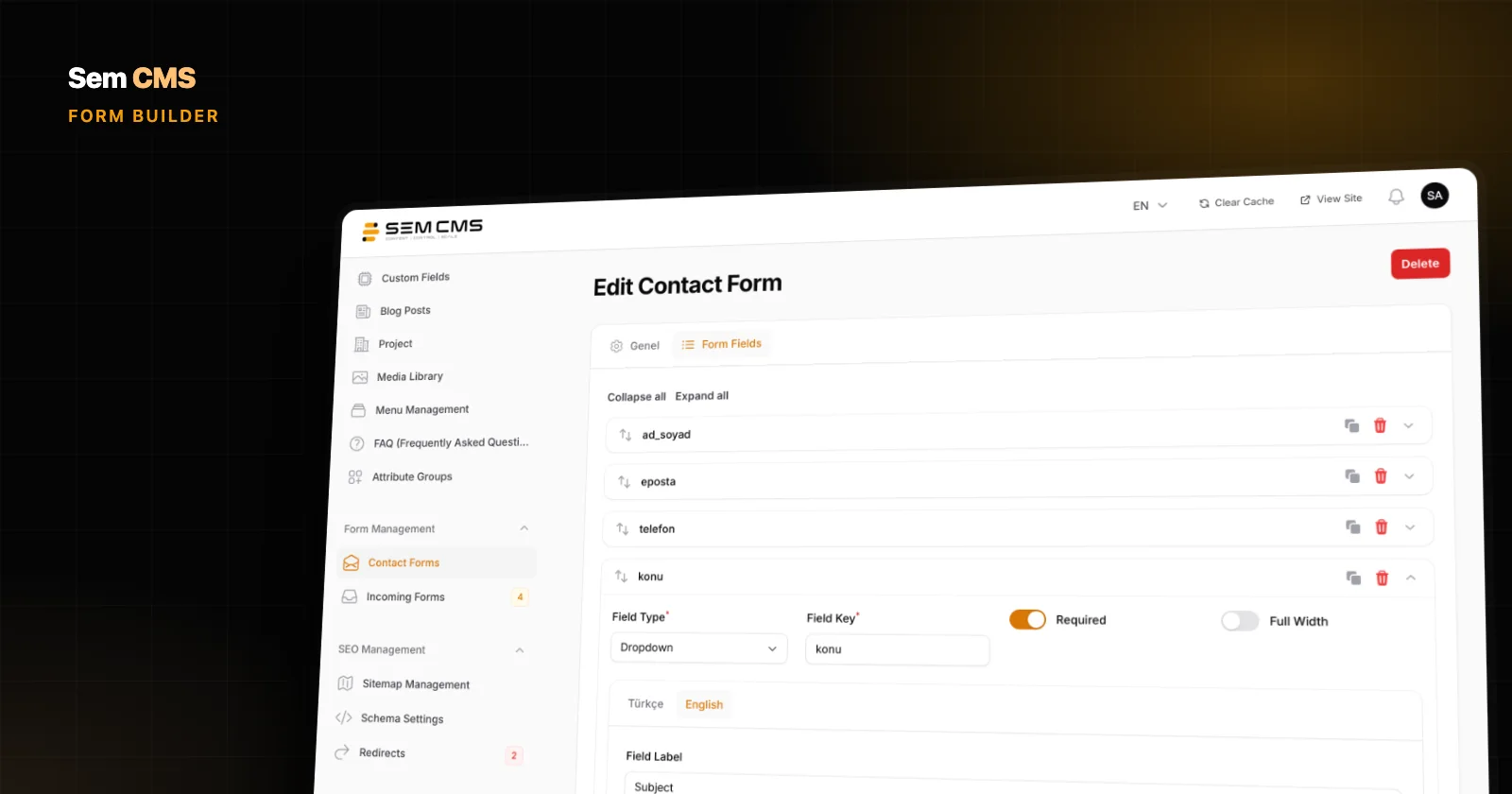
The most valuable pages on a website are often the plainest ones: the contact form, the quote request, the job application. These forms turn visitors into customers, yet on many sites they're either hard-coded or run by a separate plugin. Adding a field means emailing a developer, fixing a label on the English version means hunting for yet another settings screen, and enquiries get buried in someone's inbox.
In Sem CMS, forms are part of the panel. You build fields with drag and drop, write labels separately for each language, and incoming enquiries wait for you in the panel with an unread count. This post walks through the Sem CMS form builder and how submissions are handled, with screenshots.
What to look for in a CMS form builder
- No-code setup: Adding, ordering and requiring fields should happen in the panel.
- Multilingual by design: Labels, placeholders and the success message should be written per language.
- Server-side validation: Bad or malicious input should never reach your database.
- Basic abuse protection: Nobody should be able to fire a form hundreds of times a minute.
- A tidy inbox: Submissions should be readable, filterable and exportable inside the panel.
Build form fields with drag and drop
When you create a form in Sem CMS, you add the fields you need on the Form Fields tab. There are eight field types:
- Text
- Phone
- Number
- Long text
- Dropdown
- Checkbox
- File upload
Any field can be required, and each can be shown full width or half width. Half-width fields sit side by side, so "First name" and "Last name", or "Email" and "Phone", share a row and the form looks shorter. Drag fields to reorder them, collapse them to keep long forms manageable, and duplicate a similar field in one click.
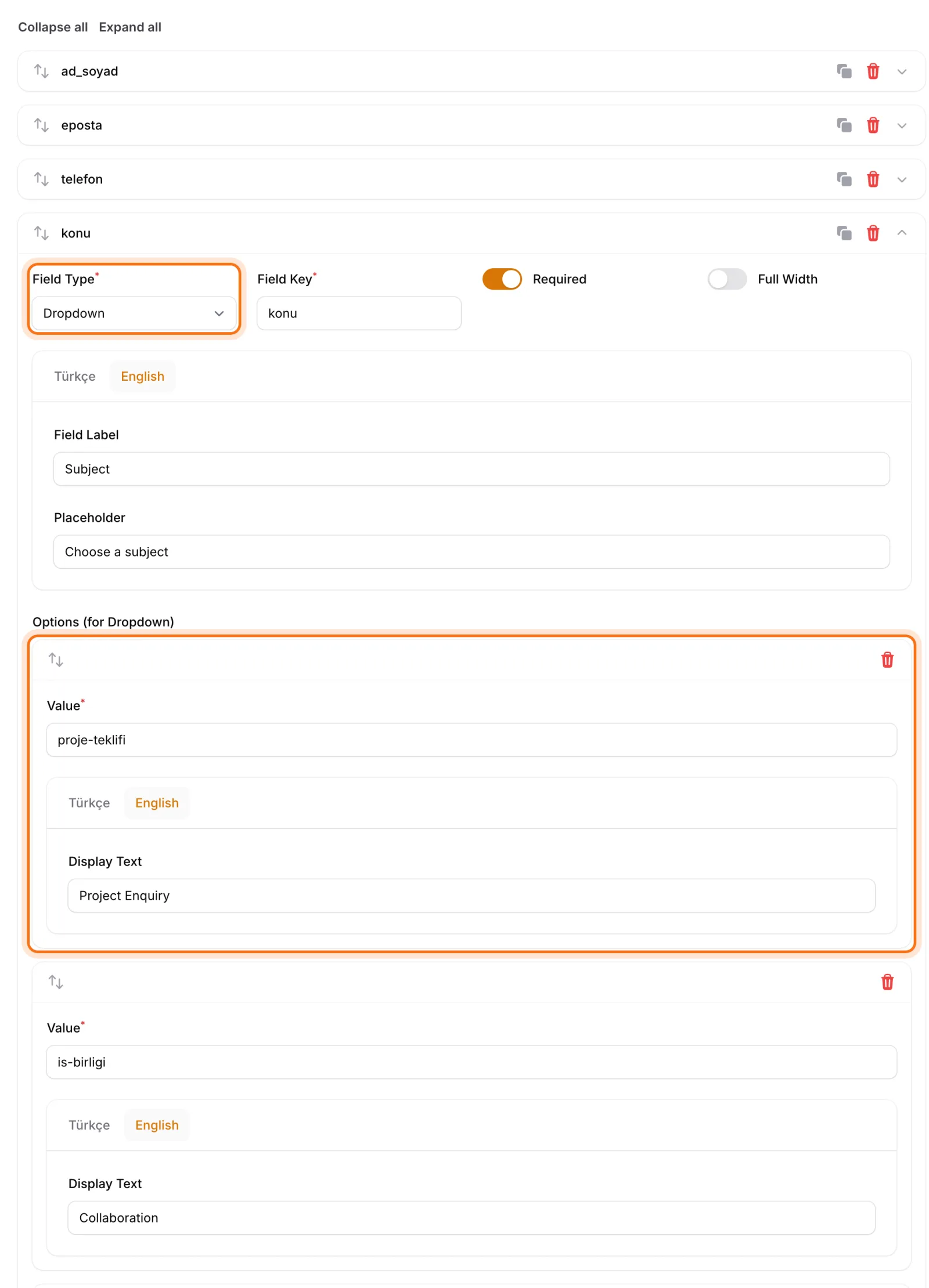
Dropdown options are entered in the panel too. An architecture studio can offer project types like "Residential", "Commercial" and "Interior Design" and know what the visitor wants from the very first message. The question you'd otherwise ask on the phone gets asked in the form.
Labels, placeholders and success messages in every language
On a multilingual site, a half-translated form loses international visitors at step one. In Sem CMS, the form name, success message, field labels, placeholders and dropdown option labels are all written on a separate tab for each language.
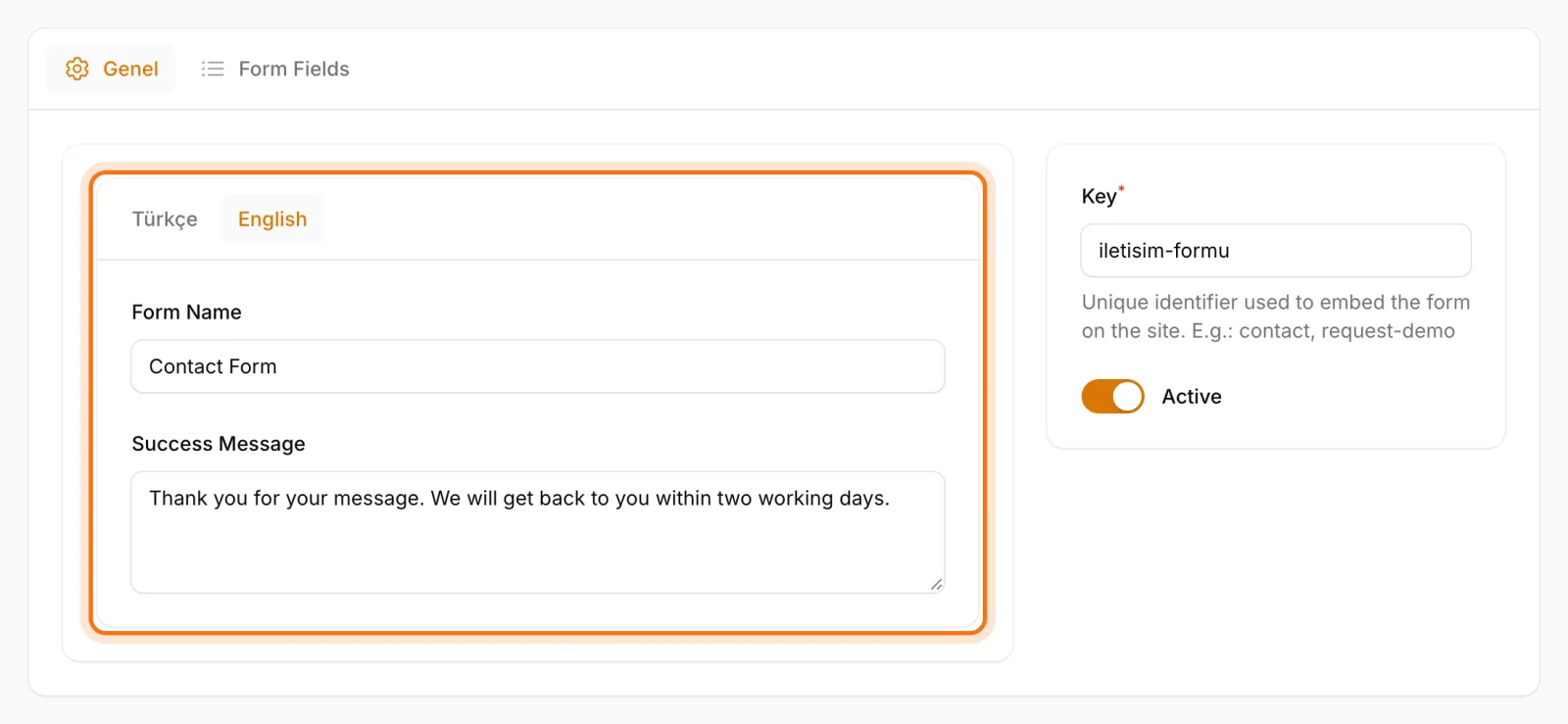
On the English version of your site, the form shows English labels and the visitor reads an English confirmation after sending. Behind the scenes, field keys and option values stay the same, so enquiries from every language land in one consistent table. Our post on multilingual website management explains the bigger picture.
Need to pause a form for a while? Set it to inactive; an inactive form doesn't accept submissions.
Validation and basic security, switched on by default
Checks that run in the visitor's browser are easy to bypass, so Sem CMS validates every submission again on the server:
- Required fields can't be left empty.
- Email fields must contain a valid email address.
- Phone fields only accept a reasonably sized number made of digits, spaces and
+ - ( ). - File uploads accept PDF, Word (doc, docx) and image files (png, jpg, gif, webp) up to 10 MB.
Every submission is also CSRF-protected, and the same source can send no more than 5 submissions per minute. That limit makes it much harder for scripts to flood your inbox or wear down your server by hammering the form. And when your careers form accepts CVs, executable files are kept out. None of these rules needs configuring: pick a field type and the matching validation applies.
Incoming forms: a proper inbox inside the panel
Every enquiry lands on the Incoming Forms screen in the panel. A badge in the menu shows how many are unread, so the moment you log in you know how many new requests are waiting. Filter the list by form, or show unread submissions only.
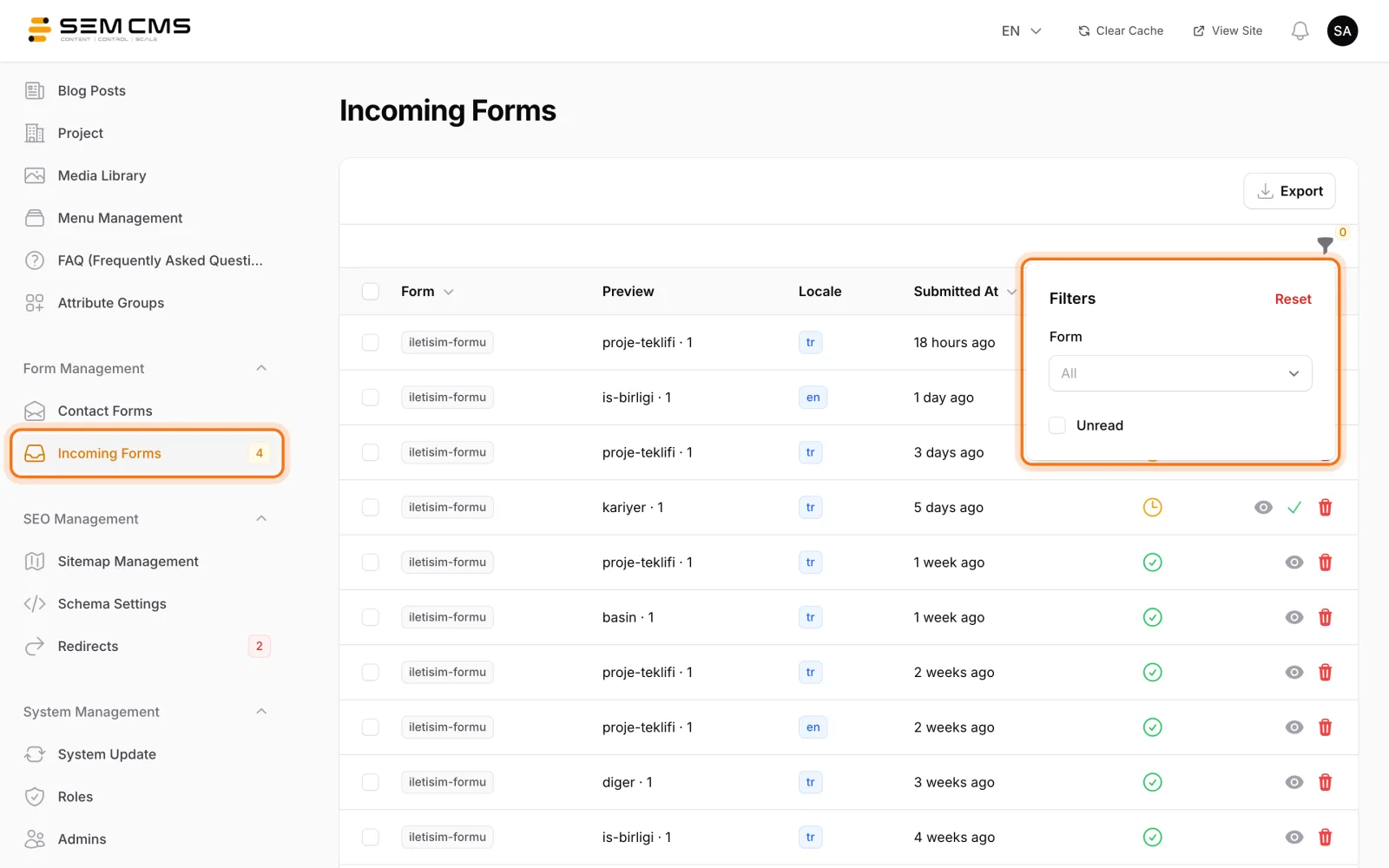
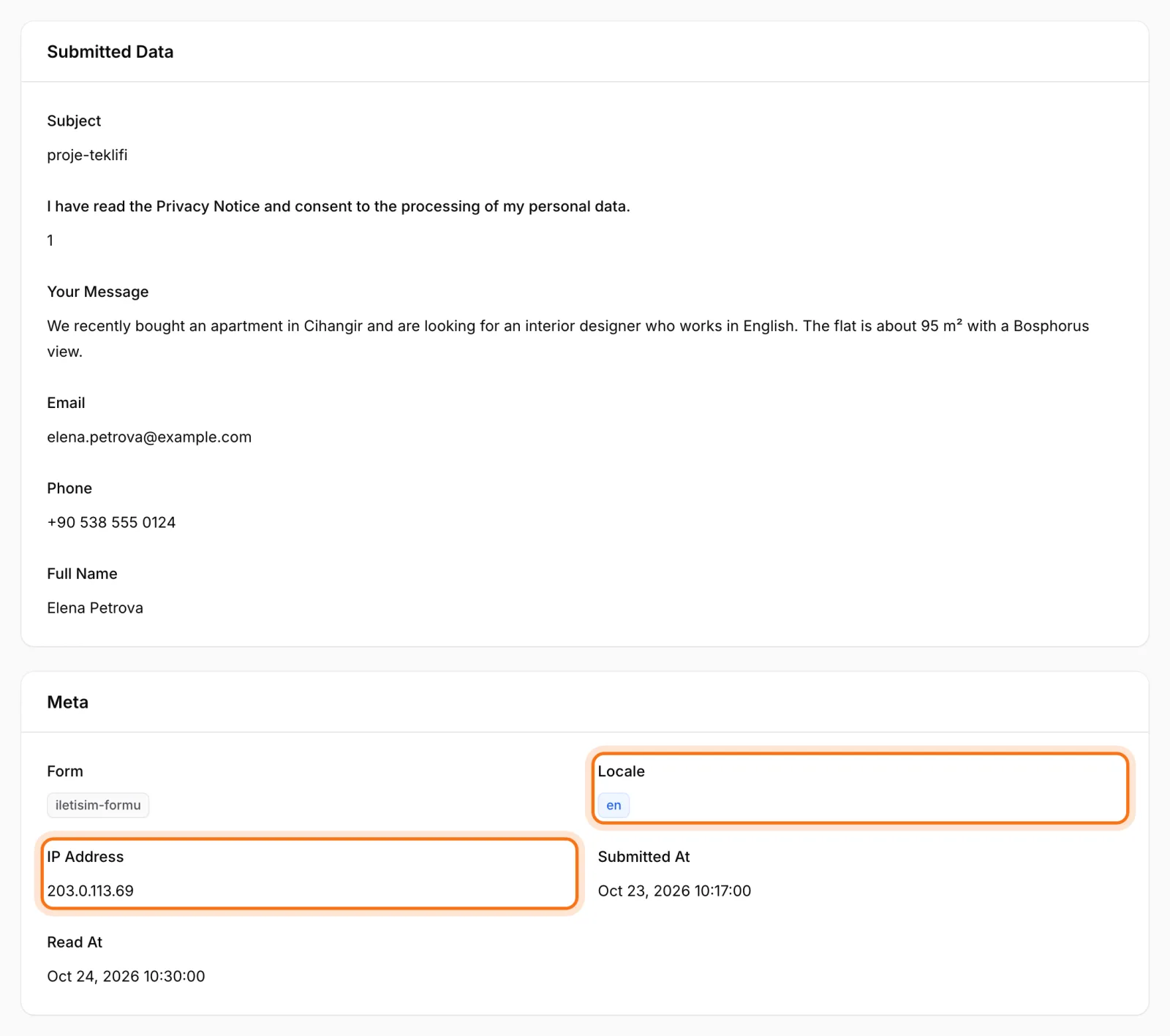
Open a submission and every field is laid out clearly; the submission is marked as read automatically. Each record also stores which language the visitor used and their IP address. You know which language to reply in without guessing, and if something looks suspicious you can see where it came from.
You can also mark a submission as read straight from the list without opening it. When several people share the inbox, everyone can see which requests have been handled, and no customer gets contacted twice.
Export to CSV or TSV
To share enquiries with your sales team or move them into your own customer list, export them. Download submissions for a single form or for all forms as CSV or TSV. Both open directly in any spreadsheet app.
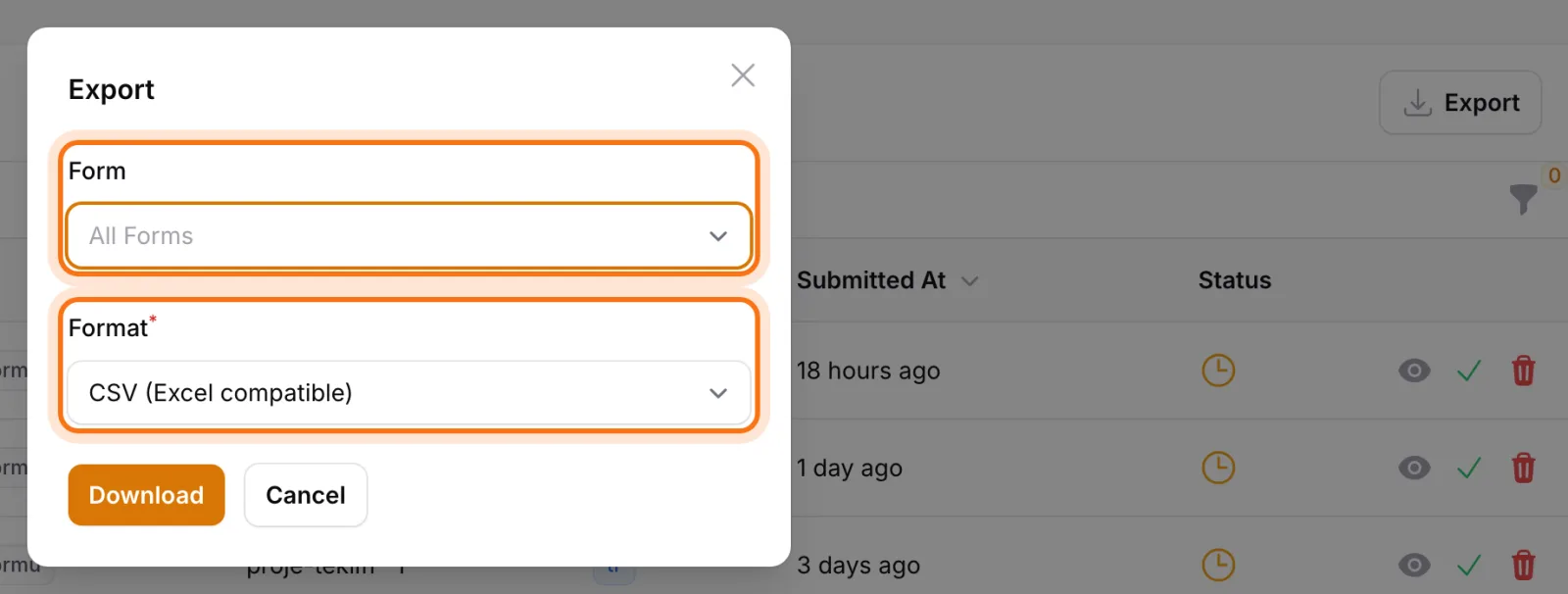
Exporting is tied to the permission system as well: only users allowed to view form submissions can download the data, so your visitors' personal details aren't open to everyone in the panel. We explain how to set who sees what in roles and permissions.
One more safeguard: a form that already has submissions can't be deleted with a single click from the list. One accidental delete won't wipe out months of enquiry history.
Place the form wherever you need it
The theme places a form on any page using the form's key: the contact page, the bottom of a service page, the careers page. Once it's in place, adding fields, changing their order or fixing a label all happens in the panel, and the form on the site reflects those changes on its own. The same form can be used on more than one page.
Example: three forms for an architecture studio
Take the site of Nova Mimarlık, a fictional architecture studio. With the same form builder, the studio covers three quite different needs:
- Contact form: Name and email side by side, an optional phone number and a full-width message field. Short and quick to fill in.
- Quote request: A dropdown for project type (residential, commercial, interior design), a number field for plot or floor area, and a file field for existing plans. The studio understands the scope before the first call.
- Careers form: A dropdown for the position, a text field for a portfolio link, a file upload for the CV and a required checkbox for consent to data processing.
All three run in Turkish and English, and their submissions land in the same inbox, filterable by form. Sales filters for quote requests, the HR lead filters for applications, and each exports just their own form.
Bottom line: forms as manageable as the rest of your site
The Sem CMS form builder frees your contact and application forms from plugins and developer tickets. You build fields in the panel, write text for each language, validate every submission on the server and manage all enquiries in one inbox with unread tracking, filters and export.
Want to see forms working with your own scenario? Request a demo. Browse everything else on our Features page, or use the form on our contact page if you have questions.